Advanced Error Handling in Power Automate Cloud Flows
In this series: Power Automate gotchas
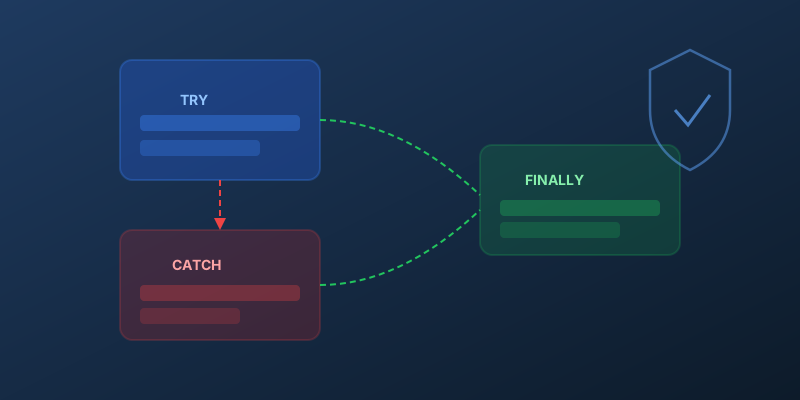
Rather than walk through the usual anatomy lesson, let me answer the questions that come up in actual code reviews of other people's flows. If you have ever opened a flow run history at 2am and thought "why did this succeed when the record was never created?" — one of these is almost certainly the answer.
Q: I wrapped my actions in a Scope and added a Catch — why is my failed flow still showing green?
Because a Catch scope that completes successfully overrides the failure of the Try scope in the final run status, and a lot of people forget the final step. After handling the error — logging it, sending a notification, whatever — you need a Terminate action with status Failed and a meaningful error code. Skip that and the run history lies to you. The whole point of the try/catch pattern is observability, and terminating with the correct status is what makes the pattern observable.
Q: How do I actually extract the error from the failed action inside a Try scope?
The result() function is underused. It takes a scope name and returns an array where each element is the outcome of one action inside that scope — status, inputs, outputs, and an error object when the action failed. So to pull the first error message:
@{first(filter(result('Try'), item()?['status'], 'Failed'))?['error']?['message']}
The mistake I see most often is people looking at workflow()?['runtimeInfo'] or parsing a notification email. Neither survives a connector change. result() is the stable path.
Q: The Catch scope runs for successes too — what am I doing wrong?
You skipped Configure run after. By default, every action runs after the previous one succeeds. A Catch scope needs the opposite contract: run only on failure, timeout, or skip. The menu is hidden behind the three-dot overflow on the scope, which is why people miss it.
Check has failed, has timed out, and is skipped. Uncheck is successful. Without those three boxes checked, your Catch will either never fire (when Try succeeds and the whole run completes) or fire for the wrong reasons.
The Finally scope needs the opposite configuration — all four boxes checked — so it runs regardless of what Try did.
Q: Should I retry inside the flow, or rely on connector retry policies?
Both, for different failure modes. Connector-level retry policies — configured under an action's Settings tab — handle transient network and throttling errors before your flow logic ever sees them. Exponential backoff with four attempts is the default for most connectors, and that default is usually correct.
Where connector retries do not help: business logic failures, dependent systems returning a 200 with an error body, or scenarios where you want a human in the loop after N attempts. Those belong in your flow, typically as a Do-Until loop with an exit condition.
Do not layer flow-level retries on top of connector-level retries for the same failure mode. You will quadruple your API load during an incident and make throttling worse.
Q: Where should my error logs live?
A Dataverse table or SharePoint list, not someone's inbox. Inbox-based alerting is fine for one flow. At ten flows, it is noise. At fifty, nobody reads it.
The five fields that matter:
- Flow name:
workflow()?['tags']?['flowDisplayName'] - Run ID:
workflow()?['run']?['name']— paste this into the URL for the failed run - Failing action: the name of the action that went red
- Error message: extracted with
result(), as above - Timestamp:
utcNow()
Run ID is the one people skip, and it is the one that will save you the most debugging time. It links the log entry back to the exact run you need to inspect.
Q: What does the finished pattern actually look like?
Three scopes in order: Try, Catch, Finally. The main business logic lives in Try. Catch is configured to run on failure/timeout/skip and does two things: log to the error table, then terminate with Failed status. Finally is configured to run on everything and handles cleanup — closing a session, sending a Teams summary, updating a status column on the originating record.
That is the whole thing. Five minutes to set up per flow. Pays back the first time you open an incident channel and can answer "why did this break?" from the log table instead of guessing from the run history.
Keep reading
Power Automate Trigger Conditions: The Run That Never Appears
A trigger condition that is false does not start a run and does not leave run history. How the expression differs from a Condition action, and how to see the skipped checks.
Power Platform September 2026 Update: The App-Builder Skill, Agent Plugins, and the Refreshed Model-Driven UI
What matters in Microsoft's September 2026 Power Platform feature update: the model app-builder skill goes GA, the canvas authoring agent plugin goes GA, generative pages embed in forms and reach connectors, model-driven header refresh is GA with display density in preview, and Power Automate gets server-side search.
Dataverse Triggers in Power Automate: Select Columns or the Flow Wakes Up for Nothing
How Select columns and Filter rows on a Dataverse trigger cut wasted runs, and the row-version mistakes that make a flow miss the change it was built for.
Retry Policies in Power Automate: What Actually Happens When an Action Fails
How Power Automate retry policies work, which errors they cover, how to configure them, and how to keep retries from duplicating side effects.
Resilient Power Automate: Retry Policies and Dead-Letter Patterns
Transient failures are normal in any flow that calls an API. The difference between a flow that self-heals and one that pages you at 2 a.m. is how you handle retries and the failures that stick.

15 Power Automate Expressions Every Maker Should Memorize
Memorize these Power Automate expressions to build faster flows, handle nulls, shape arrays, format dates, reduce action count, and debug WDL.
Newsletter
New posts, straight to your inbox
One email per post. No spam, no tracking pixels, unsubscribe anytime.
Comments
- No comments yet. Be the first.