PowerShell Modules: Packaging and Publishing Reusable Scripts for Your Team
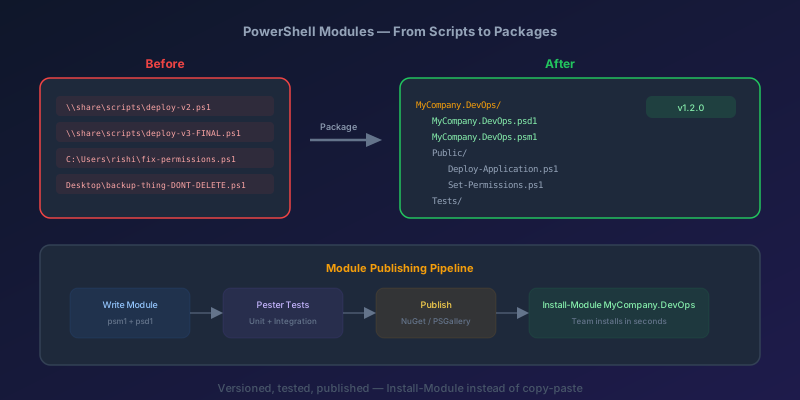
Somewhere in your organization, there is a shared drive with a folder called Scripts or Utilities or — my personal favorite — Scripts_v2_FINAL_USE_THIS_ONE. Inside it are dozens of .ps1 files that someone wrote years ago. Nobody knows which version is current. Three people have their own "fixed" copies on their desktops. When the original author left the company, tribal knowledge about what half these scripts do left with them.
This does not scale. It never did. PowerShell modules solve this problem completely — versioning, discoverability, dependency management, and one-command installation. Here is how to build and publish one.
Anatomy of a PowerShell Module
A PowerShell module is a package of related functions. At minimum, it contains:
MyModule/
  MyModule.psd1    # Module manifest (metadata, version, exports)
  MyModule.psm1    # Module script (your actual functions)
The .psd1 is the manifest — it declares the module's name, version, author, and which functions to export. The .psm1 is where your code lives. For larger modules, you can split functions into individual .ps1 files and dot-source them.
A more realistic structure:
MyModule/
  MyModule.psd1
  MyModule.psm1
  Public/
    Get-ServerHealth.ps1
    Invoke-DeploymentCheck.ps1
    New-ServiceAccount.ps1
  Private/
    Connect-InternalApi.ps1
    Write-AuditLog.ps1
  Tests/
    Get-ServerHealth.Tests.ps1
    Invoke-DeploymentCheck.Tests.ps1
Public functions are exported — users can call them. Private functions are internal helpers. This separation is enforced by the manifest and your .psm1 loader.
Creating a Module from Existing Scripts
Say you have a script called Check-ServerHealth.ps1 that your team runs manually. Let's turn it into a proper module.
Step 1: Create the folder structure
$moduleName = 'OpsToolkit'
$modulePath = "C:\Modules\$moduleName"

New-Item -Path "$modulePath\Public" -ItemType Directory -Force
New-Item -Path "$modulePath\Private" -ItemType Directory -Force
New-Item -Path "$modulePath\Tests" -ItemType Directory -Force
Step 2: Move your functions into the Public folder
Take your existing script and wrap each logical operation as a function:
# Public/Get-ServerHealth.ps1
function Get-ServerHealth {
    [CmdletBinding()]
    param(
        [Parameter(Mandatory, ValueFromPipeline)]
        [string[]]$ComputerName,

        [int]$TimeoutSeconds = 30
    )

    process {
        foreach ($computer in $ComputerName) {
            try {
                $ping = Test-Connection -ComputerName $computer -Count 1 -Quiet
                $disk = Invoke-Command -ComputerName $computer -ScriptBlock {
                    Get-CimInstance Win32_LogicalDisk -Filter "DeviceID='C:'" |
                    Select-Object @{N='FreeGB';E={[math]::Round($_.FreeSpace/1GB,2)}}
                } -ErrorAction Stop

                [PSCustomObject]@{
                    ComputerName = $computer
                    Reachable    = $ping
                    DiskFreeGB   = $disk.FreeGB
                    CheckedAt    = Get-Date
                }
            }
            catch {
                Write-Warning "Failed to check $computer : $_"
            }
        }
    }
}
Step 3: Create the module loader (.psm1)
# OpsToolkit.psm1
$Public  = @(Get-ChildItem -Path "$PSScriptRoot\Public\*.ps1" -ErrorAction SilentlyContinue)
$Private = @(Get-ChildItem -Path "$PSScriptRoot\Private\*.ps1" -ErrorAction SilentlyContinue)

foreach ($import in @($Public + $Private)) {
    try {
        . $import.FullName
    }
    catch {
        Write-Error "Failed to import function $($import.FullName): $_"
    }
}

Export-ModuleMember -Function $Public.BaseName
This pattern dot-sources every .ps1 file in Public and Private, then exports only the public ones. Clean, extensible, and you never have to edit the .psm1 when you add new functions.
Step 4: Create the manifest (.psd1)
New-ModuleManifest -Path "$modulePath\OpsToolkit.psd1" `
    -RootModule 'OpsToolkit.psm1' `
    -ModuleVersion '1.0.0' `
    -Author 'Rishi' `
    -CompanyName 'MyOrg' `
    -Description 'Operations toolkit for server health, deployment checks, and service account management' `
    -FunctionsToExport @('Get-ServerHealth', 'Invoke-DeploymentCheck', 'New-ServiceAccount') `
    -CmdletsToExport @() `
    -VariablesToExport @() `
    -AliasesToExport @() `
    -Tags @('ops', 'health', 'deployment') `
    -PowerShellVersion '7.0'
Important: Always explicitly list FunctionsToExport. Using '*' works but defeats the purpose of the Public/Private split and hurts module load performance.
Versioning Your Module
Use Semantic Versioning:
| Change Type | Version Bump | Example |
|---|---|---|
| Bug fix, no behavior change | Patch | 1.0.0 -> 1.0.1 |
| New function added | Minor | 1.0.1 -> 1.1.0 |
| Breaking parameter change | Major | 1.1.0 -> 2.0.0 |
Update the version in your .psd1 before every publish:
Update-ModuleManifest -Path .\OpsToolkit.psd1 -ModuleVersion '1.1.0'
Testing with Pester
You should not publish a module you have not tested. Pester is the standard testing framework for PowerShell:
# Tests/Get-ServerHealth.Tests.ps1
Describe 'Get-ServerHealth' {
    BeforeAll {
        Import-Module "$PSScriptRoot\..\OpsToolkit.psd1" -Force
    }

    It 'Returns an object with expected properties' {
        Mock Test-Connection { return $true }
        Mock Invoke-Command {
            return [PSCustomObject]@{ FreeGB = 45.2 }
        }

        $result = Get-ServerHealth -ComputerName 'localhost'
        $result.ComputerName | Should -Be 'localhost'
        $result.Reachable | Should -BeTrue
        $result.DiskFreeGB | Should -BeGreaterThan 0
    }

    It 'Handles unreachable servers gracefully' {
        Mock Test-Connection { return $false }
        Mock Invoke-Command { throw 'Connection refused' }

        { Get-ServerHealth -ComputerName 'badserver' } | Should -Not -Throw
    }
}
Run tests:
Invoke-Pester -Path .\Tests\ -Output Detailed
Publishing to a Private NuGet Feed
Most teams should publish to a private feed — Azure Artifacts, GitHub Packages, or a self-hosted NuGet server. Here is the Azure Artifacts workflow:
Register the feed as a repository
$feedUrl = 'https://pkgs.dev.azure.com/myorg/_packaging/ps-modules/nuget/v2'

Register-PSRepository -Name 'MyOrgFeed' `
    -SourceLocation $feedUrl `
    -PublishLocation $feedUrl `
    -InstallationPolicy Trusted
Publish
Publish-Module -Path .\OpsToolkit `
    -Repository 'MyOrgFeed' `
    -NuGetApiKey 'az' # Azure Artifacts uses a PAT, set via credential provider
Install on another machine
Install-Module -Name OpsToolkit -Repository MyOrgFeed
That is it. No more shared drives. No more "which version do you have?" No more copying files.
CI/CD for Module Publishing
Automate the publish in Azure DevOps so every merge to main publishes a new version:
trigger:
  branches:
    include:
      - main
  paths:
    include:
      - modules/OpsToolkit/**

pool:
  vmImage: 'windows-latest'

steps:
  - task: PowerShell@2
    displayName: 'Run Pester Tests'
    inputs:
      targetType: 'inline'
      script: |
        Install-Module Pester -Force -Scope CurrentUser
        $results = Invoke-Pester -Path ./modules/OpsToolkit/Tests -PassThru
        if ($results.FailedCount -gt 0) { exit 1 }

  - task: PowerShell@2
    displayName: 'Publish Module'
    inputs:
      targetType: 'inline'
      script: |
        Register-PSRepository -Name 'MyOrgFeed' `
          -SourceLocation '$(feedUrl)' `
          -PublishLocation '$(feedUrl)' `
          -InstallationPolicy Trusted
        Publish-Module -Path ./modules/OpsToolkit `
          -Repository 'MyOrgFeed' `
          -NuGetApiKey '$(System.AccessToken)'
Every push to main runs tests and publishes. If tests fail, nothing publishes. If they pass, the new version is immediately available to the team.
The Takeaway
Loose scripts are technical debt. They have no versioning, no discoverability, no dependency management, and no tests. A PowerShell module takes 30 minutes to set up and pays for itself the first time someone asks "which version of that script should I use?"
Build the module. Publish it to a feed. Let your team install it with one command. That is how professionals distribute PowerShell code.
Keep reading
PowerShell: Format-Table Breaks the Next Command
Format-Table, Format-List, and Out-String turn objects into formatting records. Anything downstream stops being a real object. How to display without destroying the pipeline.
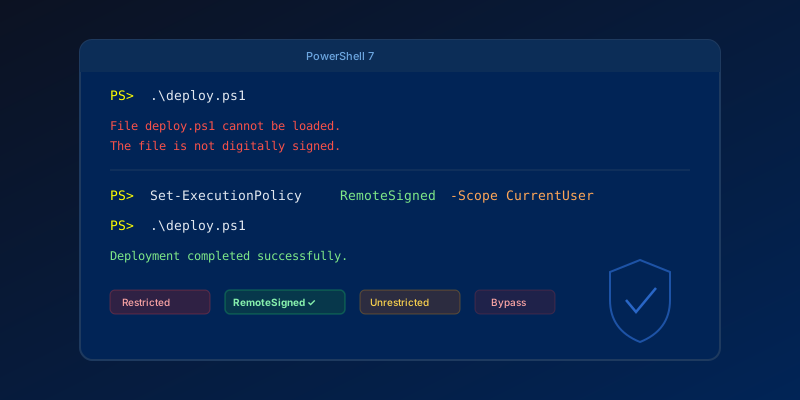
Fixing 'PowerShell Script Not Digitally Signed' — The Right Way
How to resolve execution policy errors when running .ps1 scripts, and why you should care about script signing in 2026.
Kubernetes Liveness Probes That Restart a Process That Was Fine
Liveness restarts the container. Readiness pulls it out of the Service. A startup probe holds both off until the process has booted. Most outages come from using the wrong one.
GitHub Rewrote the Copilot Runtime in Rust With Agents. The Playbook Is the Story.
832,378 lines of production Rust, 128 pull requests, 135 releases in fourteen and a half weeks, about $120,000 in tokens. What GitHub's TypeScript-to-Rust port of the Copilot agent runtime teaches about shipping a rewrite without a cutover.
The Pipeline Was Green Because the Test Stage Never Ran
How an Azure DevOps condition and a skipped stage produce a green build that did not test anything, and the check to add so that cannot ship.
GitHub Merge Queues: Serializing main Without Parking Every PR
How merge queues absorb the rebase race on protected branches, what CI has to guarantee, and when a queue is worse than Require branches to be up to date.
Newsletter
New posts, straight to your inbox
One email per post. No spam, no tracking pixels, unsubscribe anytime.
Comments
- No comments yet. Be the first.