Fixing 'PowerShell Script Not Digitally Signed' — The Right Way
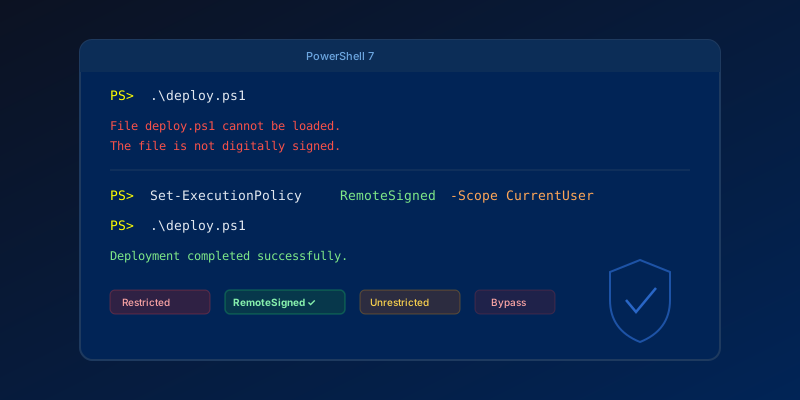
You download or write a PowerShell script, try to run it, and get:
File script.ps1 cannot be loaded. The file script.ps1 is not digitally signed.
Here is how to fix it — and when each approach is appropriate.
Understanding Execution Policies
PowerShell has five execution policies that control which scripts can run:
| Policy | Behavior |
|---|---|
| Restricted | No scripts allowed (Windows default) |
| AllSigned | Only signed scripts run |
| RemoteSigned | Downloaded scripts must be signed; local scripts run freely |
| Unrestricted | All scripts run (with warnings for downloaded) |
| Bypass | No restrictions, no warnings |
Check your current policy:
Get-ExecutionPolicy -List
This shows policies at every scope (Machine, User, Process).
Fix 1: Set RemoteSigned (Recommended)
For most development machines, RemoteSigned is the right balance:
Set-ExecutionPolicy -ExecutionPolicy RemoteSigned -Scope CurrentUser
This allows locally-created scripts to run freely while requiring signatures on scripts downloaded from the internet.
Fix 2: Unblock a Specific Downloaded Script
If the script is trusted but was downloaded (and thus marked with a web "Zone Identifier"):
Unblock-File -Path .\script.ps1
This removes the Zone.Identifier alternate data stream that Windows attaches to downloaded files. The script will then run under RemoteSigned policy.
Check if a file is blocked:
Get-Item .\script.ps1 -Stream Zone.Identifier -ErrorAction SilentlyContinue
Fix 3: Bypass for a Single Session
Run a script without permanently changing your policy:
powershell -ExecutionPolicy Bypass -File .\script.ps1
Or in an existing session:
Set-ExecutionPolicy -ExecutionPolicy Bypass -Scope Process
The Process scope only affects the current session and resets when you close the terminal.
Fix 4: Actually Sign Your Script
For production scripts, CI/CD pipelines, or anything running on shared infrastructure, sign properly:
# Get a code signing certificate (from your CA or self-signed for dev)
$cert = Get-ChildItem -Path Cert:\CurrentUser\My -CodeSigningCert

# Sign the script
Set-AuthenticodeSignature -FilePath .\script.ps1 -Certificate $cert -TimestampServer "http://timestamp.digicert.com"

# Verify
Get-AuthenticodeSignature -FilePath .\script.ps1
For self-signed certificates (development only):
$cert = New-SelfSignedCertificate -Type CodeSigningCert `
  -Subject "CN=Dev Signing" `
  -CertStoreLocation Cert:\CurrentUser\My
What NOT to Do
- Don't set
UnrestrictedorBypassat Machine scope on production servers - Don't blindly run
Set-ExecutionPolicy Unrestrictedfrom Stack Overflow answers - Don't disable execution policies in Group Policy for entire domains
These "fixes" work but eliminate an important security layer. In regulated environments, auditors will flag it.
CI/CD Pipelines
In Azure DevOps or GitHub Actions, scripts typically run under Bypass policy by default. If they don't:
# GitHub Actions
- name: Run script
  shell: pwsh
  run: |
    Set-ExecutionPolicy Bypass -Scope Process -Force
    .\deploy.ps1
# Azure DevOps
- task: PowerShell@2
  inputs:
    filePath: 'deploy.ps1'
    # Azure DevOps PowerShell tasks use Unrestricted by default
Key Takeaway
Use RemoteSigned for development machines. Use Unblock-File for trusted downloads. Use proper code signing for production. And never set Bypass at machine scope on a server — future you will thank present you.
Keep reading
Kubernetes Liveness Probes That Restart a Process That Was Fine
Liveness restarts the container. Readiness pulls it out of the Service. A startup probe holds both off until the process has booted. Most outages come from using the wrong one.
GitHub Rewrote the Copilot Runtime in Rust With Agents. The Playbook Is the Story.
832,378 lines of production Rust, 128 pull requests, 135 releases in fourteen and a half weeks, about $120,000 in tokens. What GitHub's TypeScript-to-Rust port of the Copilot agent runtime teaches about shipping a rewrite without a cutover.

The Pipeline Was Green Because the Test Stage Never Ran
How an Azure DevOps condition and a skipped stage produce a green build that did not test anything, and the check to add so that cannot ship.
PowerShell: Format-Table Breaks the Next Command
Format-Table, Format-List, and Out-String turn objects into formatting records. Anything downstream stops being a real object. How to display without destroying the pipeline.
GitHub Merge Queues: Serializing main Without Parking Every PR
How merge queues absorb the rebase race on protected branches, what CI has to guarantee, and when a queue is worse than Require branches to be up to date.
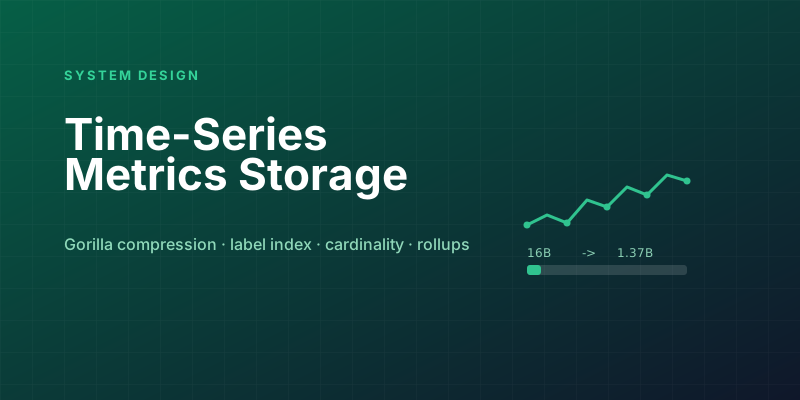
Designing a Metrics System: Time-Series Storage from Gorilla to Downsampling
Ten million series, one datapoint each per 10 seconds, queried by tags: delta-of-delta compression, the inverted index over labels, and why high cardinality kills TSDBs.
Newsletter
New posts, straight to your inbox
One email per post. No spam, no tracking pixels, unsubscribe anytime.
Comments
- No comments yet. Be the first.