Custom Connectors in Power Automate: Integrating Any API Without Writing Code
In this series: Power Automate gotchas
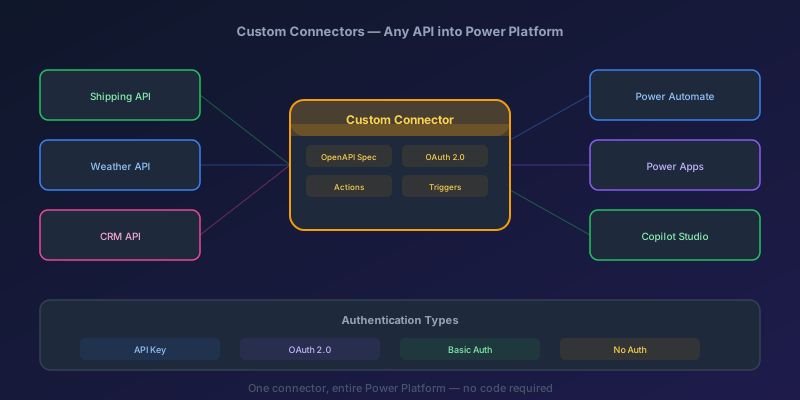
You need to integrate a shipping API into your Power Automate flow. You could use the HTTP action — paste a URL, add headers, parse the JSON response. It works. But next month you need the same API in three more flows. And your colleague needs it in a canvas app. Now you are copy-pasting HTTP configurations everywhere, and when the API changes its auth token format, you are updating 12 places.
Custom connectors solve this permanently. You define the API once — its endpoints, authentication, request/response shapes — and it shows up as a reusable action in Power Automate and Power Apps. No code. Let me walk you through building one from scratch.
When to Use a Custom Connector vs. HTTP Action
| Scenario | Use HTTP Action | Use Custom Connector |
|---|---|---|
| One-off API call in a single flow | Yes | Overkill |
| Same API used in 3+ flows | No | Yes |
| API needs to be used in Power Apps | No (not available) | Yes |
| Team members need access to the API | No | Yes |
| API uses OAuth2 authentication | Painful | Built-in support |
| You want IntelliSense for API fields | No | Yes |
My rule of thumb: If you type the same API URL twice, make a connector.
Step 1: Get the API Documentation
You need to know three things about your target API:
- Base URL (e.g.,
https://api.shipengine.com/v1) - Authentication method (API key, OAuth2, Basic)
- Endpoints you need (list shipments, create label, track package)
If the API provides an OpenAPI/Swagger specification file (JSON or YAML), you are in luck — you can import it directly and skip manual endpoint configuration.
For this tutorial, I will use a shipping API as the example. The same principles apply to any REST API: weather services, CRMs, payment processors, internal microservices.
Step 2: Create the Connector
Navigate to make.powerautomate.com > Data > Custom connectors > New custom connector.
You have three options:
- Create from blank — define everything manually
- Import an OpenAPI file — upload a Swagger JSON/YAML
- Import from GitHub — use a community-contributed definition
If importing an OpenAPI spec:
- Click "Import an OpenAPI file"
- Upload the file or paste the URL
- Power Automate auto-populates the host, base URL, and all endpoints
If the spec is not available, you will define endpoints manually (covered in Step 4).
General Tab Configuration
Scheme: HTTPS
Host: api.shipengine.com
Base URL: /v1
Upload an icon and set a description. These appear in the connector gallery, so make them meaningful.
Step 3: Configure Authentication
This is where most people get stuck. Power Automate supports four auth types for custom connectors:
API Key
The simplest option. The API expects a key in a header or query parameter.
Authentication type: API Key
Parameter label: API Key
Parameter name: API-Key
Parameter location: Header
When users create a connection, they paste their API key once. Every action in the connector includes it automatically.
OAuth 2.0
For APIs that use OAuth (Google, Microsoft Graph, Salesforce, etc.):
Authentication type: OAuth 2.0
Identity provider: Generic OAuth 2
Client ID: [from API provider's developer portal]
Client Secret: [from API provider's developer portal]
Authorization URL: https://provider.com/oauth/authorize
Token URL: https://provider.com/oauth/token
Refresh URL: https://provider.com/oauth/token
Scope: read write
Critical: After saving, Power Automate generates a Redirect URL. You must register this URL in the API provider's developer portal as an allowed callback. Miss this step and OAuth will fail silently.
Basic Authentication
Authentication type: Basic
Parameter label: Username
Parameter label: Password
No Authentication
For internal APIs behind a VPN or already secured at the network level.
Step 4: Define Actions
Actions are the individual operations your connector exposes. Each action maps to one API endpoint.
Example: Track a Shipment
Click New action and fill in:
Summary: Track Shipment
Description: Get real-time tracking information for a shipment
Operation ID: TrackShipment
Visibility: important
Request configuration:
Verb: GET
URL: /tracking?carrier_code={carrier_code}&tracking_number={tracking_number}
Define the parameters:
carrier_code— string, required, in querytracking_number— string, required, in query
Response configuration:
Click "Import from sample" and paste a sample JSON response:
{
  "tracking_number": "1Z999AA10123456784",
  "carrier_code": "ups",
  "status_code": "DE",
  "status_description": "Delivered",
  "estimated_delivery": "2026-04-18T00:00:00Z",
  "events": [
    {
      "occurred_at": "2026-04-17T14:30:00Z",
      "description": "Delivered, Front Door",
      "city": "Austin",
      "state": "TX"
    }
  ]
}
Power Automate generates the response schema automatically. Now when users add "Track Shipment" to a flow, they get IntelliSense for status_description, estimated_delivery, and every field in the response.
Example: Create a Shipping Label
Summary: Create Label
Operation ID: CreateLabel
Verb: POST
URL: /labels

Body (import from sample):
{
  "shipment": {
    "ship_to": {
      "name": "John Doe",
      "address_line1": "123 Main St",
      "city": "Austin",
      "state_province": "TX",
      "postal_code": "78701",
      "country_code": "US"
    },
    "packages": [
      {
        "weight": { "value": 2.5, "unit": "pound" },
        "dimensions": { "length": 10, "width": 8, "height": 4, "unit": "inch" }
      }
    ]
  }
}
Step 5: Handle Pagination
Many APIs return results in pages. Without pagination handling, your connector only gets the first page.
In the connector definition, under Policy, you can configure pagination:
- Go to the Code view (custom code editor) or use the policy template
- Set the pagination approach based on the API's pattern:
Approach A: Next-link pagination (API returns a next URL):
- Under the action's response, identify the
next_page_urlfield - Power Automate can follow
@odata.nextLinkautomatically for OData APIs
Approach B: Offset/limit pagination (manual):
- Add
pageandper_pageparameters to your action - In the flow, use a Do Until loop:
Initialize variable: currentPage = 1
Initialize variable: allResults = [] (array)
Do Until: length(currentPageResults) = 0
    Call connector: List Shipments (page = currentPage, per_page = 100)
    Append currentPageResults to allResults
    Increment currentPage
This is not as elegant as built-in pagination, but it works reliably for any API.
Step 6: Test the Connector
Before sharing, test every action:
- Save the connector (click "Create connector" / "Update connector")
- Go to the Test tab
- Create a new connection (this validates your authentication setup)
- Select an action, fill in parameters, click Test operation
- Verify the response status is 200 and the body matches expectations
Common test failures and fixes:
| Error | Likely Cause | Fix |
|---|---|---|
| 401 Unauthorized | Bad API key or OAuth misconfigured | Re-check credentials and redirect URL |
| 404 Not Found | Wrong base URL or endpoint path | Compare URL against API docs |
| 400 Bad Request | Missing required parameter or wrong body shape | Check parameter definitions |
| CORS error | API does not allow browser-based calls | Not a connector issue — connectors run server-side |
Step 7: Share Across Environments
Once tested, you can share the connector:
Within the same environment
- Go to the connector's detail page
- Click Share
- Add users or groups — they can now use the connector in their own flows and apps
Across environments (ALM)
- Export the connector as part of a Solution
- Import the solution into the target environment
- Connection references let users provide their own credentials in the target environment
As a certified connector
If you build something broadly useful, you can submit it to Microsoft for certification. It then appears in the standard connector gallery for everyone.
Real-World Example: Complete Flow
Here is a practical flow using our shipping connector:
Trigger: When an item is created (SharePoint: "Orders" list)
│
├── Create Label (Custom connector)
│   ├── Input: order address, package weight from trigger
│   └── Output: label_id, tracking_number, label_url
│
├── Update SharePoint item
│   ├── Tracking Number = tracking_number
│   └── Shipping Label URL = label_url
│
├── Track Shipment (Custom connector)
│   └── Output: status_description, estimated_delivery
│
└── Send email to customer
    ├── Tracking number
    ├── Estimated delivery date
    └── Tracking link
The entire flow uses named actions with IntelliSense — no raw HTTP calls, no manual JSON parsing, no hardcoded URLs.
Key Takeaway
Custom connectors turn any REST API into a first-class citizen in Power Platform. The upfront investment is 30-60 minutes of configuration. The payoff is reusability across every flow and app in your organization, consistent authentication, and IntelliSense that makes the API discoverable for makers who have never read the API docs. If you are calling the same API in more than one flow, stop and build a connector. Your future self will thank you.
Keep reading

Power Automate Trigger Conditions: The Run That Never Appears
A trigger condition that is false does not start a run and does not leave run history. How the expression differs from a Condition action, and how to see the skipped checks.

Power Platform September 2026 Update: The App-Builder Skill, Agent Plugins, and the Refreshed Model-Driven UI
What matters in Microsoft's September 2026 Power Platform feature update: the model app-builder skill goes GA, the canvas authoring agent plugin goes GA, generative pages embed in forms and reach connectors, model-driven header refresh is GA with display density in preview, and Power Automate gets server-side search.
Dataverse Triggers in Power Automate: Select Columns or the Flow Wakes Up for Nothing
How Select columns and Filter rows on a Dataverse trigger cut wasted runs, and the row-version mistakes that make a flow miss the change it was built for.
Retry Policies in Power Automate: What Actually Happens When an Action Fails
How Power Automate retry policies work, which errors they cover, how to configure them, and how to keep retries from duplicating side effects.
Resilient Power Automate: Retry Policies and Dead-Letter Patterns
Transient failures are normal in any flow that calls an API. The difference between a flow that self-heals and one that pages you at 2 a.m. is how you handle retries and the failures that stick.

15 Power Automate Expressions Every Maker Should Memorize
Memorize these Power Automate expressions to build faster flows, handle nulls, shape arrays, format dates, reduce action count, and debug WDL.
Newsletter
New posts, straight to your inbox
One email per post. No spam, no tracking pixels, unsubscribe anytime.
Comments
- No comments yet. Be the first.