Building a Multi-Step Approval Workflow with Adaptive Cards in Power Automate
In this series: Power Automate gotchas
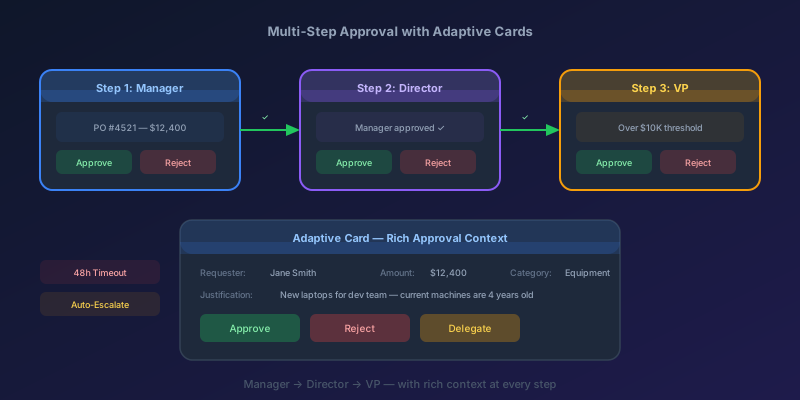
The built-in "Start and wait for an approval" action has exactly three features: a text field, one recipient, and a yes/no button. For a $25 office supplies request, that is plenty. For a $47,000 capital purchase that needs to clear two managers, finance, and a procurement director, it is almost aggressively inadequate — no chain, no context, no escalation, no audit trail. Which is why so many real-world POs sit in limbo until someone Teams-pings "did anyone approve this?"
Let us build a better one. Adaptive Cards, parallel-or-sequential approver chains, timeout handling with escalation, and a proper audit record — all without leaving Power Automate.
Why the Built-In Approval Action Falls Short
The default approval action has three fundamental limitations:
- Single-level only — you get one approver or one group. No sequential chains.
- Minimal context — the approval email contains a text blob. No formatted data, no line items, no links.
- No timeout handling — if the approver never responds, the flow run just... waits. Forever. (Well, for 30 days, then it fails.)
For a purchase order that needs Manager, then Director, then VP sign-off, you need something custom.
The Architecture
Here is the approval chain we are building:
| Step | Approver | Threshold | Timeout |
|---|---|---|---|
| 1 | Requestor's Manager | All POs | 48 hours |
| 2 | Department Director | POs > $5,000 | 48 hours |
| 3 | VP of Finance | POs > $25,000 | 72 hours |
The flow triggers when a new item appears in a SharePoint list (or Dataverse table). Each approval step uses a custom Adaptive Card posted to Teams. If an approver does not respond within the timeout, the flow escalates or notifies the requestor.
Step 1: Design the Adaptive Card
Forget plain-text approval emails. Adaptive Cards let you present structured data with action buttons directly in Teams. Here is the JSON for our PO approval card:
{
  "type": "AdaptiveCard",
  "$schema": "http://adaptivecards.io/schemas/adaptive-card.json",
  "version": "1.5",
  "body": [
    {
      "type": "TextBlock",
      "text": "Purchase Order Approval Required",
      "weight": "Bolder",
      "size": "Large",
      "color": "Accent"
    },
    {
      "type": "FactSet",
      "facts": [
        { "title": "Requestor:", "value": "${requestorName}" },
        { "title": "Department:", "value": "${department}" },
        { "title": "Amount:", "value": "$${amount}" },
        { "title": "Vendor:", "value": "${vendorName}" },
        { "title": "Approval Step:", "value": "${currentStep} of ${totalSteps}" }
      ]
    },
    {
      "type": "TextBlock",
      "text": "Line Items",
      "weight": "Bolder",
      "spacing": "Medium"
    },
    {
      "type": "Table",
      "columns": [
        { "width": 2 },
        { "width": 1 },
        { "width": 1 }
      ],
      "rows": "${lineItemRows}"
    },
    {
      "type": "TextBlock",
      "text": "Comments (optional):",
      "spacing": "Medium"
    },
    {
      "type": "Input.Text",
      "id": "comments",
      "isMultiline": true,
      "placeholder": "Add your comments here..."
    }
  ],
  "actions": [
    {
      "type": "Action.Submit",
      "title": "Approve",
      "style": "positive",
      "data": { "action": "approve" }
    },
    {
      "type": "Action.Submit",
      "title": "Reject",
      "style": "destructive",
      "data": { "action": "reject" }
    },
    {
      "type": "Action.Submit",
      "title": "Request More Info",
      "data": { "action": "moreinfo" }
    }
  ]
}
The key details: we show the requestor, amount, vendor, and which step in the chain this is. The approver can approve, reject, or request more information — a third option that the built-in action does not support.
Step 2: Build the Approval Loop
The core of the flow is a Do Until loop that iterates through approval levels. Here is the logic:
Initialize variable: currentLevel = 1
Initialize variable: approvalStatus = "Pending"
Initialize variable: approvalHistory = [] (array)

Do Until: currentLevel > maxLevel OR approvalStatus = "Rejected"

    Switch on currentLevel:
        Case 1: Set approverEmail = requestor's manager (from Office 365 connector)
        Case 2: Set approverEmail = department director (from SharePoint lookup)
        Case 3: Set approverEmail = VP email (from config list)

    Condition: Check if this level is required
        (e.g., Level 2 only if amount > 5000)
        If not required: increment currentLevel, continue

    Post Adaptive Card and wait for response (Teams connector)
    Set timeout: addHours(utcNow(), 48)

    Condition: Did we get a response before timeout?

        Yes - response received:
            Switch on response action:
                "approve":
                    Append to approvalHistory: {level, approver, "Approved", timestamp, comments}
                    Increment currentLevel
                "reject":
                    Append to approvalHistory: {level, approver, "Rejected", timestamp, comments}
                    Set approvalStatus = "Rejected"
                "moreinfo":
                    Send notification to requestor with comments
                    (loop repeats same level after requestor responds)

        No - timeout:
            Run escalation logic
Pro tip: Use the "Post adaptive card and wait for a response" action from the Teams connector, not the standard approval action. This gives you full control over the card layout and response data.
Step 3: Handle Timeouts and Escalation
Timeouts are where most approval flows fall apart. Here is a robust escalation pattern:
- First timeout: Send a reminder to the original approver via Teams and email
- Second timeout (24h after reminder): Escalate to the approver's manager
- Third timeout: Auto-reject with a note and notify the requestor
To implement this, wrap each approval step in a Scope action with a parallel branch:
- Branch A: Post Adaptive Card and wait for response
- Branch B: Delay for 48 hours, then set a timeout flag
Configure the Scope so that if Branch B completes first (timeout), it cancels Branch A using the "Configure run after" setting on subsequent actions.
Scope: Approval with Timeout
  ├── [Parallel Branch A] Post Adaptive Card → Wait for response
  └── [Parallel Branch B] Delay 48h → Set variable: timedOut = true

After Scope:
  Condition: timedOut = true
    Yes → Send reminder, reset timeout, loop again OR escalate
    No  → Process the response
Step 4: Track the Approval History
Every approval or rejection gets logged. I use a SharePoint list called "Approval Audit Log" with these columns:
| Column | Type | Purpose |
|---|---|---|
| PO_Number | Text | Links back to the PO |
| ApprovalLevel | Number | 1, 2, or 3 |
| ApproverEmail | Text | Who was asked |
| Decision | Choice | Approved / Rejected / Timed Out |
| Comments | Multi-line text | Approver's comments |
| DecisionDate | DateTime | When they responded |
| CardResponseJSON | Multi-line text | Raw response for debugging |
After all levels are approved, the flow updates the PO status to "Approved" and kicks off downstream processes (notify procurement, create the vendor invoice, etc.). If rejected at any level, the requestor gets a summary of the full history — who approved, who rejected, and why.
Step 5: Wire It All Together
Here is the complete flow structure at a glance:
Trigger: When an item is created (SharePoint: Purchase Orders)
│
├── Get requestor's manager (Office 365 Users connector)
├── Initialize variables (currentLevel, approvalStatus, approvalHistory)
│
├── Do Until (currentLevel > 3 OR approvalStatus = "Rejected")
│   ├── Determine approver for currentLevel
│   ├── Check if level is required (amount thresholds)
│   ├── Scope: Approval with Timeout
│   │   ├── Post Adaptive Card to approver
│   │   └── Timeout branch (parallel)
│   ├── Log to Approval Audit
│   └── Process response (approve/reject/escalate)
│
├── Condition: All levels approved?
│   ├── Yes: Update PO status → "Approved", notify requestor
│   └── No: Update PO status → "Rejected", notify requestor with history
│
└── Send summary email with full approval chain details
Common Pitfalls
Do not hardcode approver emails. Use a configuration list in SharePoint. When the Director of Engineering leaves, you update one row instead of editing the flow.
Do not skip error handling on the Teams connector. If the approver's Teams account is disabled, the card post fails silently. Add a "Configure run after" on the approval scope to catch failures and fall back to email.
Test with the mobile Teams app. Adaptive Cards render differently on mobile. Complex tables may need simplification. Always test on both desktop and mobile before going live.
Key Takeaway
The built-in approval action is a starting point, not a destination. For any approval that involves more than one person, conditional routing, or a deadline, build a custom chain with Adaptive Cards in Teams. The investment in setup pays back immediately: approvers get rich context, requestors get status visibility, and your audit log captures the full decision trail. No more "who approved this and when?" conversations.
Keep reading

Power Automate Trigger Conditions: The Run That Never Appears
A trigger condition that is false does not start a run and does not leave run history. How the expression differs from a Condition action, and how to see the skipped checks.

Power Platform September 2026 Update: The App-Builder Skill, Agent Plugins, and the Refreshed Model-Driven UI
What matters in Microsoft's September 2026 Power Platform feature update: the model app-builder skill goes GA, the canvas authoring agent plugin goes GA, generative pages embed in forms and reach connectors, model-driven header refresh is GA with display density in preview, and Power Automate gets server-side search.

Dataverse Triggers in Power Automate: Select Columns or the Flow Wakes Up for Nothing
How Select columns and Filter rows on a Dataverse trigger cut wasted runs, and the row-version mistakes that make a flow miss the change it was built for.
Retry Policies in Power Automate: What Actually Happens When an Action Fails
How Power Automate retry policies work, which errors they cover, how to configure them, and how to keep retries from duplicating side effects.
Resilient Power Automate: Retry Policies and Dead-Letter Patterns
Transient failures are normal in any flow that calls an API. The difference between a flow that self-heals and one that pages you at 2 a.m. is how you handle retries and the failures that stick.

15 Power Automate Expressions Every Maker Should Memorize
Memorize these Power Automate expressions to build faster flows, handle nulls, shape arrays, format dates, reduce action count, and debug WDL.
Newsletter
New posts, straight to your inbox
One email per post. No spam, no tracking pixels, unsubscribe anytime.
Comments
- No comments yet. Be the first.