Building Custom Copilot Plugins for D365 Sales: Your First Action Step by Step
In this series: Copilot in Dynamics 365
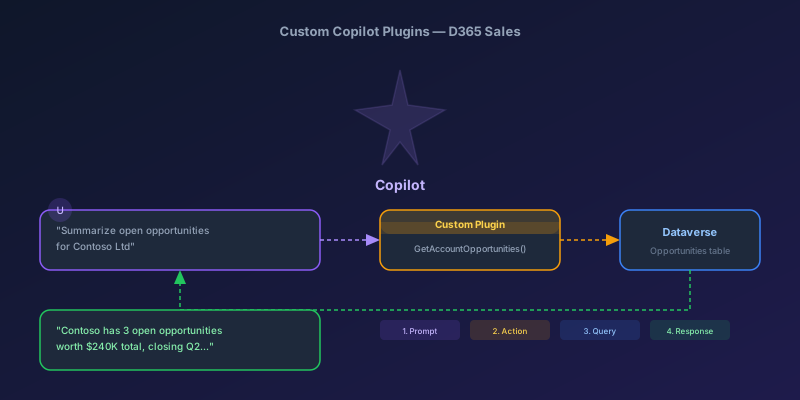
A sales rep opens Copilot in Dynamics 365 Sales and types: "Summarize the open opportunities for Contoso." Copilot thinks for a moment, then returns a formatted summary — total pipeline value, number of open opportunities, the largest deal, and the next close date. The rep did not navigate to the account, did not open a view, did not build a report. They asked a question and got an answer.
That summary did not come from a built-in Copilot feature. It came from a custom plugin you built. And building it is more accessible than you might think.
What Copilot Plugins Are
Copilot in D365 Sales uses a plugin architecture to extend its capabilities beyond the out-of-box features. When a user asks Copilot something, the system:
- Parses the natural language to determine intent
- Matches the intent to a registered plugin action
- Calls the plugin with extracted parameters
- Returns the result formatted as a Copilot response
Your custom plugin sits at step 3. You define a Dataverse custom API that does the work, describe it so Copilot knows when to call it, and register it as a Copilot action. Copilot handles the natural language understanding and parameter extraction.
The Architecture
User prompt → Copilot orchestrator → Intent matching
                                           ↓
                                    Plugin descriptor
                                    (name, description,
                                     parameters)
                                           ↓
                                    Dataverse Custom API
                                           ↓
                                    Your plugin code
                                    (C# or low-code)
                                           ↓
                                    Formatted response
                                    → Copilot → User
The key insight: Copilot decides when to call your plugin based on the description you provide. A vague description means Copilot will not match it correctly. A precise description means it fires exactly when it should.
Step 1: Define the Custom API
We will build the "summarize open opportunities" action. First, create a custom API in your Dataverse solution.
In the solution explorer, create a new Custom API:
| Property | Value |
|---|---|
| Unique Name | rishi_SummarizeAccountOpportunities |
| Name | Summarize Account Opportunities |
| Display Name | Summarize Account Opportunities |
| Description | Retrieves a summary of all open opportunities for a given account, including total value, count, largest deal, and next close date |
| Binding Type | Global |
| Is Function | No (this is an action, not a function) |
| Allowed Custom Processing Step Type | Sync Only |
Define the Request Parameter
Add one request parameter:
| Property | Value |
|---|---|
| Unique Name | AccountName |
| Name | AccountName |
| Type | String |
| Is Optional | No |
| Description | The name of the account to summarize opportunities for |
Define the Response Property
Add one response property:
| Property | Value |
|---|---|
| Unique Name | Summary |
| Name | Summary |
| Type | String |
| Description | A formatted text summary of the account's open opportunities |
Step 2: Write the Plugin Code
Create a C# plugin that executes when Copilot calls your custom API.
using Microsoft.Xrm.Sdk;
using Microsoft.Xrm.Sdk.Query;
using System;
using System.Text;

public class SummarizeAccountOpportunities : IPlugin
{
    public void Execute(IServiceProvider serviceProvider)
    {
        var context = (IPluginExecutionContext)serviceProvider
            .GetService(typeof(IPluginExecutionContext));
        var serviceFactory = (IOrganizationServiceFactory)serviceProvider
            .GetService(typeof(IOrganizationServiceFactory));
        var service = serviceFactory.CreateOrganizationService(context.UserId);

        // Extract the account name from the request
        string accountName = context.InputParameters["AccountName"] as string;

        if (string.IsNullOrWhiteSpace(accountName))
        {
            context.OutputParameters["Summary"] =
                "I need an account name to look up opportunities.";
            return;
        }

        // Find the account
        var accountQuery = new QueryExpression("account")
        {
            ColumnSet = new ColumnSet("name", "accountid"),
            Criteria = new FilterExpression
            {
                Conditions =
                {
                    new ConditionExpression(
                        "name", ConditionOperator.Like,
                        $"%{accountName}%")
                }
            },
            TopCount = 1
        };

        var accounts = service.RetrieveMultiple(accountQuery);

        if (accounts.Entities.Count == 0)
        {
            context.OutputParameters["Summary"] =
                $"No account found matching '{accountName}'.";
            return;
        }

        var account = accounts.Entities[0];
        var accountId = account.Id;
        var resolvedName = account.GetAttributeValue<string>("name");

        // Query open opportunities for this account
        var oppQuery = new QueryExpression("opportunity")
        {
            ColumnSet = new ColumnSet(
                "name", "estimatedvalue", "estimatedclosedate",
                "statuscode"),
            Criteria = new FilterExpression
            {
                Conditions =
                {
                    new ConditionExpression(
                        "parentaccountid", ConditionOperator.Equal,
                        accountId),
                    new ConditionExpression(
                        "statecode", ConditionOperator.Equal, 0) // Open
                }
            }
        };

        var opportunities = service.RetrieveMultiple(oppQuery);

        if (opportunities.Entities.Count == 0)
        {
            context.OutputParameters["Summary"] =
                $"{resolvedName} has no open opportunities.";
            return;
        }

        // Build the summary
        decimal totalValue = 0;
        decimal largestDeal = 0;
        string largestDealName = "";
        DateTime? nextCloseDate = null;

        foreach (var opp in opportunities.Entities)
        {
            var value = opp.GetAttributeValue<Money>("estimatedvalue");
            decimal amount = value?.Value ?? 0;
            totalValue += amount;

            if (amount > largestDeal)
            {
                largestDeal = amount;
                largestDealName = opp.GetAttributeValue<string>("name");
            }

            var closeDate = opp
                .GetAttributeValue<DateTime?>("estimatedclosedate");
            if (closeDate.HasValue
                && (!nextCloseDate.HasValue
                    || closeDate.Value < nextCloseDate.Value))
            {
                nextCloseDate = closeDate;
            }
        }

        var sb = new StringBuilder();
        sb.AppendLine($"**{resolvedName}** — Open Opportunity Summary:");
        sb.AppendLine();
        sb.AppendLine(
            $"- **Count:** {opportunities.Entities.Count} open opportunities");
        sb.AppendLine(
            $"- **Total pipeline:** {totalValue:C0}");
        sb.AppendLine(
            $"- **Largest deal:** {largestDealName} ({largestDeal:C0})");
        if (nextCloseDate.HasValue)
            sb.AppendLine(
                $"- **Next close date:** {nextCloseDate.Value:MMM dd, yyyy}");

        context.OutputParameters["Summary"] = sb.ToString();
    }
}
Key Design Decisions
- Fuzzy matching on account name — Copilot might pass "Contoso" when the actual name is "Contoso Ltd." Using
Likewith wildcards handles this - Markdown formatting — Copilot renders markdown, so bold and bullet lists work in the response
- Graceful degradation — if no account is found or no opportunities exist, return a useful message instead of an error
Step 3: Register the Plugin
Register the plugin assembly using the Plugin Registration Tool:
- Register the assembly containing
SummarizeAccountOpportunities - Register a step on message
rishi_SummarizeAccountOpportunities(your custom API name) - Set the step to run synchronously in the main operation stage (stage 30)
There is no entity binding — custom APIs use their unique name as the message.
Step 4: Register as a Copilot Action
This is where your plugin becomes visible to Copilot.
- In the Power Platform admin center, navigate to your environment
- Go to Copilot > Actions (or use the maker portal under Copilot Studio)
- Create a new Connector action pointing to your custom API
- Fill in the action details:
| Field | Value |
|---|---|
| Name | Summarize Account Opportunities |
| Description | Critical: "When the user asks for a summary of opportunities, pipeline, or deals for a specific account or company, call this action with the account name" |
| Parameter: AccountName | Description: "The name of the account, company, or customer the user is asking about" |
The description is everything. Copilot uses it to decide when to invoke your action. Write it as if you are instructing a coworker: "When someone asks about X, do Y with Z."
Step 5: Test It
In D365 Sales, open Copilot and try these prompts:
- "Summarize the open opportunities for Contoso"
- "What's in the pipeline for Adventure Works?"
- "How many deals does Fabrikam have open?"
Each of these should trigger your plugin. If Copilot does not match your action, revisit the description — it probably needs to be more explicit about the trigger phrases.
Gotchas That Will Cost You Time
1. Security Context
Your plugin runs in the context of the calling user. If the sales rep does not have read access to certain opportunities (due to business unit security or team ownership), the summary will not include those records. This is correct behavior — but test with a realistic user, not a system admin.
2. Description Quality Determines Hit Rate
If your description says "Summarizes opportunities," Copilot might not match it when a user asks "What deals does Contoso have open?" Include synonyms and variations in the description:
"When the user asks for a summary, overview, or list of opportunities, deals, pipeline, or open sales for a specific account, company, customer, or organization..."
3. Response Length Limits
Copilot truncates long responses. If an account has 200 open opportunities, do not list them all. Aggregate, summarize, and highlight the top items. Keep responses under 1,000 characters.
4. Timeout Constraints
Copilot actions have a timeout (typically 30 seconds). If your plugin queries large datasets, it needs to be fast. Use indexed fields in your queries, limit the column set, and consider caching expensive lookups.
5. Testing in Development Environments
Copilot features require specific licenses and environment configurations. Your dev sandbox may not have Copilot enabled. Test in a dedicated Copilot-enabled environment, and budget time for this in your sprint planning.
Beyond the Basics
Once you have one action working, the pattern scales:
- "What's the last activity for this contact?" — query activity records, return the most recent
- "Create a follow-up task for next week" — accept a description and due date, create a task record
- "Which opportunities are closing this month?" — query by estimated close date range
Each follows the same pattern: Custom API, plugin code, Copilot action registration. The hard part is not the code — it is writing descriptions that make Copilot reliably match the right action to the right prompt.
Start with one action. Get the description right. Then scale.
Keep reading

Sales Agent Creates CRM Records From Copilot Chat, and Sales Development Agent Quotes on Its Own: What Went GA on September 30
Two Dynamics 365 Sales agent capabilities reached general availability on September 30, 2026: inline record creation in Microsoft 365 Copilot Chat, and autonomous quote generation in Sales Development Agent. Setup, security, and the escalation path.
Grounding a Copilot Studio Agent on Your Dataverse Data Without the Hallucinations
How to ground a Copilot Studio agent on Dataverse and other knowledge sources, keep answers cited and security-trimmed, test for hallucination, and choose tools vs knowledge.
Copilot in Dynamics 365 Sales: What It Does and How to Configure It
Configure Copilot in Dynamics 365 Sales with practical guidance on summaries, email drafting, meeting prep, data readiness, and governance.
MCP Explained: How Claude Connects to Your Dataverse Data
An introduction to the Model Context Protocol and how the Dataverse MCP server lets Claude read and write business data through natural language.
Querying Dataverse from Claude: A Practical MCP Walkthrough
A hands-on example of using the Dataverse MCP server with Claude to query tables, create records, and update data in Dynamics 365 through natural language.
Autonomous AI Agents in D365 Sales and Customer Service: What You Actually Need to Know
A practical breakdown of the Sales Qualification Agent, Case Management Agent, and the governance framework you need before deploying them.
Newsletter
New posts, straight to your inbox
One email per post. No spam, no tracking pixels, unsubscribe anytime.
Comments
- No comments yet. Be the first.