Querying Dataverse from Claude: A Practical MCP Walkthrough
In this series: Copilot in Dynamics 365
The previous post covered what MCP is and how Claude connects to Dataverse. This one is the hands-on follow-up: we register the Dataverse MCP server with Claude Desktop, run real queries against a Dynamics 365 environment, and walk through what actually happens on the wire when you ask Claude to create a record.
No theory. Just the steps, the prompts, and what Claude does with them.
Prerequisites
You need:
- A Dynamics 365 / Power Platform environment. The environments overview on Microsoft Learn is the reference if you are spinning one up.
- The Dataverse MCP server enabled for the environment. Microsoft's setup doc covers the toggle.
- A tenant admin who has granted consent for the Dataverse CLI app (client ID
0c412cc3-0dd6-449b-987f-05b053db9457) and enabled it under Power Platform admin centre → Environment → Settings → Product → Features → Dataverse Model Context Protocol → Advanced Settings. - Node.js 18+ (the local proxy is an npm package).
- Claude Desktop installed, with access to edit
claude_desktop_config.json.
Step 1: Register the MCP Server
Open the Claude Desktop config file (on macOS: ~/Library/Application Support/Claude/claude_desktop_config.json) and add a Dataverse entry pointing at the @microsoft/dataverse local proxy:
{
  "mcpServers": {
    "MyDataverseMCPServer": {
      "command": "npx",
      "args": [
        "-y",
        "@microsoft/dataverse",
        "mcp",
        "https://contoso.crm.dynamics.com"
      ]
    }
  }
}
The environment URL is a positional arg, not an environment variable. Authentication is interactive on first run — the proxy launches a browser sign-in flow against Entra ID using the user identity, so the Dataverse security role of your user account scopes what the server can do. (For headless / Claude Code setups, Microsoft also documents a remote-endpoint approach that uses your own Entra app registration.)
Restart Claude Desktop. In Search and tools you should see the friendly name you configured (here, MyDataverseMCPServer) along with the tools the server advertises — querying tables, describing schema, executing record operations. You can enable or disable individual tools per server.
Step 2: Explore the Schema
Start with a discovery prompt. The point here is to let Claude learn the environment before you ask it to do anything destructive.
"List the tables in Dataverse that contain the word 'opportunity' and show me the columns on the main one."
Under the hood, Claude makes two MCP tool calls — one to enumerate tables matching the keyword, and a follow-up to fetch column metadata for opportunity. The metadata call maps to Dataverse's EntityMetadata Web API endpoint.
Claude returns a summary — logical names, display names, data types, whether the column is required. You now have enough context to ask real questions.
Step 3: Query Real Data
Now the useful part.
"Show me the top 5 open opportunities by estimated revenue, assigned to reps in the Western region. Include the account name and the close date."
Claude translates this into an OData query through the server's row-query tool. The server hits the Dataverse Web API Query endpoint with something like:
GET /api/data/v9.2/opportunities?
  $select=name,estimatedvalue,estimatedclosedate
  &$expand=parentaccountid($select=name)
  &$filter=statecode eq 0 and _owningbusinessunit_value eq <guid>
  &$orderby=estimatedvalue desc
  &$top=5
The response comes back as JSON, Claude renders it as a table in the chat, and you see real records. Crucially: nothing was written. Read operations are safe to let the model drive.
Step 4: Create a Record
Writes are where things get interesting. Try:
"Create a new Contact named Ada Lovelace, email ada@analyticalengine.com, and link them to the account 'Analytical Engine Co'."
Claude will typically do this in three calls:
- A query against
accountto resolve the account name into a GUID. - Ask you to confirm — Claude Desktop surfaces a tool-use approval dialog for writes by default.
- A create call against
contactwith the payload:
{
  "table": "contact",
  "data": {
    "firstname": "Ada",
    "lastname": "Lovelace",
    "emailaddress1": "ada@analyticalengine.com",
    "parentcustomerid_account@odata.bind": "/accounts(<guid>)"
  }
}
The server maps this to a POST /api/data/v9.2/contacts against the Dataverse Create Web API. The response includes the new contactid, which Claude echoes back to you.
Step 5: Compose With Other Tools
This is the part that the single-product Copilots cannot do. Because MCP is a protocol, Claude can talk to multiple servers in one turn. Register a filesystem MCP server alongside Dataverse and you can say:
"Read the CSV at
~/Downloads/new-leads.csvand create a Lead record in Dataverse for each row. Skip any row where the email already exists on an existing Contact."
Claude will call the filesystem server to read the file, query contact to check existing emails, and call the create tool on lead for each new one. No Power Automate flow, no custom connector — just two MCP servers composed by the model.
What to Watch Out For
A few things I have learned the hard way:
- Token limits on large result sets. If you ask Claude to "summarize every account", it will happily try to pull 50,000 rows into context. Add
$topor filters to your prompts, or instruct the model to paginate. - Security roles are your guardrail, not the prompt. Do not rely on telling Claude "don't delete anything." Rely on the Dataverse security role of the app user. Deny delete at the platform level.
- Audit logging matters. Enable Dataverse auditing on the tables the MCP server can write to. Every create and update should be traceable back to the service principal.
- Approval prompts are not optional in production. Keep Claude Desktop's tool-approval dialogs on for write tools. The two seconds of friction is worth it.
The Takeaway
MCP turns Claude from a clever chat window into a usable front end for your Dynamics 365 data. The Dataverse MCP server does most of the heavy lifting — OData translation, auth, metadata discovery — and you get to describe what you want in English.
The real shift is not "AI can query my CRM now." It is that the same protocol lets Claude query your CRM, your filesystem, your GitHub, and your Jira in one conversation. Dataverse is just one of the servers at the table.
Keep reading
Grounding a Copilot Studio Agent on Your Dataverse Data Without the Hallucinations
How to ground a Copilot Studio agent on Dataverse and other knowledge sources, keep answers cited and security-trimmed, test for hallucination, and choose tools vs knowledge.
Copilot in Dynamics 365 Sales: What It Does and How to Configure It
Configure Copilot in Dynamics 365 Sales with practical guidance on summaries, email drafting, meeting prep, data readiness, and governance.
MCP Explained: How Claude Connects to Your Dataverse Data
An introduction to the Model Context Protocol and how the Dataverse MCP server lets Claude read and write business data through natural language.
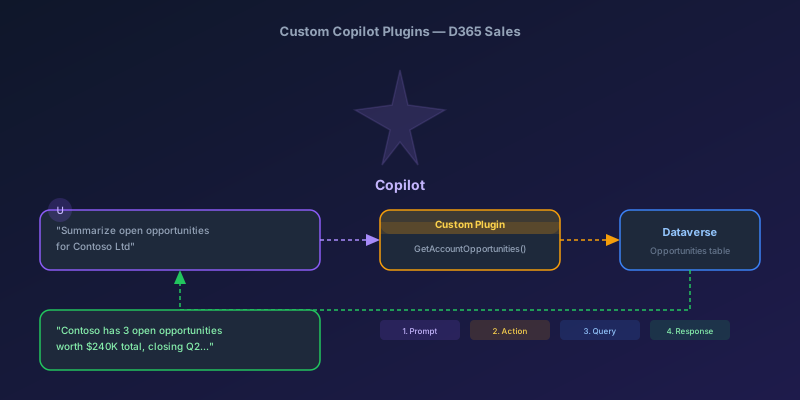
Building Custom Copilot Plugins for D365 Sales: Your First Action Step by Step
A hands-on tutorial for creating custom Copilot plugins in Dynamics 365 Sales — from defining a custom API to registering a plugin that Copilot can invoke, with real examples and permission gotchas.
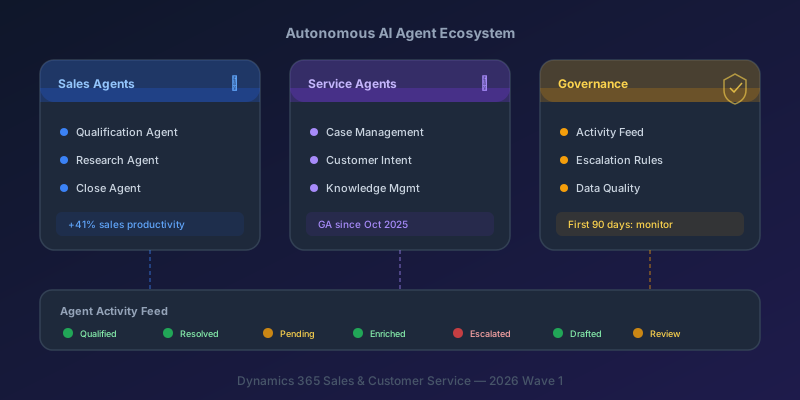
Autonomous AI Agents in D365 Sales and Customer Service: What You Actually Need to Know
A practical breakdown of the Sales Qualification Agent, Case Management Agent, and the governance framework you need before deploying them.
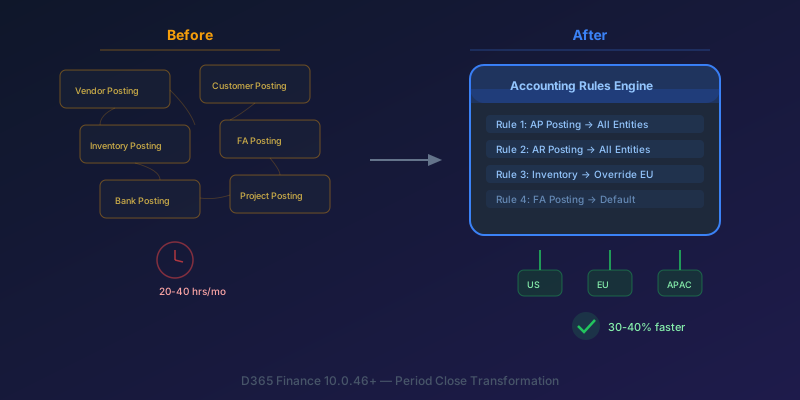
The New Accounting Rules Engine in D365 Finance: Stop Wasting 30 Hours a Month on Period Close
How the Accounting Rules Engine, multi-entity journals, flexible hierarchies, and Copilot in D365 Finance 10.0.46+ transform period close for multi-company environments.
Newsletter
New posts, straight to your inbox
One email per post. No spam, no tracking pixels, unsubscribe anytime.
Comments
- No comments yet. Be the first.