Configuring Purchase Requisition Approval Workflows in D365 F&O Without Code
Most teams reach for a developer the moment someone says "approval." In Dynamics 365 Finance & Operations you almost never need one. The workflow infrastructure is a fully declarative engine, and for the document types that ship with the product, a functional consultant can build routing that would take weeks to hand-roll elsewhere. Let me walk through how I configure a purchase requisition approval end to end.
The pieces you are assembling
Every workflow in F&O is built from a small set of element types dragged onto a canvas in the workflow editor (a ClickOnce app launched from the browser). You need to understand the three that do the actual decision-making:
- Approval element — a multi-step container where one or more people approve or reject the document. Each approval can contain multiple steps, and each step is what actually generates work items.
- Task element — assigns a unit of work that someone marks complete. It does not branch on approve/reject; it is "go do this thing and tell me when it's done." Use it for collecting an attachment or a manual verification.
- Manual decision element — a single user picks one of two named outcomes you define (e.g. "Send to procurement" vs "Send back"). The branch the workflow takes depends on which outcome they choose.
People conflate approval and manual decision constantly. Rule of thumb: if the outcome is binary approve/reject against a document state, use approval. If you need a human to pick a named path that isn't approve/reject, use manual decision.
Assignment: who gets the work item
Each step has an Assignment tab, and this is where most of the real configuration lives. The assignment type determines who the work item lands on:
- Participant — resolves to users by security role or workflow user group. "Everyone in the Purchasing agent role."
- Hierarchy — walks an org hierarchy relationship, typically the managerial hierarchy off the originating worker. This is how you get "route up the management chain until spending limit is satisfied." You set the start point (e.g. requester's manager) and a stop condition.
- User — a hardcoded named user. Avoid for production; it creates a single point of failure when that person leaves.
- Workflow user — system pseudo-users like the workflow owner or the originator.
For a purchase requisition, the classic pattern is a hierarchy assignment that ascends the managerial chain. The stop condition is usually expressed against a spending limit policy or a dynamic field. The engine creates a work item for the first person in the chain; on approval it re-evaluates whether to continue up.
The worked example: PR approval
Here is the shape I build for a mid-size client. The requisition routes based on amount.
- Start node.
- Conditional decision — branch on
PurchReqTable.RequisitionAmount. Under a threshold, skip straight to completion; over it, enter the approval. - Approval element with two steps:
- Step 1: hierarchy assignment up the managerial chain, stop when approver's spending limit covers the amount.
- Step 2: a participant assignment to the Finance approver role, only entered when a step condition is met.
- End node.
The conditional decision uses the F&O condition builder — no code, just field comparisons joined with AND/OR:
PurchReqTable.RequisitionAmount > 10,000.00
AND PurchReqTable.RequisitionPurpose == Capital
Step conditions vs the conditional decision element
Two different mechanisms, easy to mix up:
- A conditional decision is a standalone node that splits the flow into two branches at the workflow level.
- A step condition lives inside an approval step and decides whether that step runs at all. If the condition is false, the step is skipped and the approval moves on.
Use a step condition when the extra approver is only sometimes needed (capital purchases need finance sign-off; office supplies don't) but you don't want to fork the whole diagram.
Escalation and time limits
On each step's Time limit tab you specify how long an assignee has before the work item is considered overdue. The duration can be hours, days, weeks, or months, and crucially it can respect a calendar so weekends don't burn the clock.
When the limit is hit, you choose an escalation path:
- Escalate to another assignment (their manager, a backup role) — the work item moves.
- Take action automatically — the system itself approves, rejects, or completes. Use auto-approve with extreme caution; auto-reject is safer for compliance.
I typically set 48 business hours with escalation to the assignee's manager, then a second escalation to a procurement mailbox role. Silent auto-approval after a timeout has burned more than one audit.
Delegation
Delegation is configured by users themselves, not in the editor — under their workflow user options each person can delegate specific workflow document types to another user for a date range. When Maria delegates PR approvals to Tom for her vacation week, work items that would assign to Maria instead create items for Tom, with the delegation recorded on the history. As an admin you can also set delegations on behalf of users. This is the correct answer to "someone is out and approvals are stuck" — not editing the workflow.
The work-item lifecycle
Understanding the states helps you debug stuck workflows. A work item moves through:
- Created/Pending — generated by a step, waiting in the assignee's unified inbox (the "Work items assigned to me" list).
- In progress — opened and being acted on.
- A terminal action: Approved, Rejected, Completed (for tasks), or Delegated/Reassigned which spawns a new item.
- On Recall, the originator pulls the document back; outstanding work items are cancelled.
- On Request change, the document returns to the originator for edits, then re-enters the workflow.
The whole document also has its own status visible on the record: Draft, Submitted, In review, Approved, Rejected. Don't confuse the document status with the work item status — a document can be "In review" while a specific work item is "Pending."
Activation and versioning
A workflow is useless until activated. When you save and close the editor and choose to activate, F&O creates a new version and makes it active; the prior version is retained. This matters operationally:
- Documents already in flight continue on the version they started under. Your change only affects newly submitted documents.
- You can view version history and revert to a prior version if a new routing rule misfires.
- The workflow is wired to a document type via the workflow configuration node for that module (Procurement and sourcing, Accounts payable, etc.). Until you set the active workflow there, submitting a PR throws "no workflow configured."
Practical gotchas
- No active workflow errors almost always mean you saved but never activated, or activated in the wrong legal entity. Workflows are company-specific.
- Owners and roles must actually contain users. An empty role on a participant assignment creates a work item with no recipient, which the engine routes to the workflow owner as a fallback — confusing if you don't expect it.
- Test in a sandbox with real org hierarchy data. Hierarchy assignments resolve nothing if the managerial relationships aren't populated in the worker records.
- Currency and amount fields on conditions evaluate in the document's currency; mixed-currency requisitions need care in the threshold logic.
Build it incrementally: get the start-to-end skeleton activating cleanly first, then layer in the conditional decision, then the second approval step, testing a submission after each addition. When something routes wrong, the workflow history on the document shows every step, assignment resolution, and timestamp — that log is the first place to look, not the editor.
Keep reading

crossCompany in X++: The Query That Mixes Legal Entities
A normal select stays in the current company. crossCompany returns every legal entity the user may read. How the company container, changeCompany, and OData differ.
Budget Control in Finance 10.0.49: Closed Periods, Reservations, and Broken Tracking
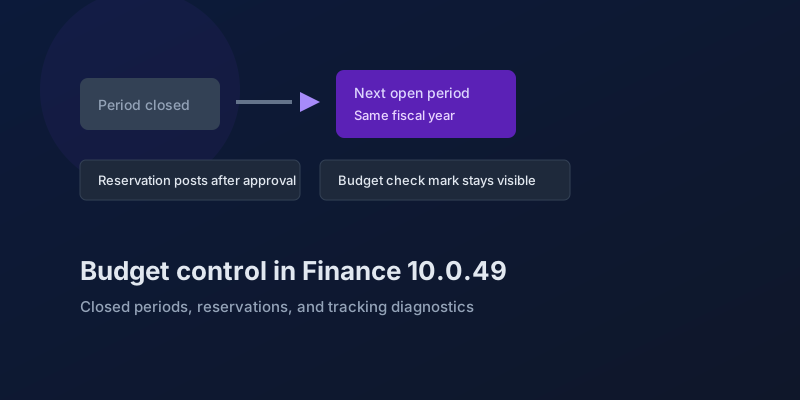
The budgeting features in Dynamics 365 Finance 10.0.49 — accounting-date advancement, reservation posting, encumbrance reporting, and a diagnostic for corrupt budget tracking.
Bank and Cash in Finance 10.0.49: Delayed Settlement, Match Preview, and Bridge Selection
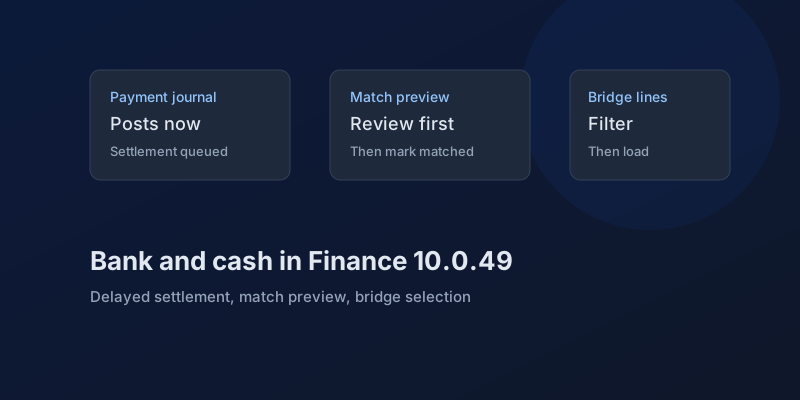
What Dynamics 365 Finance 10.0.49 changes in payment journals and bank reconciliation, which pieces are still preview, and which bank behaviors you can no longer disable.
D365 F&O 10.0.49: What to Regression-Test Before the October Auto-Update
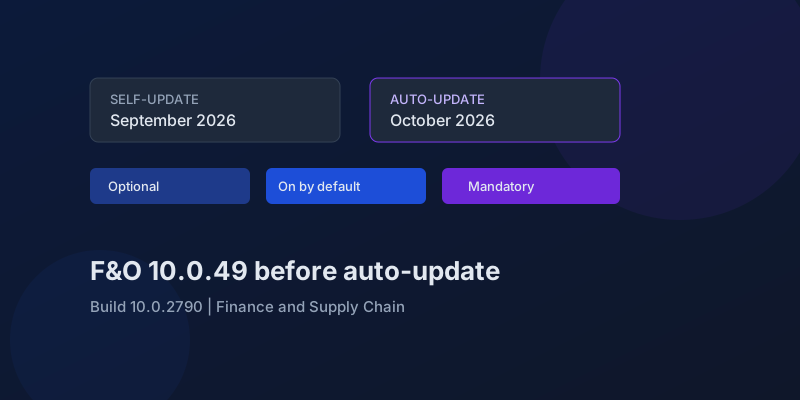
Finance and Supply Chain 10.0.49 (build 10.0.2790) is self-update in September 2026 and auto-update in October. Here is the feature-state triage that actually matters.
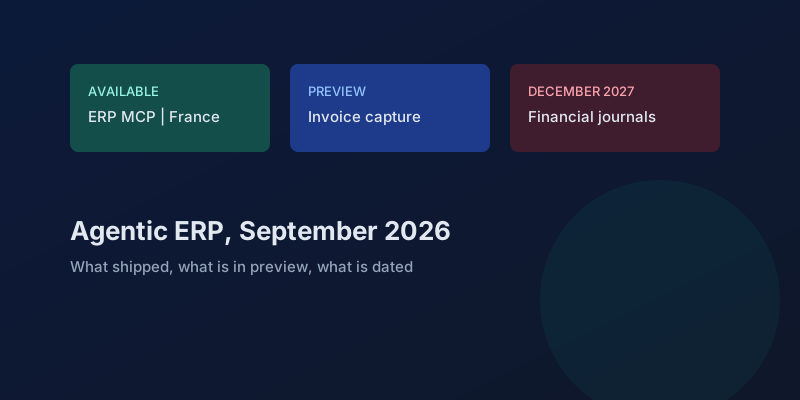
Agentic ERP in September 2026: What Is Available, in Preview, and Still a Date
A precise reading of Microsoft's 23 September 2026 Dynamics 365 ERP announcement, the 10.0.49 previews behind it, and the financial-journal dates that are not this fall.
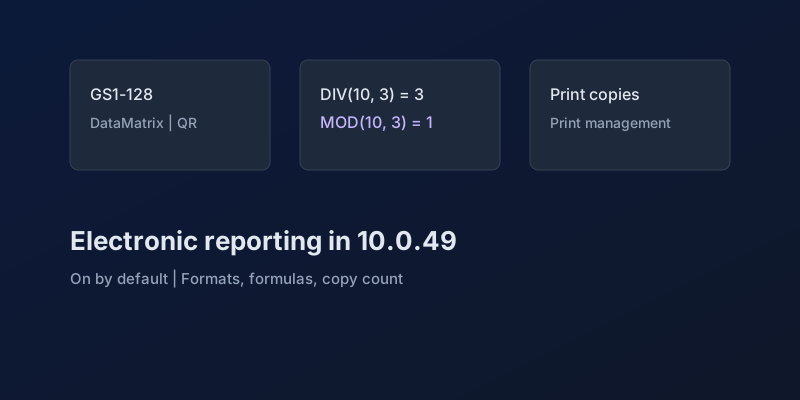
Electronic Reporting in Finance 10.0.49: GS1 Barcodes, DIV and MOD, and Copy Counts
What Dynamics 365 Finance 10.0.49 changes in Electronic Reporting without a feature debate — barcode formats, integer formulas, print copies — and which ER behaviors are now mandatory.
Newsletter
New posts, straight to your inbox
One email per post. No spam, no tracking pixels, unsubscribe anytime.
Comments
- No comments yet. Be the first.