Migrating Data into D365 F&O with the Data Management Framework — Lessons from the Trenches
In this series: F&O and Dataverse integration
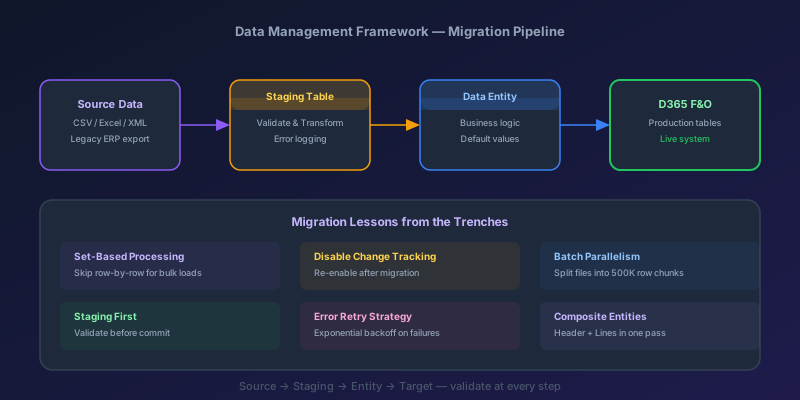
Every D365 F&O implementation has a moment where someone says, "We just need to load the data." That word "just" is doing a lot of heavy lifting. What follows is usually weeks of mapping spreadsheets, debugging staging table errors, and discovering that the source system has fifteen years of data quality issues that nobody mentioned.
I have been through enough of these migrations to know what works. The Data Management Framework (DMF) is a powerful tool — when you understand its architecture and avoid the traps. Here are the lessons.
DMF Architecture: What Happens When You Import
Understanding the pipeline prevents most debugging headaches:
Source File (CSV/Excel/XML)
       ↓
  Package API / Upload
       ↓
  Staging Table
  (raw data, 1:1 with source)
       ↓
  Mapping & Transformation
  (field mapping, value transforms)
       ↓
  Target Entity
  (data entity with validation)
       ↓
  Target Tables
  (physical F&O tables)
Each step can fail independently. When someone says "my import failed," you need to know which stage failed:
- Upload failure — file format issue, encoding problem, column mismatch
- Staging failure — data landed in staging but transformations failed
- Entity validation failure — data passed staging but failed entity-level validation (mandatory fields, foreign key lookups)
- Table-level failure — entity validation passed but a table insert constraint failed (unique key, database-level check)
The staging table is the critical feature. It decouples the import from the target, letting you inspect, fix, and retry data without re-uploading.
Choosing the Right Entity
D365 F&O ships with thousands of data entities. Choosing the wrong one is the most common migration mistake.
Data Entities vs. Composite Entities
Data entities map to one primary table (with optional joined tables). Use them for straightforward imports:
CustomersV3for customer master dataVendorsV3for vendor master dataReleasedProductsV2for items
Composite entities bundle a header entity and one or more line entities into a single import. Use them when header-line relationships matter:
SalesOrderHeadersV2Entity+SalesOrderLinesV2Entityas a compositePurchaseOrderHeaderV2Entity+PurchaseOrderLineV2Entity
The Entity Selection Checklist
Before you pick an entity, verify:
| Check | Why It Matters |
|---|---|
| Is it marked as "Data management enabled"? | Not all entities support DMF import |
| Does it cover all your fields? | Some entities expose a subset of the table fields |
| What is the natural key? | DMF uses the entity key for upsert logic — wrong key = duplicates |
| Does it support set-based insert? | If not, large imports will be slow (row-by-row) |
| Has Microsoft deprecated it? | Check for V2/V3 versions — always use the latest |
When No Standard Entity Fits
Build a custom data entity. This happens more often than you would expect, especially for:
- Custom tables added during implementation
- Standard tables where you need a specific combination of fields
- Scenarios requiring default values that standard entities do not set
// Custom entity for importing supplier ratings
[DataEntityViewAttribute]
public class SupplierRatingImportEntity extends common
{
    [DataEntityFieldAttribute(DataEntityFieldFlags::Mandatory)]
    public VendAccount VendorAccount;

    [DataEntityFieldAttribute]
    public str 50 RatingCategory;

    [DataEntityFieldAttribute]
    public real RatingScore;

    // Map to physical table in the entity's data source
}
Staging Table Patterns
The staging table is your best friend during migration. Use it intentionally.
Pattern 1: Import, Inspect, Execute
Do not run import-to-target in one step. Break it into two:
- Import to staging — get all data into the staging table
- Inspect the staging data — query it, validate it, run SQL checks
- Execute staging to target — push validated data to the entity
-- Check staging table for issues before executing
SELECT COUNT(*) AS TotalRows FROM STAGING_TABLE_CUSTOMERS;

-- Find rows missing required fields
SELECT * FROM STAGING_TABLE_CUSTOMERS
WHERE CUSTOMERACCOUNT IS NULL OR CUSTOMERACCOUNT = '';

-- Find duplicate keys
SELECT CUSTOMERACCOUNT, COUNT(*)
FROM STAGING_TABLE_CUSTOMERS
GROUP BY CUSTOMERACCOUNT
HAVING COUNT(*) > 1;
Pattern 2: Incremental Loading
For large datasets, do not load everything at once. Break it into chunks:
- Master data first — customers, vendors, items, warehouses
- Configuration data — payment terms, delivery modes, tax codes
- Transactional data — open orders, open invoices (if needed)
- Balances — opening balances as the final step
Each chunk depends on the previous one. Load customers before you load sales orders that reference those customers.
Pattern 3: Delta Loads
After the initial migration, you will have a cutover period where the legacy system is still running. Plan for delta loads:
- Export only records changed since the last load (use a modified date filter)
- Import to staging
- Use the entity's natural key to upsert (insert new, update existing)
- Repeat daily/hourly until cutover
Handling Transformations
Source data rarely matches the target format exactly. DMF provides mapping capabilities, but complex transformations need additional handling.
Built-in Mapping Features
- Field mapping — map source column "Cust_Number" to entity field "CustomerAccount"
- Default values — set "CurrencyCode" to "USD" for all rows if the source does not have it
- Value mapping — transform source value "Active" to target value "1"
When You Need More
For complex transformations, use these approaches in order of preference:
1. Transform in the source file before import. A Python or PowerShell script that cleans the CSV before uploading is simpler to debug than a transformation inside DMF.
# Pre-process: clean phone numbers before import
import csv

with open('customers_source.csv', 'r') as infile:
    reader = csv.DictReader(infile)
    with open('customers_clean.csv', 'w', newline='') as outfile:
        writer = csv.DictWriter(outfile, fieldnames=reader.fieldnames)
        writer.writeheader()
        for row in reader:
            # Strip non-numeric characters from phone
            row['Phone'] = ''.join(
                c for c in row['Phone'] if c.isdigit() or c == '+')
            # Standardize country code
            row['Country'] = row['Country'].upper().strip()
            if row['Country'] == 'US':
                row['Country'] = 'USA'
            writer.writerow(row)
2. Use staging table SQL. After import to staging, run UPDATE statements on the staging table to transform data before executing to target.
3. Use entity-level logic. Add validateWrite() or mapEntityToDataSource() overrides in the entity to handle transformations. This is the right approach for transformations that are permanent business rules, not one-time migration fixes.
Error Handling and Retry
DMF import errors fall into predictable categories:
Category 1: Data Quality Errors
These are the bulk of migration errors. Missing required fields, invalid foreign key references, format mismatches.
Strategy: Export the error log, group errors by type, fix them in the source data, and re-import only the failed rows.
Error: "Customer group 'LEGACY01' does not exist"
Fix: Create the customer group in F&O, or map it to an existing one
Affected rows: 3,412

Error: "Field 'PaymentTerms' cannot be empty"
Fix: Set a default payment term in the mapping
Affected rows: 891
Category 2: Duplicate Key Errors
The source data has duplicates, or records already exist from a previous load attempt.
Strategy: Decide on an upsert strategy. Set the entity's "Replace on duplicate" option in the DMF project settings. Or clean duplicates from the source before import.
Category 3: Timeout / Performance Errors
Large imports time out or exhaust resources.
Strategy: Reduce batch size, enable change tracking, and optimize the entity (covered in the next section).
The Error Log Workflow
- After a failed import, go to Data management > Job history
- Click the job, then View execution log
- Download the error file — it contains the failed rows with error messages
- Fix the rows in the error file
- Re-import only the error file (not the full dataset)
This is the fastest cycle: fix and re-import just the failures, not the entire dataset.
Performance Tuning for Large Datasets
Migrating millions of records requires deliberate performance tuning.
Batch Size
The default batch size is too large for most imports. Start with:
| Data Volume | Recommended Batch Size |
|---|---|
| < 10,000 rows | Default (no tuning needed) |
| 10,000 - 100,000 rows | 5,000 - 10,000 per batch |
| 100,000 - 1,000,000 rows | 2,000 - 5,000 per batch |
| > 1,000,000 rows | 1,000 - 2,000 per batch |
Smaller batches reduce memory pressure and make error recovery more granular.
Parallel Processing
DMF supports parallel execution threads. For large imports:
- Split the source file into multiple files (e.g., by company or by alphabetical range)
- Create separate DMF projects for each file
- Run them in parallel
Warning: Do not parallelize imports that have dependencies between rows (e.g., header-line relationships within the same file). Parallelize across independent datasets only.
Entity Optimization
For custom entities, ensure:
- Set-based operations are enabled — check the entity property
EnableSetBasedSqlOperations(alongside the relatedEnableInsertRecordset/EnableUpdateRecordsetflags) on the data entity - Change tracking is configured — helps DMF identify which staging rows need processing
- Unnecessary validations are skipped — during migration (not production use), you may disable certain entity validations if you have pre-validated the data
Disable Non-Essential Features During Load
For the migration window:
- Disable number sequences that auto-generate (pre-assign in source data)
- Disable alerts and notifications
- Disable non-critical batch jobs
- Disable workflow approvals on migrated entities
- Disable audit logging temporarily (re-enable immediately after)
Lessons from Enterprise Migrations
These are patterns I have seen across multiple large-scale F&O migrations:
Lesson 1: Migrate Data, Not History
The temptation is to bring over every transaction from the last ten years. Resist it. Migrate:
- Open transactions (open POs, open SOs, open invoices)
- Master data (customers, vendors, items)
- Opening balances (GL, AP, AR, inventory)
Archive historical transactions in a data lake or reporting database. Do not pollute your new F&O environment with closed transactions from 2016.
Lesson 2: Run the Migration Three Times Before Cutover
- Mock migration 1 — discover all the mapping issues, missing data, entity gaps
- Mock migration 2 — validate fixes, measure timing, test the full sequence
- Mock migration 3 (dress rehearsal) — run it exactly as you will on cutover day, including the delta load process
Each mock migration cuts the cutover-day issues by 80%.
Lesson 3: Own the Source Data Quality
The single biggest risk in any migration is source data quality. Establish data cleansing as a separate workstream that starts months before migration. Do not discover that 40% of your vendor records have invalid tax IDs on cutover day.
Lesson 4: Document the Entity Dependency Order
Create and maintain a dependency map:
1. Legal entities (Companies)
2. Currencies, Units, Fiscal calendars
3. Chart of accounts, Financial dimensions
4. Customer groups, Vendor groups, Item groups
5. Customers V3, Vendors V3
6. Released products V2, Warehouses, Sites
7. Inventory on-hand (opening balances)
8. Open purchase orders → lines
9. Open sales orders → lines
10. GL opening balances (journal import)
11. AP/AR opening balances (journal import)
This order is not negotiable. Skipping a dependency creates cascading errors that waste days.
Lesson 5: Budget 40% of Migration Time for Error Resolution
If you estimate the migration will take 5 days, budget 2 additional days for error resolution. Every enterprise migration hits unexpected data quality issues, entity behavior differences, and environment-specific problems.
The teams that succeed are not the ones with perfect data — they are the ones with a fast fix-and-retry cycle and a clear escalation path for blocking issues.
Keep reading
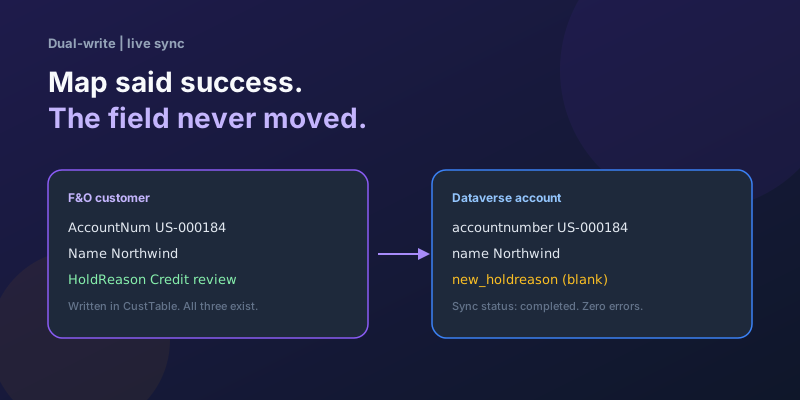
Dual-Write Dropped My Field and Reported Success
Why a dual-write map can complete with zero errors while a custom F&O field never lands in Dataverse — staging tables, unpublished maps, and change tracking after a schema change.
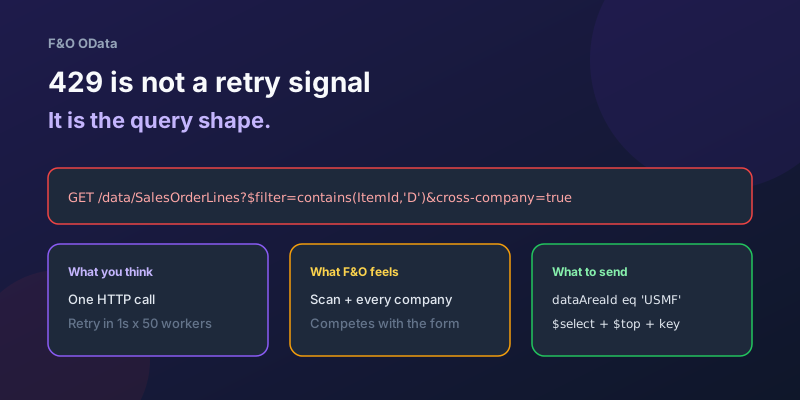
OData 429s from F&O: What Actually Throttles You
HTTP 429 from Dynamics 365 Finance & Operations is usually the query shape, not the request count — cross-company scans, $filter that cannot seek, $batch that still burns SQL, and why retrying harder makes month-end worse.
D365 F&O Data Entities: Composite, Computed, and Virtual Fields Explained
Data entities look like simple tables until you need a nested import, a derived column, or a field with no storage. Knowing the three advanced shapes is what makes integrations actually work.
Extending Data Entities in D365 Finance & Operations Without Breaking Upgrades
Add fields, computed columns, and validation to standard D365 Finance & Operations data entities the upgrade-safe way — with X++ examples and the staging-table traps to avoid.
Recurring Integrations and the REST API in D365 Finance & Operations
Move files in and out of D365 Finance & Operations reliably using the recurring integrations REST API — enqueue, dequeue, acknowledge, and the status polling patterns that keep data flowing.
Dual-Write vs Virtual Entities vs OData: Choosing the Right F&O–Dataverse Pattern
Compare dual-write, virtual entities, OData, and DMF for Finance and Operations to Dataverse integration with latency and failure tradeoffs.
Newsletter
New posts, straight to your inbox
One email per post. No spam, no tracking pixels, unsubscribe anytime.
Comments
- No comments yet. Be the first.