Dataverse Security Roles: A Practical Guide to Getting Them Right
Dataverse security roles are one of those things that seem simple until they break. You assign a role, the user can access the data. Remove it, they cannot. But then someone reports they can see records they should not, or a flow fails because the service account is missing a privilege nobody thought to check. Every Dynamics 365 and Power Platform project hits this wall eventually.
Here is how Dataverse security roles actually work, the mistakes that cause most access issues, and the layered security model you should be using.
How Security Roles Work Under the Hood
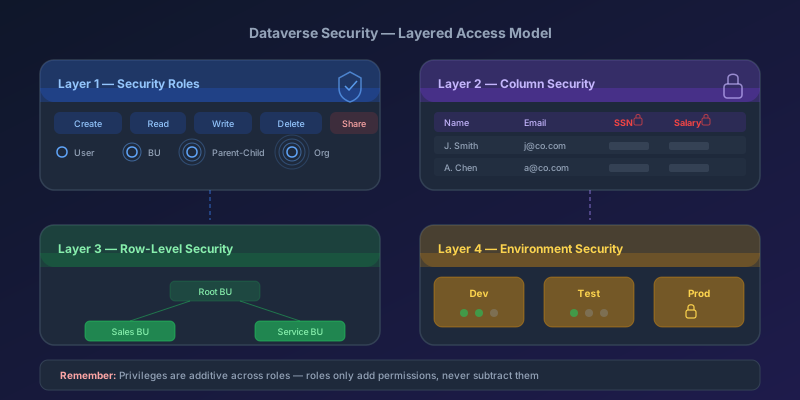
A security role is a collection of privileges. Each privilege maps to a specific action on a specific table (entity), at a specific access level. That is three dimensions per privilege:
- Action: Create, Read, Write, Delete, Append, Append To, Assign, Share
- Table: Account, Contact, Lead, custom tables, etc.
- Access level: User, Business Unit, Parent-Child Business Unit, Organization
When a user tries to do something — say, read a Contact record — Dataverse checks whether any of their assigned roles grant the Read privilege on the Contact table at an access level that covers that record's owning business unit.
The key detail most people miss: privileges are additive across roles. If a user has two roles and one grants Read at the User level while the other grants Read at the Organization level, the user gets Organization-level access. Dataverse always takes the least restrictive privilege across all assigned roles.
This means you cannot use one role to restrict what another role grants. Security roles only add permissions — they never subtract them.
The Eight Privileges Explained
Most documentation lists Create, Read, Write, Delete and stops there. The other four matter just as much.
| Privilege | What It Controls |
|---|---|
| Create | Insert new records |
| Read | View existing records |
| Write | Modify existing records |
| Delete | Remove records |
| Append | Attach a record to another record (e.g., add a Contact to an Account) |
| Append To | Allow other records to be attached to this record |
| Assign | Change the owner of a record |
| Share | Grant another user access to a specific record |
Append and Append To are the privileges that cause the most confusion. They work as a pair. To associate a Contact with an Account, the user needs Append on Contact (permission to attach the Contact) and Append To on Account (permission to allow something to be attached to the Account). Missing either one and the operation fails.
Share is the privilege that enables record-level sharing. Without it, users cannot use the Share button or grant ad-hoc access to individual records — which is fine until a manager needs to share a sensitive opportunity with a colleague in another business unit.
Access Levels and the Business Unit Hierarchy
The four access levels determine the scope of each privilege:
| Level | Icon Depth | Scope |
|---|---|---|
| User | One circle | Only records the user owns |
| Business Unit | Two circles | Records owned by anyone in the user's business unit |
| Parent-Child BU | Three circles | Records in the user's BU and all child BUs |
| Organization | Four circles | All records regardless of business unit |
If your org has a flat structure (one business unit), the distinction between these levels barely matters — everything resolves to Organization. But the moment you add child business units for regional teams or departments, access levels become critical.
Common mistake: giving a role Organization-level Read on every table because "users were complaining they could not see records." This works until you realize the sales team can now see HR case records, and the compliance team has questions.
The Layered Security Model
Security roles are only one layer. Dataverse gives you four layers, and production environments should be using at least three:
Layer 1: Security Roles (Table-Level)
Controls which tables a user can access and what actions they can perform. This is the broadest layer.
Layer 2: Column Security Profiles
Controls access to individual columns (fields) on a table. Use this for sensitive data like salary, SSN, personal identifiers, or financial figures.
Table: Contact
  → Most columns: visible to all roles with Read on Contact
  → SSN column: restricted to "HR Data Access" column security profile
  → Salary column: restricted to "Finance Data Access" column security profile
Column security profiles are separate from security roles. A user needs both the role (to access the table) and the profile membership (to see the protected column). Without the profile, the column appears blank — not hidden, blank.
Layer 3: Row-Level Security (Record Filtering)
Implemented through business units and ownership, team membership, or sharing. Controls which specific records a user can see within a table they have access to.
For more granular row-level filtering beyond ownership, use Dataverse row-level security policies or build filtered views that scope queries to relevant records.
Layer 4: Environment-Level Security
Controls who can access the environment at all. Managed through security groups in Entra ID (formerly Azure AD). If a user is not in the environment's security group, they cannot sign in — regardless of what roles they have been assigned.
This is the layer most dev/test environments skip, and it is why you occasionally hear about a user accidentally modifying test data in production.
Common Mistakes and How to Fix Them
Mistake 1: Cloning System Administrator
The System Administrator role grants full access to everything. Cloning it and removing a few privileges seems like a shortcut to creating a custom admin role. Do not do this.
The System Administrator role receives new privileges automatically when Microsoft adds new tables or features. Your cloned role does not. Over time it drifts, and you end up with a role that is either overprivileged (because you forgot to remove new privileges) or underprivileged (because new features do not work).
Instead, build custom roles from scratch. Start with the minimum privileges needed and add from there.
Mistake 2: One Role Per User
Assigning a unique role to each user does not scale. When you need to change access for a group of users, you are editing dozens of individual roles.
Use a role-per-function approach:
- Base role: Minimum access everyone needs (read accounts, read contacts, use dashboards)
- Function role: Sales Rep, Service Agent, Marketing User
- Elevated role: Sales Manager, Service Manager (adds Assign, Share, broader access levels)
Assign users the base role plus their function role. Managers get the elevated role on top.
Mistake 3: Ignoring the Append/Append To Pair
Users report "access denied" when creating related records. The admin checks Create privileges — they are fine. The issue is always Append or Append To.
Whenever you grant Create on a table, check whether users need to associate that record with other tables. If yes, grant Append on the source table and Append To on the target table.
Mistake 4: Not Testing with a Non-Admin Account
Admins can do everything. Testing your security model while logged in as an admin tells you nothing. Create a test user in each role combination and verify access through those accounts.
Use the Check Access feature in the Power Platform admin center to verify a specific user's effective privileges on a specific table without logging in as them.
Mistake 5: Forgetting Service Accounts and Flows
Power Automate cloud flows run in the context of the connection owner. If a flow creates records in Dataverse, the connection owner needs the appropriate security role.
Application users (used for server-to-server integration) need security roles too. These are easy to forget because they do not sign in interactively — the access failure only surfaces when the integration runs.
Managing Roles Across Environments
Security roles travel in solutions. Include them in your solution and deploy through your ALM pipeline:
- Create custom security roles in your dev environment
- Add them to your unmanaged solution
- Export and import through your pipeline (or use Power Platform pipelines)
- Assign roles to users in each environment post-deployment
One caveat: role assignments (which user has which role) do not travel with solutions. You need to assign roles in each environment separately, either manually or through a post-deployment script.
For scripted role assignment, use the Dataverse Web API:
POST [org-url]/api/data/v9.2/systemusers(user-id)/systemuserroles_association/$ref
Content-Type: application/json

{
  "@odata.id": "[org-url]/api/data/v9.2/roles(role-id)"
}
Quick Audit Checklist
Run through this before any go-live:
| Check | How |
|---|---|
| No user has System Administrator unless required | Admin center > Users > filter by role |
| Custom roles follow least-privilege | Review each role's privilege grid |
| Column security is enabled for sensitive fields | Solution > Column Security Profiles |
| Environment security groups are configured | Admin center > Environments > Settings |
| Service accounts and app users have appropriate roles | Admin center > Application Users |
| Append/Append To are set for all relationship-dependent tables | Role editor > check paired privileges |
| Test user accounts exist for each role combination | Manual verification in each environment |
Key Takeaway
Dataverse security roles are the foundation, but they are only one layer. Combine them with column security for sensitive fields, business units for row-level scoping, and environment security groups for access gating. Build roles from scratch instead of cloning system roles, use a base-plus-function role pattern, and always test with non-admin accounts. The 30 minutes you spend on a proper security model saves the week you would spend cleaning up after a data exposure incident.
Keep reading
Elastic Tables in Dataverse: When Cosmos-Backed Storage Beats Standard Tables
What Dataverse elastic tables are, how TTL, partitioning, and JSON columns work, and how to decide between elastic and standard tables.
Dataverse Many-to-Many Relationships: Native, Manual, and When to Use Each
Native N:N relationships are quick to set up and impossible to extend. A manual junction table is more work and far more flexible. Choosing wrong means a painful migration later.
Securing Power Pages with Dataverse Table Permissions and Web Roles
Secure Power Pages data with Dataverse table permissions, access scopes, web roles, column profiles, and testing practices that prevent data leaks.
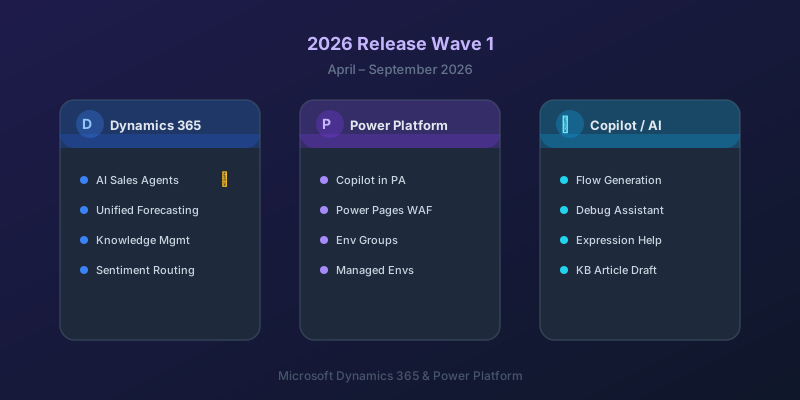
What's New in Dynamics 365 and Power Platform — 2026 Release Wave 1
The standout features from Microsoft's 2026 Release Wave 1 for Dynamics 365 and Power Platform, and what they mean for your projects.
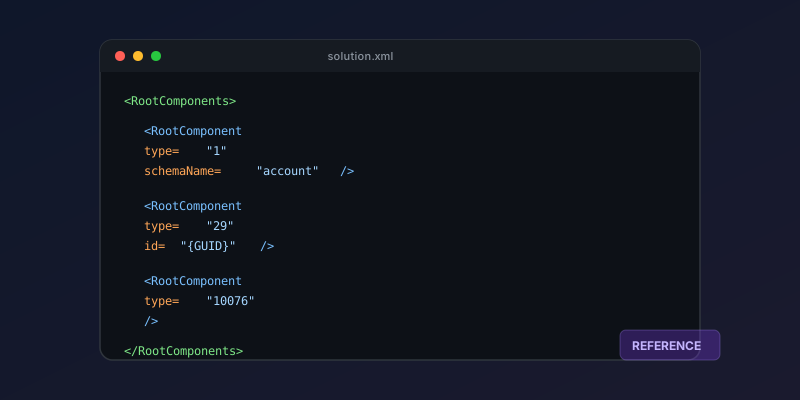
Dataverse Solution Components: A 2026 Quick Reference
A practical reference for solution component types, their IDs, and how to work with solution XML in Dynamics 365 and Power Platform.
Dataverse Cascade Delete: Parental, Restrict, and the Children You Lose
What Parental, Referential Restrict, and Remove Link actually do on delete, assign, and merge, and which preset to pick before a parent row takes its children with it.
Newsletter
New posts, straight to your inbox
One email per post. No spam, no tracking pixels, unsubscribe anytime.
Comments
- No comments yet. Be the first.