Monitoring What Matters: Setting Up Alerts That Don't Cry Wolf
There is a specific failure mode I want to talk about, and it is not a bug or an outage. It is a team of sharp engineers with 340 active alerts and a nightly habit of ignoring the twelve that fire. The on-call dismisses the CPU alert because the batch job always fires it. This morning a customer emails: the payment API has been returning errors since 2am. There was an alert for it. It was in the same stream.
That is alert fatigue, and it is the most dangerous state an operations team can be in — not because they lack monitoring, but because their monitoring has trained them to look away. Let us rebuild the signal.
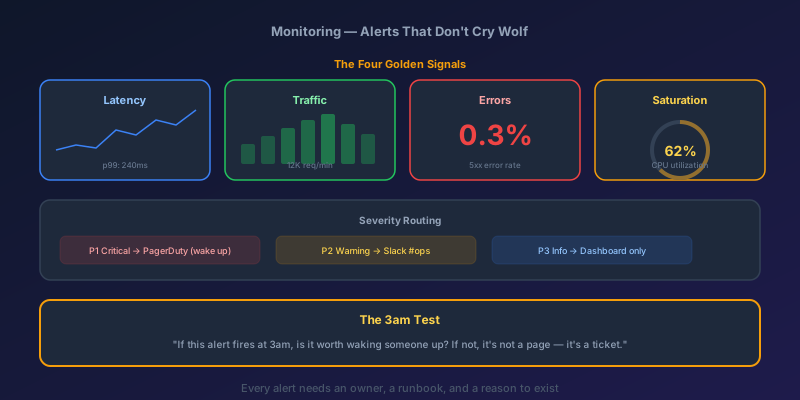
The Four Golden Signals
Google's SRE book identified four signals that matter for any service. If you monitor nothing else, monitor these:
| Signal | What It Measures | Example |
|---|---|---|
| Latency | Time to serve a request | P95 response time > 500ms |
| Traffic | Demand on your system | Requests per second |
| Errors | Rate of failed requests | HTTP 5xx > 1% of total traffic |
| Saturation | How full your resource is | Memory > 90%, connection pool > 80% |
Most teams over-index on saturation (CPU alerts, disk alerts, memory alerts) and under-index on everything else. But saturation is a leading indicator — it tells you something might break. Errors and latency are the signals that tell you something is broken. Prioritize accordingly.
Designing Thresholds That Mean Something
A threshold is only useful if crossing it means something has changed and action is required. Here is how to set them:
Step 1: Establish your baseline
Before you set any threshold, you need to know what normal looks like. Run your system for two weeks and observe:
- What is the normal P95 latency? Not the average — the P95. Averages hide problems
- What is the normal error rate? Most systems have a non-zero baseline error rate from bots, bad clients, and transient issues
- What does traffic look like by hour, by day, by week? A traffic drop at 2am on Sunday is normal. A traffic drop at 2pm on Tuesday is an outage
Step 2: Set thresholds above the noise floor
If your normal P95 latency is 200ms and it spikes to 250ms during peak hours, an alert at 300ms will fire during every peak. Set it at a level that indicates genuine degradation:
# Bad: fires during normal peak
P95 latency > 300ms for 5 minutes

# Good: fires when something is actually wrong
P95 latency > 500ms for 5 minutes
The key question: would I take action if this fires? If the answer is "probably not," raise the threshold or delete the alert.
Step 3: Use sustained conditions, not spikes
A single data point above threshold is noise. Require the condition to persist:
// Azure Monitor alert rule (KQL)
requests
| where timestamp > ago(10m)
| summarize
    p95_duration = percentile(duration, 95),
    error_rate = countif(success == false) * 100.0 / count()
| where p95_duration > 500 or error_rate > 2.0
The 10-minute window means a single slow request does not page anyone. A sustained problem does.
Severity Levels and Routing
Not every alert deserves the same response. Define clear severity levels and route them appropriately:
| Severity | Meaning | Response | Channel |
|---|---|---|---|
| Sev 0 | Customer-facing outage | Immediate page, all hands | PagerDuty phone call |
| Sev 1 | Degraded experience | On-call responds within 15 min | PagerDuty push notification |
| Sev 2 | Potential issue developing | Investigate during business hours | Slack #ops-alerts |
| Sev 3 | Informational / trend | Review in weekly ops meeting | Slack #ops-metrics |
The routing matters as much as the threshold. A Sev 2 alert that pages someone at 3am will erode trust in the system just as fast as a noisy threshold.
The 3am Test
For every alert, ask: "If this fires at 3am, is it worth waking someone up?"
- "CPU is at 85%" — No. It might come back down. Create a ticket
- "Error rate jumped from 0.5% to 15%" — Yes. Customers are failing
- "Disk is at 90%" — Maybe. How fast is it growing? If it'll hit 100% by morning, yes. If it's been at 90% for a week, no
- "Zero traffic on the payment API" — Absolutely yes. Something is very wrong
If an alert is not worth waking someone up, it should not be routed to PagerDuty. Period.
Composite Alerts
Single-metric alerts often lack context. Composite alerts combine signals to reduce false positives:
# Single metric (noisy):
Alert if: CPU > 80%

# Composite (meaningful):
Alert if: CPU > 80% AND response_time_p95 > 500ms AND error_rate > 2%
The composite version fires only when high CPU is actually causing user impact. CPU at 85% during a batch job with normal response times? No alert. CPU at 85% with errors spiking? That is real.
In Azure Monitor, you can create composite alerts using action rules and alert processing rules, or use Application Insights smart detection which automatically correlates multiple signals.
Here is a practical composite alert using Log Analytics:
let latencyIssue = requests
| where timestamp > ago(5m)
| summarize p95 = percentile(duration, 95)
| where p95 > 500;

let errorIssue = requests
| where timestamp > ago(5m)
| summarize errorRate = countif(success == false) * 100.0 / count()
| where errorRate > 2.0;

latencyIssue
| join kind=inner (errorIssue) on $left.p95 == $left.p95
| project AlertTime = now(), P95_ms = p95, ErrorRate = errorRate
Anomaly Detection vs Static Thresholds
Static thresholds work well for signals with predictable baselines. But some metrics have patterns — traffic follows business hours, batch jobs run at specific times, usage varies by day of week.
For these, anomaly detection (also called dynamic thresholds in Azure Monitor) learns the pattern and alerts when the metric deviates from its expected range:
- Traffic drops 60% compared to the same hour last week? Alert
- Traffic drops 60% at 11pm on a Saturday? Expected — no alert
Azure Monitor dynamic thresholds expose a single knob with three positions — High, Medium, Low — trading false positives for missed real events. High catches more but pages you on edges of normal. Low stays quiet but can miss genuine degradation. Start at Medium and let your actual alert review meetings tell you which way to move.
Runbooks: Every Alert Needs a Response Plan
An alert without a runbook is just anxiety. When the on-call engineer gets paged at 3am, they should not be improvising. Every alert should link to a runbook that answers:
- What does this alert mean? Plain language, not metric names
- What is the customer impact? Is anyone affected right now?
- What are the common causes? Top 3 reasons this alert fires
- What are the immediate steps? Check X, run Y, restart Z
- When to escalate? If step 4 does not resolve it, who to call
- How to verify resolution? What metric should you watch to confirm the fix
Store runbooks in your wiki, linked directly from the alert definition. In Azure Monitor, use the Action Group description field to include the runbook URL:
az monitor action-group create \
  --resource-group rg-monitoring \
  --name 'PaymentAPI-Sev1' \
  --short-name 'PayAPISev1' \
  --action webhook oncall-webhook 'https://hooks.pagerduty.com/...' \
  --action email ops-team 'ops@company.com'
Include the runbook link in the alert's custom properties so it appears in every notification.
A Real Alert Setup
Here is what a well-designed alerting configuration looks like for a payment API:
| Alert | Threshold | Window | Severity | Route |
|---|---|---|---|---|
| Error rate > 5% | 5% of requests return 5xx | 5 min sustained | Sev 0 | PagerDuty call |
| Error rate > 1% | 1% of requests return 5xx | 10 min sustained | Sev 1 | PagerDuty push |
| P95 latency > 2s | 95th percentile > 2000ms | 10 min sustained | Sev 1 | PagerDuty push |
| P95 latency > 800ms | 95th percentile > 800ms | 15 min sustained | Sev 2 | Slack |
| Zero traffic | 0 requests received | 3 min sustained | Sev 0 | PagerDuty call |
| Connection pool > 80% | Active connections > 80% of max | 10 min sustained | Sev 2 | Slack |
| Dependency failure rate > 10% | Calls to downstream services failing | 5 min sustained | Sev 1 | PagerDuty push |
Notice what is not on this list: CPU utilization, memory usage, disk I/O. Those are on a dashboard for investigation, but they do not page anyone. They are causes, not symptoms. Alert on symptoms — the things your customers feel.
Reducing Alert Count
If you currently have hundreds of alerts, here is a practical cleanup process:
- Export every alert that fired in the last 30 days
- Categorize each as: led to action, was investigated and dismissed, or was ignored
- Delete every alert that was ignored more than 3 times. If no one acts on it, it is noise
- Raise thresholds on alerts that were investigated and dismissed. The threshold is too sensitive
- Keep alerts that led to action. These are your real signals
- Review monthly. Alert quality degrades over time as systems change
Target: fewer than 20 active alerts per service. If you need more, your service is too complex or your alerts are too granular.
The Takeaway
Good alerting is not about catching everything. It is about catching the right things and routing them to the right people at the right urgency. Every alert should pass the 3am test. Every alert should have a runbook. And every alert that nobody acts on should be deleted.
Your monitoring system is not a safety net if your team has learned to ignore it. Fix the signal-to-noise ratio, and the monitoring starts working again.
Keep reading
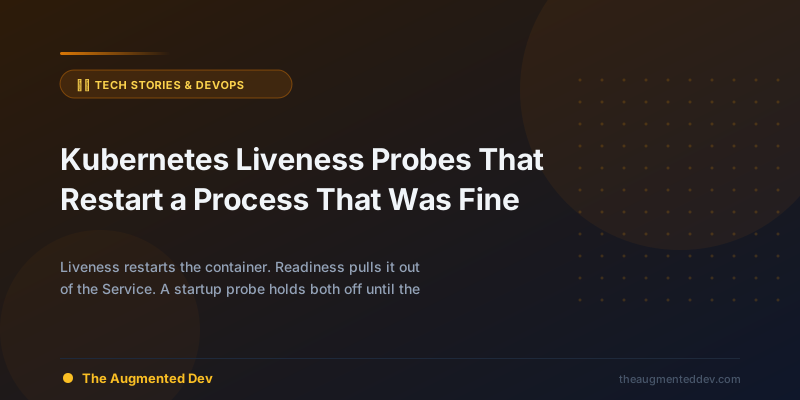
Kubernetes Liveness Probes That Restart a Process That Was Fine
Liveness restarts the container. Readiness pulls it out of the Service. A startup probe holds both off until the process has booted. Most outages come from using the wrong one.
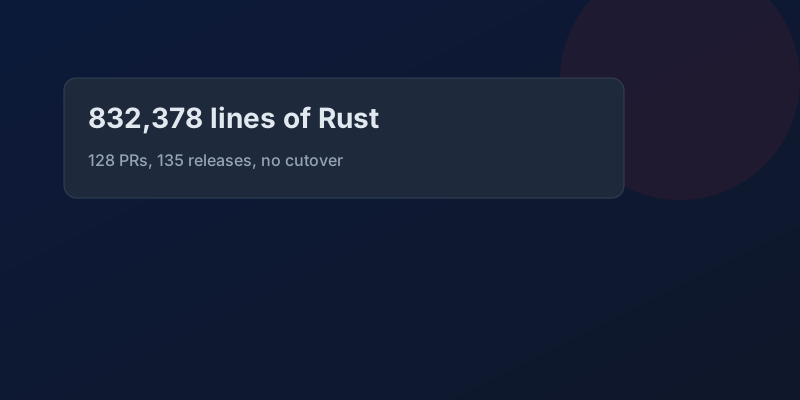
GitHub Rewrote the Copilot Runtime in Rust With Agents. The Playbook Is the Story.
832,378 lines of production Rust, 128 pull requests, 135 releases in fourteen and a half weeks, about $120,000 in tokens. What GitHub's TypeScript-to-Rust port of the Copilot agent runtime teaches about shipping a rewrite without a cutover.
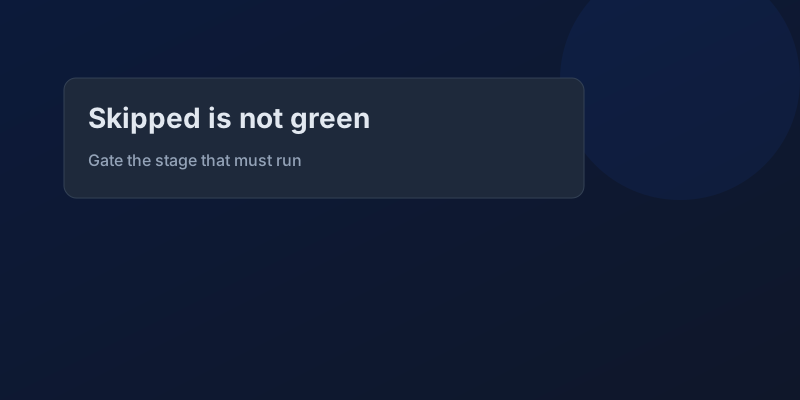
The Pipeline Was Green Because the Test Stage Never Ran
How an Azure DevOps condition and a skipped stage produce a green build that did not test anything, and the check to add so that cannot ship.
GitHub Merge Queues: Serializing main Without Parking Every PR
How merge queues absorb the rebase race on protected branches, what CI has to guarantee, and when a queue is worse than Require branches to be up to date.
Designing a Metrics System: Time-Series Storage from Gorilla to Downsampling
Ten million series, one datapoint each per 10 seconds, queried by tags: delta-of-delta compression, the inverted index over labels, and why high cardinality kills TSDBs.
Designing Petabyte Log Search: Index Everything vs Grep Smarter
Logs are 100x your metrics volume and queried 0.001% as often. The Splunk-style full index, the Loki-style label-only bet, and bloom-filtered brute force in between.
Newsletter
New posts, straight to your inbox
One email per post. No spam, no tracking pixels, unsubscribe anytime.
Comments
- No comments yet. Be the first.