Power Platform Pipelines: Automated ALM Without Azure DevOps
In this series: Power Automate gotchas
Power Platform Pipelines shipped generally available in March 2023, and three years on most enterprise teams still haven't adopted them — opting instead for Azure DevOps pipelines or manual solution exports. That's a miss. For teams that live entirely within the Power Platform, Pipelines offer a managed, governance-aware deployment path that's faster to set up and easier to operate.
This post covers the real setup: host environments, pipeline configuration, pre-deployment validations, and the edge cases that bite you.
The Architecture
Pipelines runs in a host environment — a Dataverse environment you designate as the coordination layer. It stores pipeline definitions, deployment history, and run logs. Your source (dev) and target (test, prod) environments are linked to the host but remain independent.
Host Environment (pipeline definitions + history)
├── Development Environment  ← makers work here
├── Test Environment         ← first deployment target
└── Production Environment   ← final target
The host environment must have a Dataverse database. It doesn't need to be the same environment as dev — in fact, it shouldn't be. Use a dedicated, locked-down environment for the host.
Prerequisites
-
Licenses: Pipelines requires a Power Apps Premium or Dynamics 365 license for the pipeline runner (the person or service account that deploys). Makers don't need Premium to request a deployment, only to approve it.
-
Host environment: Pick a Dataverse environment to act as the host — Pipelines requires one host per tenant from which pipelines and their stages are managed. The Pipelines solution is preinstalled on Dataverse environments, so you don't need to install anything from AppSource. The setup doc walks through nominating the host and adding the Deployment Pipeline Configuration app there.
-
Environment permissions: The service account that runs deployments needs System Administrator on both the source and target environments, plus Deployment Pipeline Administrator in the host.
Creating Your First Pipeline
Open the Deployment Pipelines app in your host environment.
- Create a Pipeline record — name it something like "CRM Core — Dev → Test → Prod".
- Link environments: add your dev environment as the source, then add test and prod as ordered stages.
- Set the deployment mode:
- Managed solution: converts to managed before deploying to test/prod — almost always correct for production.
- Unmanaged: deploys as-is, useful for dev-to-dev copies.
Pre-Deployment Validations
This is where Pipelines earns its keep. Under pipeline settings, configure:
Connection references: Pipelines prompts the deploying user to configure connection references in the target environment if they're not already set. This prevents the classic "deployed but flows are off because connections weren't configured" problem.
Environment variable values: Any environment variable without a value in the target throws a pre-deployment warning (configurable to a hard block). Set target-specific values in the environment variable override section of each stage.
Custom pre-deployment steps (via cloud flows): Create a cloud flow triggered by the OnDeploymentRequested event in the host Dataverse. Your flow can:
- Post a Teams adaptive card for human approval
- Run a solution checker scan and block if score falls below threshold
- Query an external CMDB to verify a change window is open
- Block the deployment by updating the
mspd_deploymentstagerunstatus toFailed
Example pre-deployment approval flow structure:
Trigger: When a row is added
  Table: Deployment Stage Run (mspd_deploymentstagerun)
  Environment: Host
  Condition: Status = "Requested"

Action: Post adaptive card → Teams channel (approvers group)
  On Approve: Update row Status = "Approved"
  On Reject:  Update row Status = "Failed"
              Set Failure Reason = [approver comment]
Running a Deployment
From the dev environment, makers open Pipelines (left nav in the maker portal), select the pipeline, choose the solution, and click Deploy.
Pipelines validates the solution, packages it, and queues the deployment. If you've configured approvals, the target stage waits for the approval flow to complete before proceeding. The deployment history view in the host environment shows every attempt, the approver identity, timestamps, and failure details.
Managed Environment Integration
If your environments are Managed Environments (ME), Pipelines gets additional capabilities:
- Solution checker enforcement: ME can require a passing solution checker score before any deployment proceeds. Configure this under ME settings → Solution checker.
- Deployment notes: A mandatory note field before any deployment (useful for audit trails and change management records).
- Maker access controls: ME admins can restrict which makers can initiate pipeline runs by modifying sharing settings.
Managed Environments are a Power Platform Premium feature. Without them, you lose these guardrails, but the core pipeline functionality still works.
Limitations Worth Knowing
No parallel stages. Pipeline stages are strictly sequential. If you need a staging environment that runs in parallel with QA, you'll need two separate pipelines.
No cross-tenant deployments. Source and target must be in the same tenant. For ISV multi-tenant delivery, Azure DevOps + pac cli remains the answer.
Canvas app security roles. When a canvas app is deployed as managed, users in the target need a role that grants Canvas App User access. Pipelines don't automatically update security roles — handle this post-deployment with a cloud flow triggered by OnDeploymentCompleted, or as part of environment provisioning.
Connection references are UI-only. There's no API (yet) to programmatically set connection reference values per environment. You set them in the pipeline configuration UI, which means a human must configure new connections the first time they appear in a solution.
Practical Setup for Enterprise Teams
The pattern that works:
Host: pipeline-host.crm.dynamics.com  (locked, admin-only access)

Pipeline: "Dataverse Core"
  Source:  dev.crm.dynamics.com
  Stage 1 → test.crm.dynamics.com  (auto-trigger on maker request)
  Stage 2 → uat.crm.dynamics.com   (manual trigger, auto-approve)
  Stage 3 → prod.crm.dynamics.com  (manual trigger, Teams approval required)

Pre-deployment flows:
  - Solution checker gate (blocks if score < 80)
  - Teams approval card for Stage 3
  - Post-deploy notification to ops channel
Onboarding a new maker: add them to the dev environment with Basic User + Solution Creator, and they can trigger pipeline runs immediately. No Azure DevOps access, no YAML to write, no PAT tokens to manage.
When to Stick With Azure DevOps
Pipelines excel for Power Platform-only solutions. Stay with Azure DevOps (or GitHub Actions + pac CLI) when:
- You deploy across multiple tenants
- Power Platform solutions co-deploy with Azure infrastructure (Bicep, App Service config)
- You need complex branching strategies — feature branches, hotfix tracks
- You need environment provisioning as part of the CI/CD pipeline
For everything else — especially teams where practitioners are primarily makers and functional consultants — Power Platform Pipelines reduce the tool-chain complexity dramatically.
Keep reading
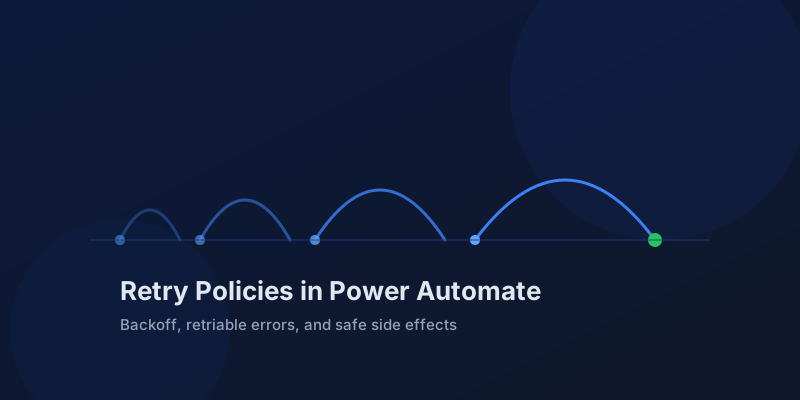
Retry Policies in Power Automate: What Actually Happens When an Action Fails
How Power Automate retry policies work, which errors they cover, how to configure them, and how to keep retries from duplicating side effects.
Resilient Power Automate: Retry Policies and Dead-Letter Patterns
Transient failures are normal in any flow that calls an API. The difference between a flow that self-heals and one that pages you at 2 a.m. is how you handle retries and the failures that stick.
15 Power Automate Expressions Every Maker Should Memorize
Memorize these Power Automate expressions to build faster flows, handle nulls, shape arrays, format dates, reduce action count, and debug WDL.
Calling the Dataverse Web API from Power Automate with the HTTP Action
Learn when to call the Dataverse Web API from Power Automate for actions, functions, batch requests, impersonation, row association, and binds.
Child Flows in Power Automate: Reuse, Pass Data, and Avoid Duplication
Use child flows in Power Automate to centralize reusable logic, pass typed inputs and outputs, handle errors, reduce duplication, and improve ALM.

Speeding Up Apply to Each: Concurrency, Filters, and Select in Power Automate
Speed up Power Automate Apply to each loops with concurrency, Filter array, Select, OData filters, pagination strategy, lower action counts, and safer runs.
Newsletter
New posts, straight to your inbox
One email per post. No spam, no tracking pixels, unsubscribe anytime.
Comments
- No comments yet. Be the first.