Automated Testing for Power Apps with Test Engine — A Practical Walkthrough
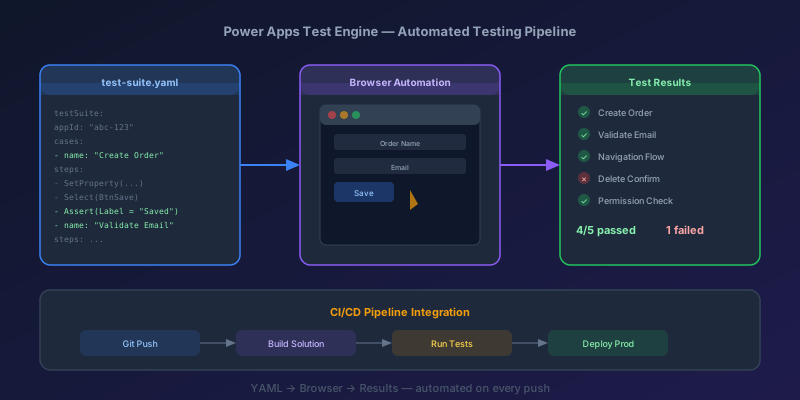
Here is how testing works on most Power Apps projects: someone clicks through the app before a release, declares "looks good," and ships it. Two weeks later, a formula change on Screen 3 breaks a button on Screen 7 that nobody thought to check. Users report it. The maker scrambles to fix it. Repeat every release cycle.
Manual testing does not scale. And for the longest time, Power Apps had no real automated testing story. That changed with Test Engine — an open-source testing framework that lets you write repeatable, automated tests for canvas apps and run them in CI/CD pipelines.
Let me walk you through setting it up, writing real tests, and integrating it into your deployment process.
What Is Test Engine?
Test Engine is a testing framework from Microsoft, available as an open-source project on GitHub. It uses Playwright under the hood to interact with your canvas app through a browser, simulating real user actions.
Key characteristics:
- Tests are written in YAML with Power Fx expressions for assertions
- Runs against a published canvas app (not in Studio)
- Supports authentication via Azure AD
- Can be executed locally or in a CI/CD pipeline (Azure DevOps, GitHub Actions)
- Handles navigation, data entry, button clicks, and validation
Think of it as Selenium, but purpose-built for Power Apps with Power Fx as the assertion language.
Prerequisites
Before writing tests, you need:
- .NET 8 SDK or later
- Power Apps Test Engine cloned from GitHub
- A published canvas app (not just saved — it must be published)
- An Azure AD app registration for authentication
- Playwright browsers installed (the Test Engine README documents the exact path; it sits inside the build output)
# Clone the repo
git clone https://github.com/microsoft/PowerApps-TestEngine.git
cd PowerApps-TestEngine

# Build the project
dotnet build

# Install Playwright browsers — the README has the current path under the build output
pwsh ./bin/Debug/PowerAppsTestEngine/playwright.ps1 install
Azure AD App Registration
Test Engine needs to authenticate as a user to interact with the app. Create an app registration:
- Go to Azure AD > App registrations > New registration
- Name: "PowerApps Test Engine"
- Redirect URI:
http://localhost(Web) - Under API permissions, add:
https://service.powerapps.com/.default(delegated)
- Under Authentication, enable "Allow public client flows"
- Note the Client ID and Tenant ID
Writing Your First Test
Tests are defined in YAML files. Create a file called test-plan.yaml:
testSuite:
  testSuiteName: Expense Report App Tests
  testSuiteDescription: Validates core functionality of the expense report app
  persona: TestUser1
  appLogicalName: cr4c5_ExpenseReportApp_d47a2
  networkRequestMocks: []

  testCases:
    - testCaseName: Navigate to New Expense Screen
      testCaseDescription: Verify user can navigate to the new expense form
      testSteps: |
        = Screenshot("home-screen.png");
          Select(BtnNewExpense);
          Wait(lblScreenTitle, "Text", "New Expense");
          Screenshot("new-expense-screen.png");
          Assert(lblScreenTitle.Text = "New Expense", "Should navigate to new expense screen");

    - testCaseName: Submit a Valid Expense
      testCaseDescription: Create and submit an expense with valid data
      testSteps: |
        = Select(BtnNewExpense);
          SetProperty(txtDescription, "Text", "Client lunch meeting");
          SetProperty(txtAmount, "Text", "47.50");
          SetProperty(ddCategory, "Selected", {Value: "Meals"});
          SetProperty(dtExpenseDate, "SelectedDate", Date(2026, 4, 15));
          Screenshot("filled-form.png");
          Select(BtnSubmit);
          Wait(lblConfirmation, "Text", "Expense submitted");
          Assert(lblConfirmation.Text = "Expense submitted", "Confirmation message should appear");
          Screenshot("submission-success.png");
Anatomy of a Test
- testSuiteName: Identifies the test suite in reports
- persona: Maps to credentials in your config (more on this below)
- appLogicalName: The logical name of your published app (find it in the app details or solution)
- testSteps: Power Fx expressions that simulate user actions
Core Test Actions
| Action | Purpose | Example |
|---|---|---|
Select(control) | Click a button or control | Select(BtnSubmit) |
SetProperty(control, prop, value) | Set a control's property | SetProperty(txtName, "Text", "John") |
Assert(condition, message) | Verify a condition | Assert(lblTotal.Text = "$100", "Total correct") |
Wait(control, prop, value) | Wait for a value to appear | Wait(lblStatus, "Text", "Done") |
Screenshot(filename) | Capture the current state | Screenshot("step-3.png") |
Test Configuration
Create a config.json to configure authentication and environment:
{
  "environmentId": "your-environment-id-here",
  "tenantId": "your-tenant-id-here",
  "testPlanFile": "test-plan.yaml",
  "outputDirectory": "TestOutput",
  "browserConfiguration": {
    "browser": "Chromium",
    "headless": true
  },
  "users": [
    {
      "personaName": "TestUser1",
      "emailKey": "TEST_USER_EMAIL",
      "passwordKey": "TEST_USER_PASSWORD"
    }
  ]
}
Note that emailKey and passwordKey reference environment variables, not actual credentials. Set them before running:
export TEST_USER_EMAIL="testuser@yourtenant.onmicrosoft.com"
export TEST_USER_PASSWORD="your-test-user-password"
Never hardcode credentials in test files. Use environment variables locally and pipeline secrets in CI/CD.
Writing Real-World Test Cases
Testing Navigation
- testCaseName: Full Navigation Flow
  testSteps: |
    = Assert(App.ActiveScreen.Name = "HomeScreen", "Should start on home");
      Select(BtnSettings);
      Assert(App.ActiveScreen.Name = "SettingsScreen", "Should navigate to settings");
      Select(BtnBack);
      Assert(App.ActiveScreen.Name = "HomeScreen", "Should return home");
Testing Form Validation
- testCaseName: Reject Empty Required Fields
  testSteps: |
    = Select(BtnNewExpense);
      SetProperty(txtDescription, "Text", "");
      SetProperty(txtAmount, "Text", "");
      Select(BtnSubmit);
      Assert(lblDescriptionError.Visible = true, "Description error should show");
      Assert(lblAmountError.Visible = true, "Amount error should show");
      Screenshot("validation-errors.png");
Testing Conditional Logic
- testCaseName: Manager Approval Required Over 500
  testSteps: |
    = Select(BtnNewExpense);
      SetProperty(txtAmount, "Text", "750");
      SetProperty(ddCategory, "Selected", {Value: "Travel"});
      Assert(lblApprovalRequired.Visible = true, "Should show approval notice for amounts > 500");
      Assert(lblApprovalRequired.Text = "Manager approval required", "Correct message");
Testing Data Display
- testCaseName: Gallery Shows Filtered Results
  testSteps: |
    = SetProperty(txtSearch, "Text", "Marketing");
      Wait(galExpenses, "AllItemsCount", 3);
      Assert(CountRows(galExpenses.AllItems) > 0, "Gallery should show results");
      Assert(
        First(galExpenses.AllItems).Department = "Marketing",
        "First result should be from Marketing"
      );
Running Tests
Locally
The supported way to run Test Engine is via the Power Platform CLI (pac):
pac test run --test-plan test-plan.yaml --tenant <tenant-id> \
             --environment-id <env-id> --user-auth browser
Or invoke the built executable directly with its documented switches (see the Test Engine README for the current shape):
cd PowerApps-TestEngine/bin/Debug/PowerAppsTestEngine
dotnet PowerAppsTestEngine.dll --testPlan test-plan.yaml --tenantId <tenant-id> ...
Test Engine launches a browser (headless by default), authenticates, opens the app, and executes each test case. Screenshots are saved to the output directory. Results are logged to the console and available as test reports.
In Azure DevOps
# azure-pipelines.yml
trigger:
  branches:
    include:
      - main

pool:
  vmImage: 'ubuntu-latest'

steps:
  - task: UseDotNet@2
    inputs:
      version: '8.x'

  - script: |
      git clone https://github.com/microsoft/PowerApps-TestEngine.git
      cd PowerApps-TestEngine
      dotnet build
      pwsh ./bin/Debug/PowerAppsTestEngine/playwright.ps1 install --with-deps
    displayName: 'Setup Test Engine'

  - script: |
      cd PowerApps-TestEngine/bin/Debug/PowerAppsTestEngine
      dotnet PowerAppsTestEngine.dll --testPlan $(System.DefaultWorkingDirectory)/tests/test-plan.yaml \
        --tenantId $(TenantId) --environmentId $(EnvironmentId) --user-auth browser
    displayName: 'Run Tests'
    env:
      TEST_USER_EMAIL: $(TestUserEmail)
      TEST_USER_PASSWORD: $(TestUserPassword)

  - task: PublishTestResults@2
    inputs:
      testResultsFormat: 'VSTest'
      testResultsFiles: '**/results.trx'
    condition: always()

  - publish: $(System.DefaultWorkingDirectory)/PowerApps-TestEngine/TestOutput
    artifact: TestScreenshots
    condition: always()
Store TestUserEmail and TestUserPassword as pipeline secrets in Azure DevOps. The test results appear in the pipeline's Test tab, and screenshots are available as artifacts.
In GitHub Actions
name: Power Apps Tests
on:
  push:
    branches: [main]
  workflow_dispatch:

jobs:
  test:
    runs-on: ubuntu-latest
    steps:
      - uses: actions/setup-dotnet@v4
        with:
          dotnet-version: '8.0'

      - name: Setup Test Engine
        run: |
          git clone https://github.com/microsoft/PowerApps-TestEngine.git
          cd PowerApps-TestEngine
          dotnet build
          pwsh ./bin/Debug/PowerAppsTestEngine/playwright.ps1 install --with-deps

      - name: Run Tests
        env:
          TEST_USER_EMAIL: ${{ secrets.TEST_USER_EMAIL }}
          TEST_USER_PASSWORD: ${{ secrets.TEST_USER_PASSWORD }}
        run: |
          cd PowerApps-TestEngine/bin/Debug/PowerAppsTestEngine
          dotnet PowerAppsTestEngine.dll --testPlan $GITHUB_WORKSPACE/tests/test-plan.yaml \
            --tenantId ${{ secrets.TENANT_ID }} --environmentId ${{ secrets.ENVIRONMENT_ID }} \
            --user-auth browser

      - uses: actions/upload-artifact@v4
        if: always()
        with:
          name: test-screenshots
          path: PowerApps-TestEngine/TestOutput/
Handling Test Data
Test data is the hardest part of Power Apps testing. Your tests interact with real Dataverse tables and SharePoint lists. Here are three strategies:
Strategy 1: Dedicated Test Environment
Use a separate Power Platform environment with seeded test data. Reset it before each test run with a Power Automate flow.
Strategy 2: Create and Clean Up
Each test creates its own data and deletes it afterward:
- testCaseName: Create and Verify Expense
  testSteps: |
    = Select(BtnNewExpense);
      SetProperty(txtDescription, "Text", "TEST_AUTOTEST_" & Text(Now(), "yyyymmddhhmmss"));
      SetProperty(txtAmount, "Text", "10.00");
      Select(BtnSubmit);
      // ... assertions ...
      // Cleanup: delete records with TEST_AUTOTEST_ prefix via a cleanup flow
Strategy 3: Read-Only Tests
Focus tests on navigation, validation rules, and UI behavior that do not require write operations. This avoids data management entirely.
My recommendation: Start with Strategy 3 for quick wins, move to Strategy 1 for comprehensive coverage.
Current Limitations and Workarounds
Test Engine is powerful but still maturing. Know the limitations:
| Limitation | Workaround |
|---|---|
| Cannot test model-driven apps (canvas only) | Use EasyRepro for model-driven apps |
| Limited support for custom components | Test the app-level behavior, not component internals |
| No built-in test data management | Use Power Automate flows for setup/teardown |
| OAuth token expiry on long test runs | Split into smaller test suites |
| Connector calls hit real APIs in tests | Use mock network responses in test config |
| Flaky tests on slow connections | Add explicit Wait() statements, increase timeouts |
Key Takeaway
Automated testing for Power Apps is no longer a wish — it is a reality. Test Engine gives you browser-level automation with Power Fx assertions, which means your existing Power Fx knowledge transfers directly to test writing. Start small: pick your most critical app, write 5 test cases covering the happy path, and run them on every deployment. That alone catches more regressions than any amount of manual clicking. Once you see the first bug caught by an automated test, you will never go back to "looks good, ship it."
Keep reading
Patch in Canvas Apps: The Blank Column That Overwrites a Real Value
Patch writes every column present in the change record, including blanks from empty form cards. How to update only the fields the user actually edited.
Dataverse Filtered Record Ownership: Row-Level Security Without Owners, Teams, or Sharing
Dataverse's filtered record ownership (preview) secures rows by column values such as region or department instead of owner or business unit. How record filters, entity record filters, and security roles fit together, and what the no-owner model gives up.
Power Platform September 2026 Update: The App-Builder Skill, Agent Plugins, and the Refreshed Model-Driven UI
What matters in Microsoft's September 2026 Power Platform feature update: the model app-builder skill goes GA, the canvas authoring agent plugin goes GA, generative pages embed in forms and reach connectors, model-driven header refresh is GA with display density in preview, and Power Automate gets server-side search.
Canvas Apps: Concurrent() Is How OnStart Stops Feeling Stuck
Load independent Dataverse and SharePoint calls together in a canvas app, and keep the calls that really do depend on each other out of the same Concurrent.
SharePoint Lists vs Dataverse for Canvas Apps: Pick the Storage, Not the Habit
Delegation limits, relationships, security, and ALM — the practical tradeoffs when a canvas app outgrows a list and when it should not migrate at all.
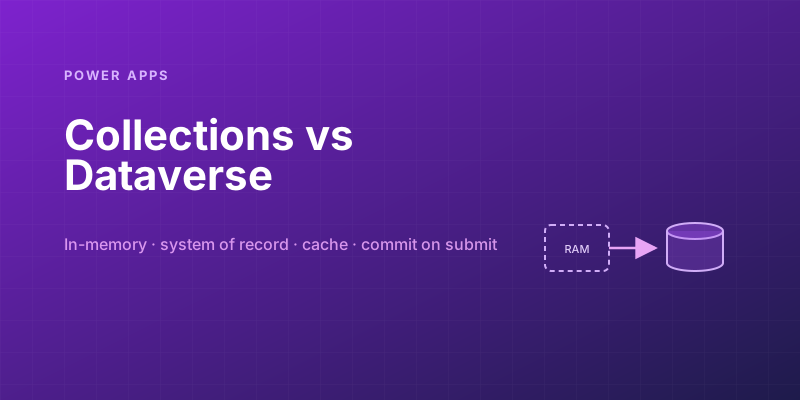
Power Apps Collections vs. Dataverse: Where Your App's Data Should Actually Live
Collections feel fast and convenient, so makers overuse them — and ship apps that lose data and break on refresh. Here is when to hold data in memory and when it belongs in Dataverse.
Newsletter
New posts, straight to your inbox
One email per post. No spam, no tracking pixels, unsubscribe anytime.
Comments
- No comments yet. Be the first.