Power Fx Formulas Every Maker Should Know in 2026
You know Filter. You know LookUp. You can write a Patch statement without checking the docs. Congratulations — you are past the beginner stage. But there is a wide gap between "can build an app" and "can build an app that is maintainable, performant, and handles edge cases gracefully."
These are the Power Fx formulas and patterns that close that gap. I use every single one of these in production apps. Some of them will change how you think about canvas app development.
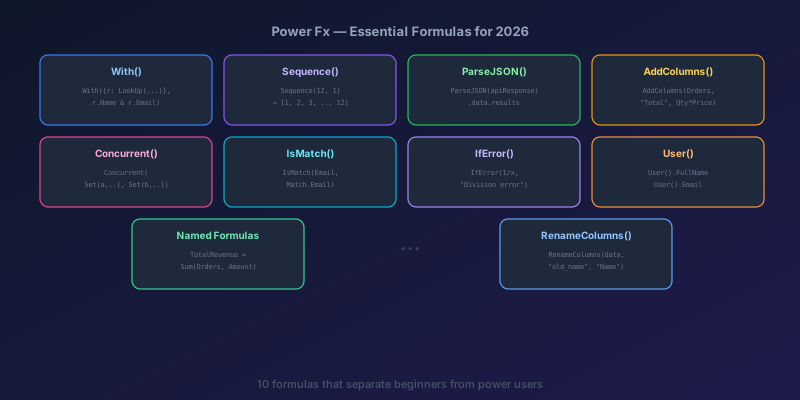
1. With() — Inline Variables Without Set()
Most makers scatter Set() calls everywhere to hold intermediate calculations. With() gives you scoped, inline variables that exist only for one expression. Cleaner, faster, no side effects.
Before:
Set(varSubtotal, Sum(Cart, Price * Quantity));
Set(varTax, varSubtotal * 0.0825);
Set(varTotal, varSubtotal + varTax);
// Then use varTotal somewhere
After:
With(
    { subtotal: Sum(Cart, Price * Quantity) },
    With(
        { tax: subtotal * 0.0825 },
        subtotal + tax
    )
)
Or the cleaner flat version:
With(
    {
        subtotal: Sum(Cart, Price * Quantity),
        taxRate: 0.0825
    },
    subtotal + subtotal * taxRate
)
Why it matters: No global variable pollution. The values exist only inside the With() block. Use this in calculated properties where Set() is not allowed.
2. Sequence() — Generate Number Ranges
Need a list of numbers? Do not build a static table manually. Sequence() generates them on the fly.
// Generate numbers 1 through 12 (for month picker)
Sequence(12)

// Generate years 2020-2030
Sequence(11, 2020)

// Generate time slots every 30 minutes (0, 30, 60, 90... 1410)
Sequence(48, 0, 30)
Real-world use: Build a time picker dropdown without a data source:
ForAll(
    Sequence(48, 0, 30),
    {
        Display: Text(
            TimeValue("00:00") + Time(0, Value, 0),
            "hh:mm AM/PM"
        ),
        Minutes: Value
    }
)
This generates 48 time slots from 12:00 AM to 11:30 PM. No SharePoint list needed. No hardcoded options.
3. ParseJSON() — Handle API Responses Properly
If you call APIs via Power Automate and pass results back to Power Apps, ParseJSON() is essential. It turns a JSON string into a navigable record.
// Assume flowResult contains: {"status":"success","data":{"id":42,"name":"Widget"}}

With(
    { parsed: ParseJSON(flowResult) },
    {
        status: Text(parsed.status),
        itemId: Value(parsed.data.id),
        itemName: Text(parsed.data.name)
    }
)
Key gotcha: ParseJSON returns Untyped Objects. You must explicitly cast values with Text(), Value(), Boolean(), or DateTimeValue(). Skip the cast and you get type errors.
For arrays:
ForAll(
    Table(ParseJSON(jsonArrayString)),
    {
        id: Value(ThisRecord.Value.id),
        name: Text(ThisRecord.Value.name)
    }
)
4. AddColumns() — Computed Columns on the Fly
AddColumns() is like adding a formula column in Excel — but on any table, anywhere.
// Add a "FullName" column and a "DaysOverdue" column to a table
AddColumns(
    Filter(Invoices, Status = "Unpaid"),
    "FullName", FirstName & " " & LastName,
    "DaysOverdue", DateDiff(DueDate, Today(), TimeUnit.Days),
    "Priority", If(DateDiff(DueDate, Today(), TimeUnit.Days) > 30, "High", "Normal")
)
Combine with ShowColumns and RenameColumns for table shaping:
// Return only specific columns with friendly names
RenameColumns(
    ShowColumns(
        AddColumns(Employees, "FullName", FirstName & " " & LastName),
        "FullName", "Email", "Department"
    ),
    "FullName", "Name",
    "Email", "EmailAddress"
)
This is how you transform raw data source schemas into what your UI actually needs, without modifying the data source.
5. User() and Environment Functions
User() returns the current user's info. But combine it with lookups for role-based behavior:
// App.Formulas
currentUser = User();
userEmail = currentUser.Email;
userRecord = LookUp(Employees, Email = userEmail);
userRole = userRecord.Role;
isAdmin = userRole = "Admin";
isManager = userRole = "Manager" Or userRole = "Admin";
Then throughout the app:
// Button visibility
Visible: isAdmin

// Conditional form fields
DisplayMode: If(isManager, DisplayMode.Edit, DisplayMode.View)
Pro tip: Use Param() to read URL parameters for deep linking:
// If app is opened with ?recordId=123
If(
    !IsBlank(Param("recordId")),
    Navigate(DetailScreen, ScreenTransition.None, { selectedId: Value(Param("recordId")) })
)
6. IsMatch() — Regex Validation
Stop writing complex If/And chains for input validation. IsMatch() supports regular expressions.
// Email validation
IsMatch(
    txtEmail.Text,
    "^[a-zA-Z0-9._%+-]+@[a-zA-Z0-9.-]+\.[a-zA-Z]{2,}$"
)

// US phone number (accepts 123-456-7890 or (123) 456-7890)
IsMatch(
    txtPhone.Text,
    "^(\(\d{3}\)\s?|\d{3}[-.])\d{3}[-.]?\d{4}$"
)

// Strong password (8+ chars, uppercase, lowercase, number)
IsMatch(
    txtPassword.Text,
    "^(?=.*[a-z])(?=.*[A-Z])(?=.*\d).{8,}$"
)
For extraction, use Match() and MatchAll():
// Extract all email addresses from a text block
MatchAll(
    txtInput.Text,
    "[a-zA-Z0-9._%+-]+@[a-zA-Z0-9.-]+\.[a-zA-Z]{2,}"
)
7. Concurrent Data Operations
Beyond Concurrent() for loading (Pattern 1 from my performance post), use it for parallel writes:
// Submit to multiple data sources simultaneously
Concurrent(
    Patch(Orders, Defaults(Orders), { Customer: varCustomer, Total: varTotal }),
    Patch(AuditLog, Defaults(AuditLog), { Action: "OrderCreated", User: userEmail }),
    Office365Outlook.SendEmailV2(varCustomer.Email, "Order Confirmed", varEmailBody)
)
Warning: Do not use Concurrent when operations depend on each other. If you need the Order ID for the audit log, the Patch calls must be sequential:
Set(varNewOrder, Patch(Orders, Defaults(Orders), { Customer: varCustomer }));
Patch(AuditLog, Defaults(AuditLog), { OrderId: varNewOrder.ID, Action: "OrderCreated" });
8. IfError() and IsError() — Proper Error Handling
Most canvas apps have zero error handling. A failed Patch crashes the app with a cryptic banner. Do better.
// Graceful Patch with error handling
IfError(
    Patch(Orders, Defaults(Orders), { Customer: varCustomer, Total: varTotal }),

    // Error handler — first argument after the expression
    Notify("Failed to save order: " & FirstError.Message, NotificationType.Error);
    // Log the error
    Patch(ErrorLog, Defaults(ErrorLog), {
        Message: FirstError.Message,
        Source: "OrderSubmit",
        User: userEmail,
        Timestamp: Now()
    })
)
Check before acting with IsError:
Set(varResult, Patch(Customers, Defaults(Customers), formData));
If(
    IsError(varResult),
    Notify("Save failed — check your data and try again", NotificationType.Error),
    Navigate(SuccessScreen, ScreenTransition.None)
)
Pro tip: Wrap critical operations in IfError always. An unhandled error in OnSelect stops the entire formula chain — buttons appear to "do nothing" and users just keep clicking.
9. Named Formulas for Computed Values
Named formulas (in App.Formulas) are lazily evaluated, cached, and automatically recalculated. Use them for anything derived from data.
// App.Formulas
openTickets = CountRows(Filter(Tickets, Status <> "Closed"));
overdueCount = CountRows(Filter(Tickets, DueDate < Today(), Status <> "Closed"));
myTickets = Filter(Tickets, AssignedTo = userEmail);
avgResolutionDays = Average(Filter(Tickets, Status = "Closed"), DateDiff(CreatedDate, ClosedDate, TimeUnit.Days));
These values are available everywhere in the app. They recalculate when the underlying data changes. No Set(), no OnStart, no stale data.
Named formulas vs. Set() variables:
| Named Formula | Set() Variable | |
|---|---|---|
| Defined in | App.Formulas | App.OnStart or anywhere |
| Evaluation | Lazy (on first reference) | Immediate (when Set runs) |
| Recalculation | Automatic when dependencies change | Manual (must call Set again) |
| Scope | Global, read-only | Global, read-write |
| Best for | Derived/computed values | User-modified state |
10. Table Shaping: RenameColumns + ShowColumns + DropColumns
When you need to pass a table to a component, flow, or control that expects specific column names:
// Shape a SharePoint list into the format a chart component expects
RenameColumns(
    ShowColumns(
        AddColumns(
            GroupBy(SalesData, "Region", "RegionData"),
            "TotalSales", Sum(RegionData, Amount)
        ),
        "Region", "TotalSales"
    ),
    "Region", "Label",
    "TotalSales", "Value"
)
This chain: groups by region, sums the amounts, keeps only two columns, and renames them to Label and Value. The result is a clean, predictable table shape that works with any chart component.
DropColumns is the inverse of ShowColumns — useful when you want most columns but need to exclude a few sensitive ones:
DropColumns(Employees, "SSN", "Salary", "ManagerNotes")
The Formula Cheat Sheet
| Need | Formula | Example |
|---|---|---|
| Inline variables | With() | With({x: 1}, x + 1) |
| Number ranges | Sequence() | Sequence(12, 1) |
| Parse API response | ParseJSON() | Text(ParseJSON(json).name) |
| Computed columns | AddColumns() | AddColumns(T, "Full", First & " " & Last) |
| Current user info | User() | User().Email |
| Regex validation | IsMatch() | IsMatch(txt, "^\d{5}$") |
| Parallel operations | Concurrent() | Concurrent(Patch(...), Patch(...)) |
| Error handling | IfError() | IfError(Patch(...), Notify(...)) |
| Cached computations | Named formulas | x = CountRows(Filter(...)) |
| Table shaping | RenameColumns() | RenameColumns(T, "Old", "New") |
Key Takeaway
Power Fx is deceptively powerful. Most makers use 20% of it and then hit walls. The patterns above — especially With(), ParseJSON(), IfError(), and Named Formulas — are what separate a fragile demo app from a production-grade tool. Pick two from this list that you have never used, and apply them to your current project this week. You will immediately see the difference.
Keep reading

Patch in Canvas Apps: The Blank Column That Overwrites a Real Value
Patch writes every column present in the change record, including blanks from empty form cards. How to update only the fields the user actually edited.
Dataverse Filtered Record Ownership: Row-Level Security Without Owners, Teams, or Sharing
Dataverse's filtered record ownership (preview) secures rows by column values such as region or department instead of owner or business unit. How record filters, entity record filters, and security roles fit together, and what the no-owner model gives up.

Power Platform September 2026 Update: The App-Builder Skill, Agent Plugins, and the Refreshed Model-Driven UI
What matters in Microsoft's September 2026 Power Platform feature update: the model app-builder skill goes GA, the canvas authoring agent plugin goes GA, generative pages embed in forms and reach connectors, model-driven header refresh is GA with display density in preview, and Power Automate gets server-side search.

Canvas Apps: Concurrent() Is How OnStart Stops Feeling Stuck
Load independent Dataverse and SharePoint calls together in a canvas app, and keep the calls that really do depend on each other out of the same Concurrent.

SharePoint Lists vs Dataverse for Canvas Apps: Pick the Storage, Not the Habit
Delegation limits, relationships, security, and ALM — the practical tradeoffs when a canvas app outgrows a list and when it should not migrate at all.
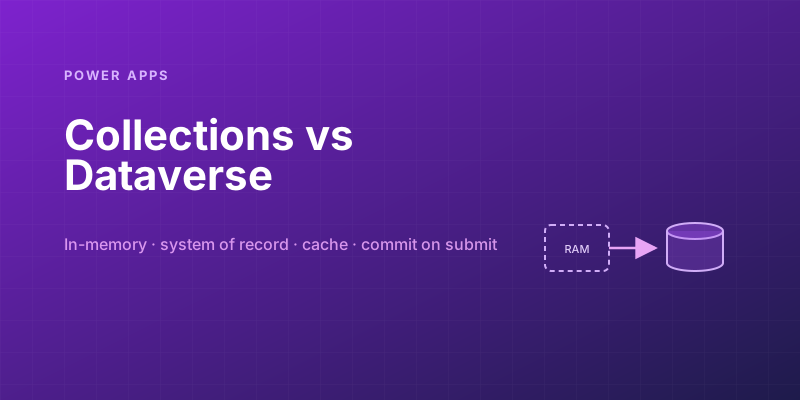
Power Apps Collections vs. Dataverse: Where Your App's Data Should Actually Live
Collections feel fast and convenient, so makers overuse them — and ship apps that lose data and break on refresh. Here is when to hold data in memory and when it belongs in Dataverse.
Newsletter
New posts, straight to your inbox
One email per post. No spam, no tracking pixels, unsubscribe anytime.
Comments
- No comments yet. Be the first.