Canvas App Performance: 10 Patterns That Actually Make a Difference
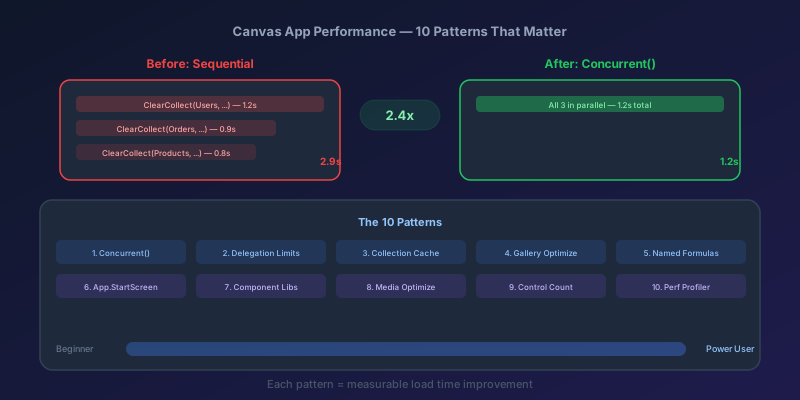
"Reduce complexity." "Optimize your data sources." That is what you get when you Google Power Apps performance — 47 tips that sound like fortune cookies. None of them tell you why your app takes 8 seconds to load.
I have spent years profiling slow canvas apps, and the truth is smaller than the top-ten lists suggest: 80% of performance problems come from the same 10 mistakes. Fix these, and your app goes from painful to snappy. Here are the patterns that actually move the needle, with concrete before/after examples.
Why Canvas Apps Get Slow
Before the patterns, understand the three bottleneck categories:
- Data calls — Too many, too large, or non-delegable queries hitting the 500/2000 row limit
- Rendering — Too many controls on screen, complex galleries, heavy media
- Startup — Everything crammed into App.OnStart, blocking the first screen
Every pattern below targets one of these. Let us get into it.
Pattern 1: Use Concurrent() for Parallel Data Loading
The problem: App.OnStart calls five data sources sequentially. Each takes 1-2 seconds. Total: 8 seconds.
Before:
// App.OnStart — sequential, slow
ClearCollect(colEmployees, Employees);
ClearCollect(colDepartments, Departments);
ClearCollect(colProjects, Projects);
ClearCollect(colSettings, AppSettings);
ClearCollect(colRoles, SecurityRoles);
After:
// App.OnStart — parallel, fast
Concurrent(
    ClearCollect(colEmployees, Employees),
    ClearCollect(colDepartments, Departments),
    ClearCollect(colProjects, Projects),
    ClearCollect(colSettings, AppSettings),
    ClearCollect(colRoles, SecurityRoles)
)
Impact: Five 1.5-second calls go from 7.5s total to ~1.5s. The calls run in parallel. This is the single highest-impact change you can make.
Pattern 2: Respect Delegation Limits
The problem: You filter a SharePoint list with 10,000 items using a non-delegable function. Power Apps silently returns only the first 500 (or 2000) rows. Your app shows incomplete data and nobody notices until a critical record is "missing."
Before:
// Non-delegable — only processes first 2000 rows locally
Filter(LargeList, StartsWith(Title, TextInput1.Text) And Status.Value = "Active")
After:
// Delegable — server processes all 10,000 rows
Filter(LargeList, StartsWith(Title, TextInput1.Text), Status.Value = "Active")
Key rules:
And,&&, and comma-separated conditions are all delegable in Filter / LookUp — the comma form is just an alias. The myth that "commas are delegable butAndisn't" is contradicted by the Filter / LookUp docs — what really matters is whether each operand is delegable.StartsWithis delegable against most data sources; theinoperator and theSearchfunction are not delegable against SharePoint.- Check the delegation warning (blue underline) — never ignore it.
Pattern 3: Cache Lookup Data in Collections
The problem: Every gallery item calls LookUp(Departments, ID = ThisItem.DeptID).Name — that is one network call per row, per render.
Before:
// In gallery template — fires for EVERY visible row
LookUp(Departments, ID = ThisItem.DepartmentID).DepartmentName
After:
// In App.OnStart — load once
ClearCollect(colDepartments, Departments);

// In gallery template — instant local lookup
LookUp(colDepartments, ID = ThisItem.DepartmentID).DepartmentName
Impact: Goes from N network calls to 0. For a gallery showing 50 rows, this alone can save 5+ seconds of rendering time.
Pattern 4: Optimize Gallery Rendering
The problem: Your gallery has 25 controls per row: labels, icons, buttons, nested galleries. Even scrolling feels laggy.
Rules of thumb:
- Max 8-10 controls per gallery row. If you need more, rethink the layout
- Use DelayOutput on search boxes to avoid filtering on every keystroke:
// On the TextInput control
DelayOutput: true
- Set gallery LoadingSpinner to
LoadingSpinner.Noneif you handle loading states yourself - Reduce TemplatePadding and avoid unnecessary containers
Before: Gallery with 22 controls, nested gallery for tags, image control with dynamic URL.
After: Gallery with 8 controls, tags shown as concatenated text, image loaded only on detail screen.
Pattern 5: Use Named Formulas Instead of Variables
The problem: App.OnStart sets 15 global variables. Some depend on others. The order matters. It is fragile and slow.
Before:
// App.OnStart
Set(varCurrentUser, User());
Set(varUserEmail, varCurrentUser.Email);
Set(varUserDept, LookUp(Employees, Email = varUserEmail).Department);
Set(varIsManager, CountRows(Filter(Employees, Manager = varUserEmail)) > 0);
After:
// App.Formulas (named formulas — evaluated lazily)
currentUser = User();
userEmail = currentUser.Email;
userDept = LookUp(Employees, Email = userEmail).Department;
isManager = CountRows(Filter(Employees, Manager = userEmail)) > 0;
Impact: Named formulas are lazily evaluated — they only compute when referenced, and Power Apps caches the result. This moves work out of OnStart and into on-demand computation. Bonus: they automatically recalculate when dependencies change.
Pattern 6: Move Logic Out of App.OnStart
The problem: App.OnStart does everything — load data, check permissions, set themes, navigate. Users stare at a loading screen for 10 seconds.
The fix: Use App.StartScreen instead of Navigate() in OnStart:
// App.StartScreen (evaluated before OnStart completes)
If(
    Param("screen") = "admin", AdminScreen,
    Param("screen") = "reports", ReportsScreen,
    HomeScreen
)
Then move screen-specific data loading to each screen's OnVisible event. The first screen loads in 2 seconds instead of waiting for all data.
Pattern 7: Build Component Libraries
The problem: You copy-paste a header component across 15 screens. Every change requires editing all 15. Each copy adds controls to the total count.
The fix: Create a Component Library with reusable components (headers, navigation, cards). Import the library into your app.
Benefits:
- Single source of truth for shared UI
- Reduced total control count
- Independent versioning — update the library, apps get updates automatically
Pattern 8: Optimize Media
The problem: Your app embeds 12 high-resolution images. The app package is 15MB. First load takes forever on mobile.
| Media Type | Bad Practice | Good Practice |
|---|---|---|
| Icons | Embedded PNGs (50KB each) | SVG or built-in icons (1KB) |
| Photos | Full resolution in gallery | Thumbnails, full on detail only |
| Logos | 2000x2000 PNG | 200x200 optimized PNG |
| Videos | Embedded in app | Stream URL or external link |
Rule: Keep total app media under 2MB. Use external storage (Blob, SharePoint) for anything large, and load it only when the user navigates to that screen.
Pattern 9: Reduce Control Count
The problem: Your app has 500+ controls across 20 screens. The editor is slow. The app is slow. Everything is slow.
Targets (per Microsoft's Power Apps limits): no more than 500 controls per app and 300 controls per screen as practical guidance. Apps that drift past those numbers feel sluggish in the maker studio long before users notice. Here is how to stay under both ceilings:
- Replace visible/hidden control pairs with a single control using conditional properties
- Use
Switchon a single label instead of 5 overlapping labels - Delete screens you built "just in case"
- Consolidate forms — one EditForm with conditional fields beats three separate forms
Before: 5 labels toggling visibility based on status
// Label1.Visible = Status = "New"
// Label2.Visible = Status = "In Progress"
// Label3.Visible = Status = "Completed"
// Label4.Visible = Status = "Cancelled"
// Label5.Visible = Status = "On Hold"
After: 1 label with dynamic text and color
// Label1.Text
Switch(Status, "New", "New", "In Progress", "In Progress", ...)
// Label1.Color
Switch(Status, "New", Color.Blue, "In Progress", Color.Orange, ...)
Pattern 10: Use Monitor
The problem: You are guessing where the bottleneck is. Stop guessing.
Power Apps ships a built-in Monitor tool that records every event a running app emits — network calls, formula evaluations, gallery renders, errors. Here is how to use it:
- Open your app in the Studio
- Go to Advanced tools > Monitor
- Play the app with Monitor attached
- Perform the slow action
- Check the Duration column — sort descending
What to look for:
- Network calls > 1 second: Optimize the query or cache the result
- Repeated identical calls: You are missing a collection cache
- Gallery render events > 500ms: Too many controls or heavy formulas per row
- Non-delegable warnings: Your filter is pulling all rows to the client
Pro tip: Export Monitor data to CSV for trend analysis. Run it before and after each optimization. Numbers do not lie.
The Performance Checklist
Before you ship any canvas app to production, verify:
- App.OnStart uses Concurrent() for parallel data loads
- No blue delegation warning underlines in formulas
- Lookup tables cached in collections
- Gallery rows have < 10 controls each
- Named Formulas used instead of OnStart variables where possible
- App.StartScreen handles initial navigation
- Total control count < 300
- Total media size < 2MB
- Monitor shows no calls > 2 seconds
- Tested on mobile with a real cellular connection
Key Takeaway
Canvas app performance is not mysterious. Profile first, fix the biggest bottleneck, measure again. In my experience, Concurrent() plus delegation fixes plus collection caching solve 80% of performance complaints. Do those three things before you touch anything else. Your users will notice the difference on the first launch.
Keep reading

Patch in Canvas Apps: The Blank Column That Overwrites a Real Value
Patch writes every column present in the change record, including blanks from empty form cards. How to update only the fields the user actually edited.

Dataverse Filtered Record Ownership: Row-Level Security Without Owners, Teams, or Sharing
Dataverse's filtered record ownership (preview) secures rows by column values such as region or department instead of owner or business unit. How record filters, entity record filters, and security roles fit together, and what the no-owner model gives up.

Power Platform September 2026 Update: The App-Builder Skill, Agent Plugins, and the Refreshed Model-Driven UI
What matters in Microsoft's September 2026 Power Platform feature update: the model app-builder skill goes GA, the canvas authoring agent plugin goes GA, generative pages embed in forms and reach connectors, model-driven header refresh is GA with display density in preview, and Power Automate gets server-side search.

Canvas Apps: Concurrent() Is How OnStart Stops Feeling Stuck
Load independent Dataverse and SharePoint calls together in a canvas app, and keep the calls that really do depend on each other out of the same Concurrent.
SharePoint Lists vs Dataverse for Canvas Apps: Pick the Storage, Not the Habit
Delegation limits, relationships, security, and ALM — the practical tradeoffs when a canvas app outgrows a list and when it should not migrate at all.
Power Apps Collections vs. Dataverse: Where Your App's Data Should Actually Live
Collections feel fast and convenient, so makers overuse them — and ship apps that lose data and break on refresh. Here is when to hold data in memory and when it belongs in Dataverse.
Newsletter
New posts, straight to your inbox
One email per post. No spam, no tracking pixels, unsubscribe anytime.
Comments
- No comments yet. Be the first.