Business Process Flows in Dynamics 365: Branching, Stage-Gating, and the Limits Nobody Warns You About

Business Process Flows (BPFs) are one of the most misunderstood features in model-driven apps. People treat them as a UI gimmick, then get surprised when a BPF blocks a save, eats a custom table, or refuses to let a record have two flows at once. This is what you actually need to know before you commit a process to a BPF.
What a BPF actually is
A BPF is a guided, stage-based experience rendered as a horizontal bar across the top of a form. It tells a user where a record is in a process and what is expected next. Crucially, it is not automation in the way a workflow or a Power Automate flow is. By itself a BPF does nothing except guide and, optionally, gate. The value is in consistency: every opportunity, every case, every lead moves through the same named stages with the same required fields.
A flow is made of stages, and each stage contains steps. A step maps to a field (a data step) or to a stage-gating rule. A stage is anchored to a single table. The classic example is a lead-to-opportunity flow that spans the Lead table for the first stages and the Opportunity table for the later ones.
Multi-stage and cross-entity flows
A BPF can span up to five tables in a single flow. This is the cross-entity capability and it is genuinely useful for processes that hand off between record types — Lead, then Opportunity, then Quote, for example. When a stage is anchored to a different table than the previous one, advancing the flow requires a relationship between the two tables so the platform knows which record to continue on.
Practical constraints to internalize:
- A flow can have at most 30 stages.
- A single stage can contain at most 30 steps.
- A flow can span at most 5 distinct tables.
If you are hitting these numbers, your process is too complex for a BPF and you should reconsider. A 30-stage flow is unusable on screen anyway.
Branching and conditional stages
Branching is what elevates a BPF from a glorified progress bar to something that models a real process. You add a condition on a stage transition, and depending on a field value the flow routes down one path or another.
A concrete example: a case-handling flow where high-severity cases require a manager-approval stage that standard cases skip. The branch evaluates a field — say severity — and chooses the next stage accordingly.
Things to know about branching:
- Branch conditions are evaluated against fields on the current stage's table.
- You can nest branches, but the designer caps nesting depth (in practice keep it to a couple of levels — deep trees become unmaintainable).
- Branches can converge again later, so you do not have to duplicate the tail of the process for every path.
- The condition operators are simple: equals, not equals, contains data, and so on. There is no scripting in the branch rule itself.
If you need logic richer than what the branch designer offers, that is a strong signal you are pushing the BPF past its intent.
Stage-gating with required fields
Stage-gating is the one piece of real enforcement a BPF gives you. Mark a data step as required, and the user cannot advance past that stage until the field has a value. This is enforced server-side on the stage transition, not just in the browser, so it is reliable.
Use this deliberately. Required-to-advance is different from required-on-the-form. A field can be optional for saving the record but required to move forward in the process. That distinction lets you capture data at the right moment instead of forcing everything up front.
A gotcha: a required BPF step does not make the column required at the table level. Reporting and integrations that bypass the BPF will still see nulls. If the data must always be present, enforce it on the column too, or with a real-time workflow / plugin.
Attaching automation
A BPF on its own only gates. To make something happen when a stage changes, you hook automation to it. The cleanest options:
- A Power Automate flow or classic workflow triggered when the BPF's stage field changes.
- A plugin registered on the relevant message that inspects the active stage.
Because the BPF instance is its own record (more on that below), you can trigger on changes to the Active Stage or Process Stage field. A common pattern: when the flow reaches a "Closed" stage, fire automation to set status, notify, and timestamp.
Trigger: When a row is modified (Opportunity)
Condition: Active Stage (Process Stage) == "Propose"
Action: Create task "Prepare proposal", assign to owner
Keep the automation idempotent. Stage fields can be touched more than once, and you do not want duplicate tasks every time the row is saved.
The storage model: a BPF is its own table
This is the part most people miss. When you create a BPF, the platform generates a dedicated table behind it. Every record that enters the flow gets a row in that table representing the flow instance — which stage it is on, when stages were entered, the traversed path, and which related records it spans.
Consequences that bite teams later:
- That generated table counts against your environment's table footprint and shows up in solutions.
- You can query BPF instances. Want to report on how long opportunities sit in "Qualify"? The data is in the BPF instance table, with active-stage and stage-entered timestamps.
- A single business record can have only one active instance of a given BPF at a time, but it can have instances of different BPFs.
- There is a hard limit of 5 activated BPFs per table. Across your whole org you can author more, but only five can be active for any one table.
How BPFs differ from business rules and workflows
These three get conflated constantly. They solve different problems:
- Business rules run on the form (and some run server-side) to set field values, visibility, requirement level, and simple validation. They are field-and-form scoped, declarative, and have no concept of process state. Use them for "if A then show B."
- Workflows / Power Automate are automation. They do things — create records, send mail, update fields — triggered by events. They have no built-in UI and carry no notion of "what stage am I on" unless you build it.
- BPFs are a stateful, visual guide with light gating. They are the only one of the three that natively models progression through named stages and persists that state.
The right architecture usually uses all three together: a BPF for the visible journey and stage-gating, business rules for in-stage field behavior, and a flow/plugin for the heavy lifting when stages change.
When NOT to use a BPF
I have ripped out as many BPFs as I have built, so here is the honest guidance on when to avoid them:
- The process is not linear or stage-shaped. If work bounces around with no meaningful "next step," a BPF fights the user.
- You need hard validation. BPF stage-gating only fires on stage transitions and only for the fields you wired. If you need guaranteed data integrity, use plugins or column-level requirements.
- The process is short. A two-stage flow adds chrome for almost no value. A status reason field plus a view is simpler.
- Heavy automation per stage. If most of the work is automation, build the automation and skip the visual flow, or you will maintain logic in two places.
- High-volume background/integration writes. Records created by integrations may not get a BPF instance the way UI-created records do, leading to inconsistent state. Test this path explicitly.
- You expect to reorder stages often. Editing an active BPF and migrating in-flight instances is awkward; frequent change means frequent pain.
A reasonable default
Reach for a BPF when there is a genuine, mostly linear, multi-stage human process that benefits from a shared visual model and light gating — sales pipelines, case lifecycles, onboarding. For everything else, lean on the cheaper primitives first. The BPF should earn its place, not be the reflex.
Keep reading
Dataverse Cascade Delete: Parental, Restrict, and the Children You Lose
What Parental, Referential Restrict, and Remove Link actually do on delete, assign, and merge, and which preset to pick before a parent row takes its children with it.

Sales Agent Creates CRM Records From Copilot Chat, and Sales Development Agent Quotes on Its Own: What Went GA on September 30
Two Dynamics 365 Sales agent capabilities reached general availability on September 30, 2026: inline record creation in Microsoft 365 Copilot Chat, and autonomous quote generation in Sales Development Agent. Setup, security, and the escalation path.
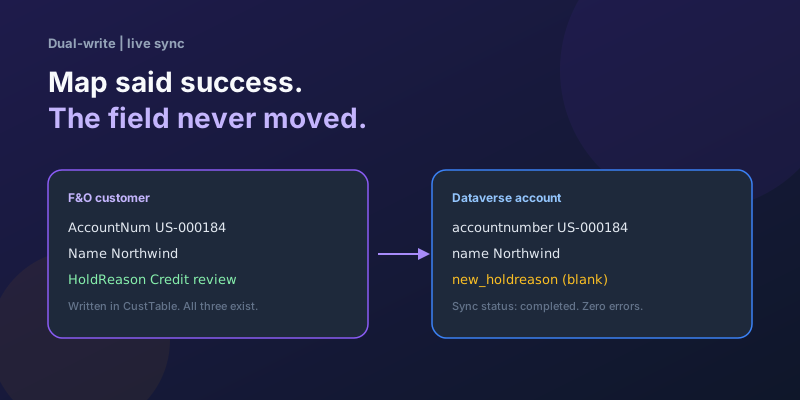
Dual-Write Dropped My Field and Reported Success
Why a dual-write map can complete with zero errors while a custom F&O field never lands in Dataverse — staging tables, unpublished maps, and change tracking after a schema change.
Elastic Tables in Dataverse: When Cosmos-Backed Storage Beats Standard Tables
What Dataverse elastic tables are, how TTL, partitioning, and JSON columns work, and how to decide between elastic and standard tables.

The Dataverse Plugin Execution Pipeline: Stages, Transactions, and Images Explained
How the Dataverse event pipeline actually works: pre-validation, pre-operation, post-operation stages, the transaction boundary, entity images, depth, and registration guidance.
Client Scripting in Model-Driven Apps Done Right: formContext, Execution Context, and Async
Modern client-side scripting for model-driven apps using formContext over the deprecated Xrm.Page, with handler wiring, async Xrm.WebApi patterns, and maintainability tips.
Newsletter
New posts, straight to your inbox
One email per post. No spam, no tracking pixels, unsubscribe anytime.
Comments
- No comments yet. Be the first.