Real-Time vs Background Dataverse Workflows: Picking the Right Execution Model
Classic Dataverse workflows still run in plenty of production environments, and the single most consequential design decision you make is whether a workflow runs as real-time (synchronous) or background (asynchronous). The two share an editor and a UI, but they execute in completely different ways, and confusing them causes either frustrating user-facing latency or silent data inconsistencies.
How each one actually executes
A background workflow is queued. When the triggering event fires, the platform writes a System Job (the asyncoperation table) record and returns control to the user immediately. The Async Service picks up the job moments later — usually within seconds, but under load it can be minutes — and runs the steps on a separate thread, outside the original database transaction.
A real-time workflow runs inline, inside the same pipeline and transaction as the operation that triggered it. From the platform's perspective it is essentially a workflow-shaped plugin: it executes during the synchronous event pipeline, the user's request does not complete until it finishes, and any unhandled failure rolls the whole operation back.
That single difference — same transaction or not — drives everything else.
Blocking and rollback
Because a real-time workflow holds the user's request open, the user waits for it. If you have a real-time workflow that updates three related records and calls a slow process, the form save spins until all of that completes. Worse, if any step errors, the platform rolls back the original create or update along with everything the workflow did. The user sees a business process error and their save is gone.
This is a feature, not a bug, when you need atomicity. If a workflow must enforce an invariant — "an opportunity cannot be set to Won unless it has at least one product line" — real-time is the correct tool because the rollback guarantees the rule holds. You can even add a Stop Workflow step with status Canceled to deliberately block the operation:
Check condition: Opportunity -> Status Reason = Won
  AND related Opportunity Products count = 0
Then: Stop Workflow with status "Canceled"
      Message: "Cannot close as Won without at least one product."
A background workflow can never do this. By the time it runs, the original transaction has already committed. It can react and correct, but it cannot prevent.
Ordering relative to plugins
Real-time workflows participate in the event pipeline, so their position matters. You set the workflow to run Before or After the main operation, and within those stages they interleave with synchronous plugins by execution rank. Practically:
- Before roughly corresponds to the pre-operation stage (stage 20). Use it to validate or to mutate the target before the record is written.
- After corresponds to post-operation (stage 40). Use it to react once the record exists, for example to update related records.
Background workflows always run after commit, so there is no "before" semantics at all — the option is not even offered. If you have ordering-sensitive logic where a plugin and a workflow both touch the same field, only real-time gives you any control over sequence, and even then it is coarse. Once logic gets that interdependent, you are usually better off consolidating it into plugins.
Performance and scale
The trade-off is straightforward:
- Real-time adds latency to every triggering operation and consumes a synchronous execution slot. A heavy real-time workflow on a high-volume table (say, on update of every activity) will degrade interactive performance and can contribute to plugin/sandbox timeouts (the 2-minute synchronous limit applies).
- Background offloads work but introduces lag and operational surface area. Jobs land in the System Jobs view; failures sit there as Failed records that nobody notices unless monitored. Bulk data loads can flood the async queue, and you will see jobs backing up.
A rule of thumb: keep real-time workflows short and deterministic. Anything involving waits, large fan-out, or non-critical side effects belongs in the background.
One sharp edge: real-time workflows do not support Wait conditions or timeouts. Those require the async engine, so adding a Wait step forces a workflow to be background.
Converting between the two
You can switch an existing workflow's execution mode, but only when it is deactivated, and only if its contents are compatible. Open the workflow, deactivate it, and toggle "Run this workflow in the background" off to make it real-time (or on for background). The conversion fails or is blocked if the workflow contains steps the target mode cannot support — most commonly Wait conditions, which cannot become real-time.
When you convert background to real-time, audit every Update step. Logic that was harmlessly eventually-consistent now runs inside the user's transaction and can both slow saves and trigger rollbacks you did not anticipate. Test the failure paths, not just the happy path.
Where Power Automate cloud flows fit now
Microsoft has been steering customers away from classic workflows toward Power Automate for years. The official guidance deprecates classic asynchronous workflows in favor of cloud flows; classic real-time workflows do not have a direct Power Automate equivalent and remain supported for the synchronous, transactional scenarios cloud flows cannot cover.
The mapping I use in practice:
- Background workflow → cloud flow using the Dataverse connector's "When a row is added, modified or deleted" trigger. You gain a vastly better designer, connectors to hundreds of services, proper error handling with retry policies, and run history. This is the default for new async automation.
- Real-time workflow → real-time plugin, or keep the classic real-time workflow. Cloud flows are asynchronous by nature; they cannot block a save or roll back a transaction. When you need synchronous enforcement, use a plugin (or a low-code plugin) or the classic real-time workflow.
- Validation that must block the user → plugin / real-time workflow, never a cloud flow. A cloud flow firing after commit cannot stop a bad save.
A subtle gotcha when migrating: a background workflow and an equivalent cloud flow on the same table can both fire and produce duplicate side effects. Deactivate the old workflow in the same deployment that introduces the flow, and watch for in-flight queued jobs that will still run after deactivation.
Practical decision guide
Walk these questions in order:
- Must the rule prevent the operation or guarantee atomicity? Yes → real-time (workflow or plugin). No → continue.
- Does it need to wait, run on a schedule, or call external services? Yes → background, and prefer a Power Automate cloud flow.
- Is it pure data manipulation triggered by a Dataverse event, with no user-blocking requirement? Either works; choose background to keep saves fast, or real-time if the user genuinely needs the result before continuing.
- Is the logic complex, branching, or interdependent with plugins? Lean toward plugins for testability and source control.
Things that bite people
- Silent async failures. Background workflow errors do not surface to users. Build a saved view on System Jobs filtered to Failed/Waiting and review it, or alert on it.
- Infinite loops. A real-time After-update workflow that updates the same record can re-trigger itself. Scope the trigger to specific attributes and guard with conditions.
- Real-time timeouts. The 2-minute synchronous ceiling is real. Long real-time logic will throw.
- Solution layering. Workflow process steps are notoriously fiddly across solution upgrades; deactivate, import, reactivate, and verify the steps survived.
The honest summary: for anything new and asynchronous, write a cloud flow. Reserve classic real-time workflows for transactional enforcement you cannot express elsewhere, and migrate background classic workflows on your own schedule before the deprecation forces it.
Keep reading
Dataverse Cascade Delete: Parental, Restrict, and the Children You Lose
What Parental, Referential Restrict, and Remove Link actually do on delete, assign, and merge, and which preset to pick before a parent row takes its children with it.

Sales Agent Creates CRM Records From Copilot Chat, and Sales Development Agent Quotes on Its Own: What Went GA on September 30
Two Dynamics 365 Sales agent capabilities reached general availability on September 30, 2026: inline record creation in Microsoft 365 Copilot Chat, and autonomous quote generation in Sales Development Agent. Setup, security, and the escalation path.
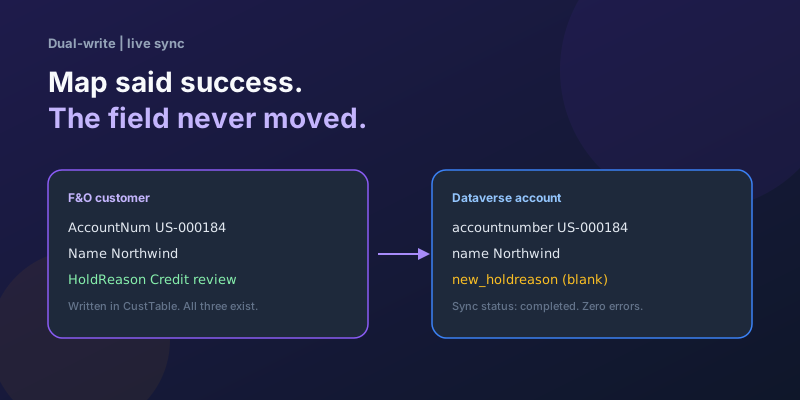
Dual-Write Dropped My Field and Reported Success
Why a dual-write map can complete with zero errors while a custom F&O field never lands in Dataverse — staging tables, unpublished maps, and change tracking after a schema change.
Elastic Tables in Dataverse: When Cosmos-Backed Storage Beats Standard Tables
What Dataverse elastic tables are, how TTL, partitioning, and JSON columns work, and how to decide between elastic and standard tables.

Business Process Flows in Dynamics 365: Branching, Stage-Gating, and the Limits Nobody Warns You About
A practical guide to designing branching Business Process Flows in model-driven Dynamics 365 apps, with stage-gating, automation hooks, the storage model, and hard limits.
The Dataverse Plugin Execution Pipeline: Stages, Transactions, and Images Explained
How the Dataverse event pipeline actually works: pre-validation, pre-operation, post-operation stages, the transaction boundary, entity images, depth, and registration guidance.
Newsletter
New posts, straight to your inbox
One email per post. No spam, no tracking pixels, unsubscribe anytime.
Comments
- No comments yet. Be the first.