Views, Charts, and Dashboards in Model-Driven Apps: Design That Stays Fast
The data layer in a model-driven app is mostly views and charts, and it's the part users live in every day. It's also where a well-meaning admin can quietly wreck performance by adding "just one more column" from a related table. Let's go through the building blocks and the design choices that keep grids responsive.
System views vs personal views
Two ownership models for views:
- System views are owned by the organization, configured by makers in the solution/table designer, and governed by security roles. They're the curated, shared experience.
- Personal views are created by end users (Advanced Find / the grid's "Create personal view"), owned by that user, and shareable to other users or teams. They're owned records, so they obey ownership and sharing like any other record.
The trade-off is governance vs flexibility. System views give you consistency and centralized control; personal views let power users self-serve without a maker round-trip. A healthy app has a tight set of system views plus the freedom for users to build personal ones.
The system view types
Several distinct system view types, each with a specific job:
- Public views — the named views in the view selector on a grid (e.g. "My Active Accounts," "All Accounts"). These are what most people mean by "a view."
- Quick Find view — defines what the grid search box searches. Its Find Columns are the columns matched against the search term, and its filter/columns drive results. Tuning Quick Find columns is one of the highest-leverage things you can do for usability.
- Lookup view — the default view shown when a user opens a lookup field's dropdown/search. One per table; controls which columns and records appear when picking a related record.
- Associated view — shown on the related-records grid (subgrid for a relationship) when you navigate from a parent record to its children.
- Advanced Find view — the default columns/filter used in Advanced Find for the table.
Knowing which view governs which surface saves a lot of "why doesn't my change show up" confusion: editing the Public view won't change what the lookup dropdown displays.
Filtering and sorting
View filters are FetchXML conditions under the hood. A few things worth internalizing:
- Filters can reference the primary table and linked entities, with
and/orgroups. Keep them as selective as possible — a filter that returns 50,000 rows before paging is a slow grid. - Dynamic filters like "equals current user" or "older than X hours" make a single view work for everyone. Prefer these over hardcoded values so you don't need a view per person.
- Sorting: a view can define multiple sort columns. The first sort column especially benefits from being indexed. Sorting on an unindexed or computed column on a large table is a common cause of sluggishness.
Building charts and how they aggregate
Charts in model-driven apps sit on top of a view's data and aggregate it. The mechanics:
- A chart has a category (the grouping axis — e.g. by status, by owner, by month) and one or more series (the measure — a count or a sum/avg/min/max of a numeric column).
- Aggregation happens server-side over the underlying view's filtered result set, not just the page you're looking at. So a chart on "My Active Cases" grouped by priority sums across all matching cases, then renders.
- You can drill down by clicking a segment, which applies that segment as an additional filter and re-aggregates — clicking the "High" priority bar filters the grid and lets you pivot to another grouping.
Design tip: a chart is only as good as the view it rides on. If a chart looks wrong, check the view filter first — the chart faithfully aggregates whatever the view returns, including rows you forgot the filter was excluding.
Interactive vs model-driven dashboards
Two families of dashboards, and they're genuinely different:
- Model-driven (classic) dashboards are flexible layouts of components: lists (views), charts, iframes, web resources. You arrange tiles freely. Great for mixed content and for embedding custom web resources.
- Interactive (Customer Service / interactive experience) dashboards are purpose-built for high-volume queue work. They feature visual filters (charts you click to filter the whole dashboard), global filters, and stream-based layouts (single-stream and multi-stream) designed so an agent can triage a workload at a glance. Filtering one tile re-scopes the entire board.
Choose interactive dashboards for operational, queue-driven roles (case agents, dispatchers) where the whole point is slice-and-triage. Choose classic dashboards for management overviews and anything needing embedded custom components.
Performance: where wide views go to die
This is the section to tattoo on the wall. Grid and chart performance is dominated by a few factors:
- Column count and related-entity columns. Every column from a related table adds a join to the query. A view with eight columns reaching across three relationships generates a multi-join query that runs on every page load and every sort. Keep grids lean; put the deep detail on the form, not the list.
- Filtering selectivity. Views that return huge result sets page slowly and aggregate slowly. Add dynamic filters so the default view shows a working set ("My Active…"), not the entire table.
- Sorting on non-indexed columns on large tables forces expensive ordering. Sort on indexed columns where possible.
- Aggregation cost. A count chart is cheap; a sum/avg across a large unfiltered set is not. Pair heavy charts with selective views.
- Quick Find columns — too many find columns means each search scans more. Index the columns you search on; Dataverse can apply Quick Find indexes to help.
A reliable pattern: ship a narrow default public view (the columns users actually scan), and let people add columns to a personal view when they need depth. That keeps the shared default fast while preserving flexibility.
Default public view  ->  5-6 columns, dynamic filter ("My Active"), indexed sort
Detail               ->  on the form / a focused view, not the everyday grid
Heavy analytics      ->  Power BI or a dedicated view+chart, not the operational grid
Security on shared views and charts
Visibility and editability are governed differently for system vs personal artifacts:
- System views and system charts are controlled by security roles via the privileges on the relevant entities (and the System View / System Chart privileges). Makers with customization privileges create and edit them; everyone else consumes them based on their role.
- Personal views and personal charts are owned records (saved query / user chart entities). They follow standard ownership and sharing: the owner sees them by default, and can share read or read-write with specific users or teams. Access levels on the relevant privileges (User/BU/Org) determine how far a user's reach extends — e.g. whether they can see personal views owned by others in their business unit.
Practical implication: when a user "loses" a view they swear they had, check whether it was a personal view that was unshared or whose owner left, versus a system view gated behind a role they no longer hold. The two have completely different fixes — re-share/reassign the owned record, or adjust the security role.
Get the view discipline right — narrow defaults, dynamic filters, indexed sorts, related columns only when they earn their keep — and the charts and dashboards built on top stay fast for free, because they all inherit the same underlying queries.
Keep reading
Dataverse Cascade Delete: Parental, Restrict, and the Children You Lose
What Parental, Referential Restrict, and Remove Link actually do on delete, assign, and merge, and which preset to pick before a parent row takes its children with it.

Sales Agent Creates CRM Records From Copilot Chat, and Sales Development Agent Quotes on Its Own: What Went GA on September 30
Two Dynamics 365 Sales agent capabilities reached general availability on September 30, 2026: inline record creation in Microsoft 365 Copilot Chat, and autonomous quote generation in Sales Development Agent. Setup, security, and the escalation path.
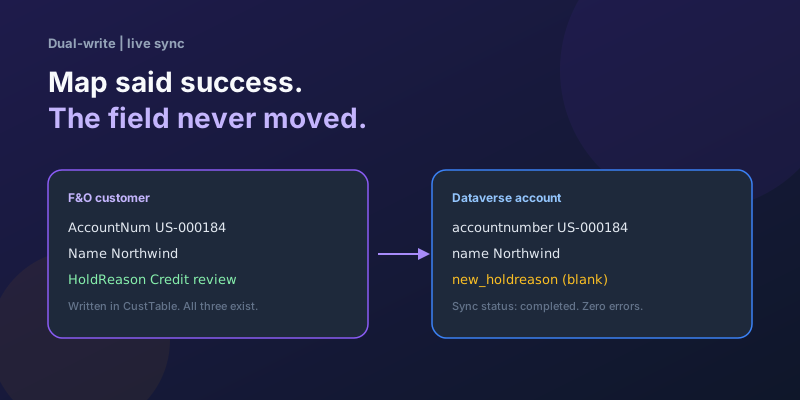
Dual-Write Dropped My Field and Reported Success
Why a dual-write map can complete with zero errors while a custom F&O field never lands in Dataverse — staging tables, unpublished maps, and change tracking after a schema change.
Elastic Tables in Dataverse: When Cosmos-Backed Storage Beats Standard Tables
What Dataverse elastic tables are, how TTL, partitioning, and JSON columns work, and how to decide between elastic and standard tables.

Business Process Flows in Dynamics 365: Branching, Stage-Gating, and the Limits Nobody Warns You About
A practical guide to designing branching Business Process Flows in model-driven Dynamics 365 apps, with stage-gating, automation hooks, the storage model, and hard limits.

The Dataverse Plugin Execution Pipeline: Stages, Transactions, and Images Explained
How the Dataverse event pipeline actually works: pre-validation, pre-operation, post-operation stages, the transaction boundary, entity images, depth, and registration guidance.
Newsletter
New posts, straight to your inbox
One email per post. No spam, no tracking pixels, unsubscribe anytime.
Comments
- No comments yet. Be the first.