Customizing the Model-Driven Command Bar with Power Fx and the Modern Command Designer

For years, customizing the model-driven command bar meant editing ribbon XML by hand or living inside the Ribbon Workbench. The modern command designer changed that: you can now add buttons, write visibility logic, and define click actions in Power Fx, directly in the maker portal, with a live preview. It does not replace everything the legacy ribbon could do, but for the common 80% it is dramatically faster. Here is how it actually works and where the edges still are.
How it differs from the legacy ribbon
The old model was declarative ribbon XML: CommandDefinition, EnableRules, DisplayRules, and RibbonDiffXml layered into your solution. Display and enable rules were a fixed catalog of condition types, and anything dynamic meant a JavaScript custom rule. Ribbon Workbench was the community tool that made this bearable because the native experience was unforgiving.
The modern command designer sits on top of the same underlying command bar but gives you:
- A visual canvas showing the actual buttons for a table in a chosen location.
- Power Fx as a first-class language for both the button's action (OnSelect) and its visibility.
- Live preview against real data without publishing.
Both models coexist. Commands you create in the modern designer are stored as command definitions, and legacy ribbon customizations still apply. You can mix them, which matters because some scenarios still require the classic approach.
Command locations
When you open "Edit command bar" for a table, you choose which surface to customize, because the same table has several independent command bars:
- Main grid — the command bar on the full table view (the list page).
- Main form — the buttons across the top of a record's form.
- Subgrid view — a related-records subgrid embedded on a parent form.
- Associated view — the grid reached from a record's Related tab.
A button you add to the main form does not appear on the grid; these are separate. Plan which location a command belongs to before you start, because moving it later means recreating it.
Adding a button and writing the action
Add a command button, give it a label and icon, and set its Action to a Power Fx formula. The formula runs when the user clicks. Power Fx in commands can call Dataverse functions, navigate, patch records, and launch dialogs.
A simple example that updates the current record and notifies the user:
// OnSelect of a "Mark as Reviewed" button on the main form
Patch(
    Accounts,
    Self.Selected.Item,
    { 'Review Status': 'Review Status'.Reviewed }
);
Notify("Account marked as reviewed.", NotificationType.Success)
To open a different record or a custom page:
Navigate('Account Review Page', { recordId: Self.Selected.Item.Account })
The functions available are the Dataverse-oriented subset of Power Fx — Patch, Notify, Navigate, Refresh, Confirm, collection functions, and so on. It is not the full canvas-app runtime, but it covers most command logic.
Passing the selected record
This is the part people get wrong first. The command designer exposes the current selection through Self.Selected:
Self.Selected.Item— on a form, the current record; on a grid, the (single) selected row as a record you can pass toPatchor read fields from.Self.Selected.Items— the table of selected rows on a grid or subgrid. Use this for bulk commands.Self.Selected.State— selection state, useful for distinguishing zero, one, or many selections.
A bulk command that operates on every checked row in a grid:
// OnSelect: deactivate all selected accounts
ForAll(
    Self.Selected.Items,
    Patch(Accounts, ThisRecord, { Status: Status.Inactive })
);
Notify("Deactivated " & CountRows(Self.Selected.Items) & " account(s).")
On a subgrid, Self.Selected.Items returns rows selected in that subgrid specifically, and you can reach the parent record through the form context if you need it.
Visibility rules in Power Fx
Set a button's Visibility to "Show on condition from formula" and supply a Power Fx expression that returns a boolean. The button shows only when it evaluates true. This replaces the old enable/display rule catalog with arbitrary logic.
Show a button only when exactly one row is selected and it is active:
// Visibility formula
CountRows(Self.Selected.Items) = 1
&& First(Self.Selected.Items).Status = Status.Active
Show a form button only when a field has a particular value:
// Visibility formula on a form command
Self.Selected.Item.'Credit Hold' = true
Two things to keep in mind:
- Visibility formulas are evaluated client-side and reactively as selection changes, so keep them cheap. Avoid heavy data lookups in a visibility rule; they run often.
- Referencing a column in a formula adds it to what the command needs loaded. If a field is not on the form/view, make sure the command can still resolve it.
When you still need JavaScript
Power Fx commands cover a lot, but several scenarios still push you to a JavaScript command library (a web resource function wired as the command action via the classic mechanism or the "Run JavaScript" action):
- Complex multi-step UI — chained dialogs, custom HTML web resources, or anything needing
Xrm.Navigate/Xrm.UtilityAPIs not surfaced in Power Fx. - Calling the Web API for operations Power Fx does not expose — custom actions/bound functions,
ExecuteMultiple-style batches, or messages without a Power Fx equivalent. - Reusing existing JS logic you already maintain across forms and commands.
- Fine-grained enable rules tied to form state that the form's client API exposes (dirty state, specific control values) more naturally than the command's selection context.
- Solution-managed scenarios where a customer expects ribbon XML they can layer over.
You can mix freely: a Power Fx visibility rule guarding a button whose action calls a JavaScript function is a perfectly normal pattern.
Gotchas
- Publish and solution behavior. Modern commands live in your solution as components. Add them to the right solution and export properly; commands authored against the default solution can be a pain to move.
- Preview vs runtime data. The live preview is great, but visibility formulas that depend on selection only behave correctly once you actually select rows in preview. Test the zero-selection state explicitly.
Self.Selected.ItemvsItems. UsingItemon a multi-select grid command gives you one record, not the set. For bulk, always useItems.- Hiding out-of-box commands. You can set visibility to off (or
false) on standard buttons to hide them, but be deliberate — hiding Save or Delete has obvious downstream effects, and overrides interact with security-driven visibility. - Performance of formulas. Because visibility re-evaluates on interaction, a formula doing a
LookUpagainst another table on every selection change will feel sluggish on large grids.
My workflow now: do everything I can in the modern designer with Power Fx, drop to a JavaScript library only when I hit one of the walls above, and keep visibility formulas trivial so the command bar stays snappy. For most "add a button that does X to the selected record" requests, you never have to touch ribbon XML again.
Keep reading

Dataverse Cascade Delete: Parental, Restrict, and the Children You Lose
What Parental, Referential Restrict, and Remove Link actually do on delete, assign, and merge, and which preset to pick before a parent row takes its children with it.

Sales Agent Creates CRM Records From Copilot Chat, and Sales Development Agent Quotes on Its Own: What Went GA on September 30
Two Dynamics 365 Sales agent capabilities reached general availability on September 30, 2026: inline record creation in Microsoft 365 Copilot Chat, and autonomous quote generation in Sales Development Agent. Setup, security, and the escalation path.
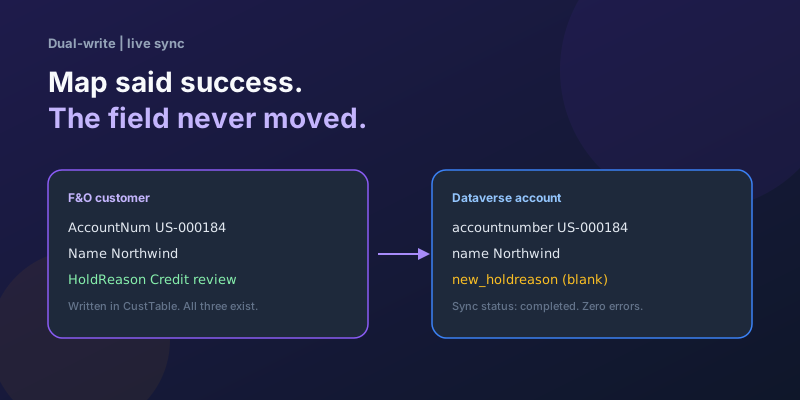
Dual-Write Dropped My Field and Reported Success
Why a dual-write map can complete with zero errors while a custom F&O field never lands in Dataverse — staging tables, unpublished maps, and change tracking after a schema change.

Elastic Tables in Dataverse: When Cosmos-Backed Storage Beats Standard Tables
What Dataverse elastic tables are, how TTL, partitioning, and JSON columns work, and how to decide between elastic and standard tables.

Business Process Flows in Dynamics 365: Branching, Stage-Gating, and the Limits Nobody Warns You About
A practical guide to designing branching Business Process Flows in model-driven Dynamics 365 apps, with stage-gating, automation hooks, the storage model, and hard limits.

The Dataverse Plugin Execution Pipeline: Stages, Transactions, and Images Explained
How the Dataverse event pipeline actually works: pre-validation, pre-operation, post-operation stages, the transaction boundary, entity images, depth, and registration guidance.
Newsletter
New posts, straight to your inbox
One email per post. No spam, no tracking pixels, unsubscribe anytime.
Comments
- No comments yet. Be the first.