Building a Power Pages Portal Backed by Dataverse: Forms, Lists, and Permissions
Power Pages is the supported way to put an external-facing website directly on top of your Dataverse data. The design studio makes the front end approachable, but the part that earns or loses you a security incident is the data-access layer. Here's how the pieces fit and where the sharp edges are.
Pages and the design studio
A Power Pages site is a tree of web pages, each backed by a page template and rendered through the site's theme. In the design studio you work visually:
- Pages workspace — add pages, arrange them in the navigation, drop in sections and components (text, images, forms, lists, buttons).
- Styling workspace — theme colors, fonts, and CSS.
- Data workspace — see and shape the Dataverse tables your site exposes.
- Set up workspace — domains, authentication providers, and site settings.
Under the hood, everything you arrange is stored as Dataverse records (web pages, content snippets, web templates). That matters because you can also edit those records directly for things the visual designer doesn't expose, and you manage the whole site through solutions for ALM.
Basic forms vs advanced forms
This is the first real decision. Both render a Dataverse form on a page, but they solve different problems.
- A basic form (formerly "entity form") binds one page to one Dataverse table and one form definition. It does create, read, or edit of a single record. Reach for it when you need a straightforward "submit a request" or "edit my profile" page.
- An advanced form (formerly "web form") is a multistep wizard. Each step can be a different form, on the same or a different table, with conditional navigation between steps. Use it when intake spans several screens — a multi-page application where step 2 depends on step 1.
Rule of thumb: one record, one screen, use a basic form. Multiple steps, branching, or moving across related records, use an advanced form. Advanced forms cost more to maintain, so don't reach for them prematurely.
A common gotcha: the form you pick is a Dataverse main form. If a field isn't on that form, it won't render on the portal, and field-level requirements/business rules from the model-driven form carry over. Design the form in Dataverse first, then bind it.
Lists (views) and filtering
A list renders a Dataverse view as a table of records on a page — your read grid. You point a list component at a table and one or more views, and the columns/sort come from the view definition. Useful features:
- Search and column sorting toggles on the list configuration.
- Filtering — you can let users filter by attributes, by related metadata, or restrict the list to records related to the logged-in user.
- Actions — wire list rows to a details page (usually a basic form in read/edit mode) so clicking a row opens the record.
The critical point: a list shows records the visitor is permitted to see, governed by table permissions (below), not just by the view's filter. The view's filter is presentation; permissions are security. Never rely on a view filter to hide sensitive rows — a determined user can hit the data API directly.
Table permissions and web roles
This is the heart of portal security, and getting it right is non-negotiable. Two concepts work together:
- A web role is a named role you assign to portal users (contacts). Special roles exist for Authenticated Users and Anonymous Users.
- A table permission grants privileges (Create, Read, Write, Delete, Append, Append To) on a Dataverse table, scoped to limit which records, and is then associated with one or more web roles.
The scope is what makes this powerful and what people get wrong:
- Global — applies to all records of the table. Use cautiously.
- Contact — only records related to the signed-in contact (via a specified relationship/lookup).
- Account — records related to the contact's parent account (lets a company admin see their org's records).
- Self — the contact's own contact record.
Here's a table-permission definition expressed as the records you'd configure:
Name:        My Cases - Read/Write
Table:       incident (Case)
Access type: Contact
Relationship: contact_customer_cases   (Case.Customer -> this Contact)
Privileges:  Read, Write, Create, Append, AppendTo
Web roles:   Authenticated Users
That grants a signed-in customer access to only their own cases. Pair every list and form with a matching table permission, or visitors get "access denied" (too tight) or, worse, see everyone's data (too loose because you granted Global).
One more rule that trips people: privileges like Append/AppendTo are needed to set/follow lookups. If a form saves a record that references a parent (e.g., a case note pointing at a case), you need AppendTo on the parent and Append on the child. Missing these produces confusing save failures.
Anonymous vs authenticated access
The distinction is concrete:
- Anonymous visitors are not signed in. They get whatever the Anonymous Users web role's table permissions allow. Keep this minimal — usually read access to public content tables only.
- Authenticated visitors have signed in through a configured identity provider (Azure AD, Microsoft Entra External ID, local accounts, social). Each is tied to a contact record in Dataverse, which is how Contact/Account-scoped permissions resolve to their data.
The mechanism: sign-in maps the external identity to a Dataverse contact, and from there the contact's web roles and the contact-scoped permissions determine record visibility. If you want a page locked to signed-in users, set the page's permission to require authentication and grant table permissions only to the Authenticated Users role — don't grant the same to Anonymous.
Liquid basics for dynamic content
Liquid is the templating language Power Pages uses to inject dynamic data into page templates and web templates. It runs server-side and respects the visitor's permissions, which makes it safe for rendering data-driven content.
A small example that greets the user and lists their open cases:
{% if user %}
  <p>Welcome back, {{ user.fullname }}.</p>

  {% fetchxml mycases %}
    <fetch top="5">
      <entity name="incident">
        <attribute name="title" />
        <attribute name="ticketnumber" />
        <filter>
          <condition attribute="statecode" operator="eq" value="0" />
        </filter>
      </entity>
    </fetch>
  {% endfetchxml %}

  <ul>
    {% for c in mycases.results.entities %}
      <li>{{ c.ticketnumber }} - {{ c.title }}</li>
    {% endfor %}
  </ul>
{% else %}
  <p><a href="/SignIn">Sign in</a> to view your cases.</p>
{% endif %}
Two things to internalize about Liquid here:
- The
{% fetchxml %}query is still subject to table permissions. A visitor without Read onincidentgets nothing back — Liquid does not bypass security. That's the right behavior; lean on it. useris the current authenticated contact (null when anonymous), which is why the{% if user %}guard cleanly separates the two access modes.
Putting it together
Build the Dataverse form/view first, drop a basic form or list on a page, then immediately define the matching table permission scoped to Contact/Account and tie it to the right web role. Verify by signing in as a test contact and confirming you see only that contact's records — then check anonymous access shows nothing it shouldn't. Get that loop tight and the rest of the portal is just layout.
Keep reading
Dataverse Cascade Delete: Parental, Restrict, and the Children You Lose
What Parental, Referential Restrict, and Remove Link actually do on delete, assign, and merge, and which preset to pick before a parent row takes its children with it.

Sales Agent Creates CRM Records From Copilot Chat, and Sales Development Agent Quotes on Its Own: What Went GA on September 30
Two Dynamics 365 Sales agent capabilities reached general availability on September 30, 2026: inline record creation in Microsoft 365 Copilot Chat, and autonomous quote generation in Sales Development Agent. Setup, security, and the escalation path.
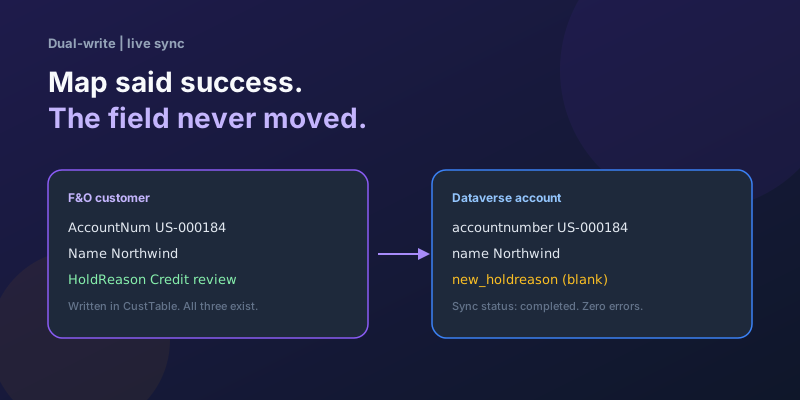
Dual-Write Dropped My Field and Reported Success
Why a dual-write map can complete with zero errors while a custom F&O field never lands in Dataverse — staging tables, unpublished maps, and change tracking after a schema change.
Elastic Tables in Dataverse: When Cosmos-Backed Storage Beats Standard Tables
What Dataverse elastic tables are, how TTL, partitioning, and JSON columns work, and how to decide between elastic and standard tables.
Business Process Flows in Dynamics 365: Branching, Stage-Gating, and the Limits Nobody Warns You About
A practical guide to designing branching Business Process Flows in model-driven Dynamics 365 apps, with stage-gating, automation hooks, the storage model, and hard limits.
The Dataverse Plugin Execution Pipeline: Stages, Transactions, and Images Explained
How the Dataverse event pipeline actually works: pre-validation, pre-operation, post-operation stages, the transaction boundary, entity images, depth, and registration guidance.
Newsletter
New posts, straight to your inbox
One email per post. No spam, no tracking pixels, unsubscribe anytime.
Comments
- No comments yet. Be the first.